
User's Manual


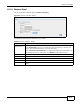


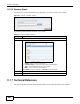
Table Of Contents
- Media Server
- User’s Guide
- Getting to Know Your NSA
- NAS Starter Utility
- zCloud
- Web Configurator Basics
- Tutorials
- 5.1 Overview
- 5.2 Windows 7 Network
- 5.3 Windows 7 Network Map
- 5.4 Playing Media Files in Windows 7
- 5.5 Windows 7 Devices and Printers
- 5.6 Creating a Volume in a 2-Bay NSA
- 5.7 Creating a Volume in a 1-Bay NSA
- 5.8 Deleting a Volume
- 5.9 File Sharing Tutorials
- 5.10 Download Service Tutorial
- 5.11 Broadcatching Tutorial
- 5.12 Printer Server Tutorial
- 5.13 Copy and Flickr Auto Upload Tutorial
- 5.14 FTP Uploadr Tutorial
- 5.15 Web Configurator’s Security Sessions
- 5.16 Using FTPES to Connect to the NSA
- 5.17 Using a Mac to Access the NSA
- 5.18 How to Use the BackupPlanner
- Technical Reference
- Status Screen
- System Setting
- Storage
- Network
- Applications
- 10.1 Overview
- 10.2 What You Can Do
- 10.3 What You Need to Know
- 10.4 FTP Server
- 10.5 The Media Server Screens
- 10.6 The iTunes Server Screen
- 10.7 The Download Service Screen
- 10.8 The Web Publishing Screen
- 10.9 The Broadcatching Screen
- 10.10 The Print Server Screen
- 10.11 The Copy/Sync Button Screen
- 10.12 Technical Reference
- 10.12.1 Sharing Media Files on Your Network
- 10.12.2 Download Service
- 10.12.3 Link Capture Browser Plugin
- 10.12.4 Download Service Notification
- 10.12.5 P2P Download Security
- 10.12.6 Web Publishing Example
- 10.12.7 Web Publishing
- 10.12.8 Channel Guides for Broadcatching
- 10.12.9 Printer Sharing
- 10.12.10 Copying Files
- 10.12.11 Synchronizing Files
- Packages
- 11.1 Overview
- 11.2 What You Can Do
- 11.3 SMART Screen
- 11.4 DyDNS Screen
- 11.5 NFS Screen
- 11.6 Syslog Server Screen
- 11.7 TFTP Server Screen
- 11.8 eMule Screens
- 11.9 pyLoad Screen
- 11.10 ownCloud Setup
- 11.11 Polkast Setup
- 11.12 GoogleDrive
- 11.13 Memopal
- 11.14 Protect Screens
- 11.15 Backup Screens
- 11.16 Restore Screen
- 11.17 Technical Reference
- Auto Upload
- Dropbox
- Using Time Machine with the NSA
- Users
- Groups
- Shares
- Maintenance Screens
- Protecting Your Data
- Troubleshooting
- 20.1 Troubleshooting Overview
- 20.2 Power, Hardware, Connections, and LEDs
- 20.3 NAS Starter Utility
- 20.4 NSA Login and Access
- 20.5 I Cannot Access The NSA
- 20.6 Users Cannot Access the NSA
- 20.7 External USB Drives
- 20.8 Firmware
- 20.9 File Transfer
- 20.10 Networking
- 20.11 Some Features’ Screens Do Not Display
- 20.12 Media Server Functions
- 20.13 Download Service and Broadcatching Functions
- 20.14 Web Publishing
- 20.15 Auto Upload
- 20.16 Package Management
- 20.17 Backups
- 20.18 Google Drive
- Customer Support
- Product Specifications
- Legal Information
- Index

Chapter 11 Packages
Media Server User’s Guide
275
The following table describes the labels in this screen.
11.15.10 Restore Archive: Step 2
Use this screen to select the folder where the archive you want to restore is located.
Figure 146 Protect > Backup > Restore Archive: Step 2
The following table describes the labels in this screen.
Table 86 Protect > Backup > Restore Archive: Step 1
LABEL DESCRIPTION
Step 1. Select
Restore Source
Select a previous archive backup that you want to restore to the NSA.
Job Information
Job Name This is the name to identify the backup job.
Job Description This is a short description (up to 100 keyboard characters) for the backup job.
Backup Type This is the type of backup implemented for the backup job.
Scheduler
Information
This field displays the backup’s frequency.
Restored Time Select a previous backup in the list that you want to restore to your NSA.
Next Click this to go to the next screen.
Table 87 Protect > Backup > Restore Archive: Step 2
LABEL DESCRIPTION
Step 2. Please select which file(s)/folder(s) to restore.
Folder Chooser Select the folder where the backup you want to restore is located.
Selected Folder This shows the path of the folder you selected.
Previous Click this to go back to the previous screen.
Next Click this to go to the next screen.