Prestige 334 Broadband Router with Firewall Quick Start Guide 11/2004 Version 3.
P334 Multilingual Guide Contents ENGLISH ................................................................................................................ 2 中文....................................................................................................................... 11 DEUTSCH ............................................................................................................ 21 ESPANOL.......................................................................................................
P334 ENGLISH 1 Introducing the Prestige The Prestige is a broadband sharing gateway with a built-in four-port 10/100 Mbps switch that makes it easy for people to set up a small home/office network and share Internet access via a broadband (cable/DSL) modem. Key features of the Prestige include a firewall, VPN, content filtering, NAT and UPnP. See your User’s Guide for more details on all Prestige features.
P334 ENGLISH 2 Hardware Installation 2.1 Rear Panel LABEL DESCRIPTION LAN 10/100M Use an Ethernet cable to connect at least one computer for initial Prestige configuration. These ports are auto-negotiating (can connect at 10 or 100Mbps) and auto-sensing (automatically adjust to the type of Ethernet cable you use (straight-through or crossover)). WAN 10/100M Connect your cable/DSL modem to this port with the cable that came with your modem.
P334 ENGLISH LED STATUS Green LAN 1- 4 Green Amber WAN Green Amber COLOR DESCRIPTION On The Prestige is receiving power. Blinking The Prestige is performing testing. Off The LAN is not connected. On The Prestige has a successful 10Mb Ethernet connection. Blinking The Prestige is sending/receiving data On The Prestige has a successful 100Mb Ethernet connection. Blinking The Prestige is sending/receiving data Off The WAN connection is not ready, or has failed.
P334 ENGLISH 5. The Internet Protocol TCP/IP Properties screen opens (the General tab in Windows XP). - To have your computer assigned a dynamic IP address, click Obtain an IP address automatically. -To configure a static IP address, click Use the following IP Address and fill in the IP address (choose one from192.168.1.2 to 192.168.1.254), Subnet mask (255.255.255.0), and Default gateway (192.168.1.1) fields. 6. Click Advanced.
P334 ENGLISH 4 Configuring Your Prestige Choose one of these methods to access and configure the Prestige. This Quick Start Guide shows you how to use the web configurator wizard only. See your User’s Guide for background information on all Prestige features and SMT configuration. Click the web configurator online help for screen-specific web help. Web Configurator SMT (System Management Terminal). Access the SMT via LAN or WAN using Telnet. 4.1 Accessing Your Prestige Via Web Configurator Step 1.
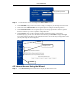
P334 ENGLISH Change default password. Step 4. You should now see the web configurator MAIN MENU screen. Click WIZARD to begin a series of screens to help you configure your Prestige for the first time. Click a link under ADVANCED in the navigation panel to configure that Prestige feature. Click MAINTENANCE in the navigation panel to see Prestige performance statistics, upload firmware and back up, restore or upload a configuration file. Click LOGOUT when you have finished a Prestige management session.
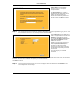
P334 ENGLISH System Name is for identification purposes. Enter your computer's "Computer Name". The Domain Name entry is what is propagated to the DHCP clients on the LAN. If you leave this blank, the domain name obtained by DHCP from the ISP is used. Click Next to continue. Step 2. The second wizard screen has three variations depending on what encapsulation type you use. Use the information in Internet Account Information to fill in fields.
P334 ENGLISH WAN IP Address Assignment Select Get automatically from ISP if your ISP did not assign you a fixed IP address. Select Use fixed IP address if the ISP assigned a fixed IP address and then enter your IP address and subnet mask in the next two fields. Enter the gateway IP address in this field (if provided) when you select Use Fixed IP Address. DNS Server Address Assignment Select From ISP if your ISP dynamically assigns DNS server information (and the Prestige’s WAN IP address).
P334 ENGLISH 5 Troubleshooting PROBLEM CORRECTIVE ACTION None of the LEDs turn on when you turn on the Prestige. Make sure that you have the correct power adapter connected to the Prestige and plugged in to an appropriate power source. Check all cable connections. Cannot access the Prestige from the LAN. Check the cable connection between the Prestige and your computer or hub. Refer to the Rear Panel section for details. If the LEDs still do not turn on, you may have a hardware problem.
P334 中文 1 P334 介紹 P334 是一部寬頻分享閘道器,內建 4 埠自動調整 10/100 Mbps 交換器功能,讓用戶很容易設置小型 的家庭/辦公室網路,經由寬頻(cable/DSL)數據機,分享網際網路上的資源。P334 的主要特點包括防 火牆(firewall),內容過濾器(content filtering),網路位址轉譯(Network Address Translation ,NAT)及通 用隨插即用(Universal Plug And Play,UpnP)。 您應該已經有一個設定好的網路帳號並已取得大部份底下的資訊。 網路帳號資訊 用來上網的電腦之 WAN IP 位址 (如果有的話):: __________________ DNS 伺服器 IP 位址(如果有的話):第一 ______________,第二 ______________,第三 ______________ Encapsulation: Ethernet (請選擇底下的一種): 服務類型:_______________________ 登入伺服器 IP 位址: ______________ PPTP 使用者名
P334 中文 2 硬體安裝 2.1 背面板 標籤 說明 LAN 10/100M (區域網路 10/100M) WAN 10/100M 可使用 Ethernet 網路線連接至少一台電腦進行 P334 的初始配置。這些埠可自動判斷 (可用 10 或 100Mbps 的速度連線) 和自動偵測 (自動調整為您使用的 Ethernet 網路線類型 (直線或跳線接頭))。 以您的 Cable/DSL 數據機隨付的網路線連接至本埠。 (廣域網路 10/100M) POWER 9 VAC 將包裝內隨附的電源變壓器(請只使用本變壓器)的一端連接至本電源插孔。 (電源) 完成上述連接之後,請將電源線插上插座並查看前面板的 LED 燈。 RESET 如果您忘記了 P334 的密碼,您將需要使用此按鍵。按下它可將 P334 返回至原廠設定值 (密碼是 1234,LAN IP 位址是 192.168.1.1。 詳細資訊請參閱您的使用手冊).。 (重新設定) 2.
P334 中文 LED 燈 顏色 PWR (電源) P334 未受電。 黃色 亮 P334 接收的電力太低。 綠色 亮 P334 已受電。 閃爍 P334 正在執行測試。 滅 未連接 LAN。 亮 P334 已成功連接 10Mb 的 Ethernet。 閃爍 P334 正在傳送/接收資料。 亮 P334 已成功連接 100Mb 的 Ethernet。 閃爍 P334 正在傳送/接收資料。 滅 WAN 連線未備妥或失敗。 亮 P334 已成功連接 10Mb 的 WAN。 閃爍 P334 正在傳送/接收資料。 亮 P334 已成功連接 100Mb 的 WAN。 閃爍 P334 正在傳送/接收資料。 綠色 黃色 WAN (廣域網路) 說明 滅 LAN 1- 4 (區域網路 1-4) 狀態 綠色 黃色 3 設定您的電腦 如果您的電腦已設定為可接受動態 IP 位址,請跳過這一節。此處設定是大部份新電腦的預 設值。 P334 出廠時已設定成將指派(DHCP)一個 IP 位址給您的電腦。本節將設定您的電腦可接收 IP 位址或 指派一個子網路遮
P334 中文 2. 在 Windows XP 中,請按下 Network Connections(網路連線)。 在 Windows 2000/NT 中,請按下 Network and Dial-up Connections(網路和撥號連線)。 3. 按右鍵點選 Local Area Connection(區域連線),再選擇 Properties(內容)。 4. 選擇 Internet Protocol (TCP/IP) (Win XP 中是在 General(一般)標籤頁中) ,再選擇 Properties(內容)。 5.
P334 中文 1. 依序按下電腦螢幕上的 Start(開始)、 (All) Programs(所有程式或程式集)、 Accessories(附屬應用程式) 和 Command Prompt.(命令提示字元)。 2. Command Prompt.(命令提示字元)視窗中,輸入"ipconfig"後按下鍵盤上的 ENTER 鍵。你電腦的 IP 位址必定有 255.255.255.0 的子網路遮罩為且範圍正確 (192.168.1.2 到 192.168.1.254 之間),才能和 P334 進行資料傳輸。 其他 Windows 和 Macintosh 電腦作業系統的詳細 IP 位址配置方式請參閱您的使用手冊。 4 配置 P334 請選擇下列方法中的一個來存取和配置 P334。本快速啟動手冊只在告訴您如何使用網路 配置精靈。請參閱您的使用手冊以取得 P334 所有功能和 SMT 配置的背景資訊。按下網頁 配置程式的線上說明可取得特定畫面的網頁說明。 Web Configurator(網頁配置程式) SMT (系統管理終端機)。您可使用 Telnet 經由 LAN 或 WAN 存取 SMT。 4.
P334 中文 變更預設密碼。 步驟 4.
P334 中文 4.2 使用精靈存取網路 步驟 1. .按下主選單中的 Wizard Setup(設定精靈),顯示第一個精靈畫面。 System Name(系統名稱)是做辨識之 用 請輸入您電腦的「電腦名稱」 Domain Name(網域名稱)項目是傳送到 區域網路上的 DHCP 用戶端的資料 當 此欄位空白時會使用從 ISP 的 DHCP 所 取得的網域名稱 按下 Next(下一步)繼 續設定 步驟 2.
P334 中文 步驟 3.
P334 中文 WAN MAC Address(WAN MAC 位址) 您可選擇原廠預設值或複製您的 LAN 上的電腦之 MAC 位址到 WAN MAC 位址欄位中,讓使用者可以配置 WAN 埠的 MAC 位址。選擇 Factory Default(原廠預設值)將使用原廠指派的預設 MAC 位址。或者是選擇 Spoof this Computer's MAC address - IP Address (偽造目前使用的電腦之 MAC 位址-IP 位址),然後輸入您在 LAN 上複製 MAC 位址的電腦之 IP 位址。 按下 Next (下一步)繼續設定 步驟 4. 按 Next (下一步),儲存並完成設定精靈。 4.3 測試您的網路連線 開啟您的網頁瀏覽器,並連上 www.zyxel.com.
P334 中文 問題 無法存取網路。 更正動作 請檢查 P334 和 Cable/DSL 裝置之間的連線。 請查您的 Cable/DSL 裝置需要的是直線或跳線的網路線接頭。 請按下 WAN ,驗證您的設定值。 20
P334 DEUTSCH 1 Vorstellung des Prestige Das Prestige ist ein Breitband-Gateway zur gemeinsamen Nutzung mit integriertem Vier-Port 10/100 Mbps Switch, das die Einrichtung eines kleinen Heim-/Büro-Netzwerks und eines gemeinsamen Internetzugangs über Breitbandmodem (Kabel/DSL) einfach gestaltet. Zu den wichtigsten Produkteigenschaften des Prestige gehören eine Firewall, VPN, Inhaltsfilterung, NAT und UPnP.
P334 DEUTSCH 2 Hardware-Installation 2.1 Rückseite BENENNUNG BESCHREIBUNG LAN 10/100M Verwenden Sie ein Ethernet-Kabel, um zumindest einen Computer für die Erstkonfiguration des Prestige anzuschließen. Diese Anschlüsse verfügen über Auto-Negotiating (können die Verbindung über 10 oder 100 Mbps herstellen) und Auto-Sensing (automatische Anpassung an den von Ihnen verwendeten Ethernet-Kabeltyp (Straightthrough oder Crossover)).
P334 DEUTSCH LED NETZ [PWR] FARBE STATUS BESCHREIBUNG Aus Das Prestige wird nicht mit Strom versorgt. Gelb Ein Die Stromversorgung des Prestige ist zu gering. Grün Ein Das Prestige wird mit Strom versorgt. Blinkend Das Prestige führt den Systemtest durch. LAN 1- 4 Grün Gelb WAN Grün Gelb Aus LAN nicht angeschlossen. Ein Das Prestige hat eine erfolgreich hergestellte 10 Mb EthernetVerbindung. Blinkend Das Prestige sendet/empfängt Daten.
P334 DEUTSCH 3.1 Windows 2000/NT/XP 1. Klicken Sie in Windows XP auf Start, Systemsteuerung. Klicken Sie in Windows 2000/NT auf Start, Einstellungen, Systemsteuerung. 2. Klicken Sie in Windows XP auf Netzwerkverbindungen. Klicken Sie in Windows 2000/NT auf Netzwerk- und DFÜ-Verbindungen. 3. Klicken Sie mit der rechten Maustaste auf LAN-Verbindung und danach auf Eigenschaften. 4. Wählen Sie Internetprotokoll (TCP/IP) (unter der Registerkarte Allgemein in Win XP) und klicken Sie auf Eigenschaften. 5.
P334 DEUTSCH 9. Klicken Sie auf OK, um das Fenster Eigenschaften von LANVerbindung zu schließen. Überprüfen der IP-Adresse Ihres Computers 1. Klicken Sie auf dem Computer auf Start, (Alle) Programme, Zubehör und wählen Sie Eingabeaufforderung. 2. Geben Sie im Fenster Eingabeaufforderung "ipconfig" ein und drücken Sie EINGABE. Die IP-Adresse Ihres Computers muss im korrekten Bereich (192.168.1.2 bis 192.168.1.254) mit einer Subnetmaske von 255.255.255.
P334 DEUTSCH 4.1 Zugriff auf Ihr Prestige über Webkonfigurator Step 1. Starten Sie Ihren Web-Browser. Geben Sie als Website-Adresse “192.168.1.1” ein. Website-Adresse. Step 2. Das Standard-Kennwort (“1234”) ist bereits (in nicht lesbarer Form) im Kennwortfeld eingetragen. Klicken Sie auf Anmelden [Login], um zu einem Bildschirm zu gelangen, auf dem Sie aufgefordert werden, Ihr Kennwort zu ändern. Klicken Sie auf Zurücksetzen [Reset], um zum Standard-Kennwort im Kennwortfeld zurückzukehren.
P334 DEUTSCH Klicken Sie auf einen Link unterhalb des HAUPTMENÜS [MAIN MENU] in der Navigationsleiste, um die entsprechende Funktion des Prestige zu konfigurieren. Klicken Sie auf WARTUNG [NAINTENANCE] in der Navigationsleiste, um Prestige Leistungsstatistiken abzufragen, Firmware einzuspielen und eine Konfigurationsdatei zu sichern, wiederherzustellen oder einzuspielen. Klicken Sie auf ABMELDEN [LOGOUT], wenn Sie die Verwaltung Ihres Prestige abgeschlossen haben.
P334 DEUTSCH Der Systemname [System Name] dient der Identifizierung. Geben Sie den "Computernamen" Ihres Computers ein. Der Domänenname [Domain Name] wird den DHCP-Clients im LAN übermittelt. Falls Sie dieses Feld frei lassen, wird der über DHCP vom Internet-Dienstanbieter bezogene Domänenname verwendet. Klicken Sie auf Weiter [Next], um fortzufahren. Step 2. Für den zweiten Bildschirm des Assistenten gibt es je nach verwendeter Verkapselung drei Varianten.
P334 DEUTSCH Step 3. Dies ist der letzte Bildschirm des Assistenten, den Sie konfigurieren müssen. Füllen Sie die Felder aus und klicken Sie auf Fertigstellen [Finish], um die Einstellungen zu speichern und den Einrichtungsassistenten zu beenden. WAN IP-Adresszuweisung Wählen Sie Automatisch vom Internet-Dienstanbieter beziehen [Get automatically from ISP], falls Sie von Ihrem Internet-Dienstanbieter keine fixe IP-Adresse erhalten haben.
P334 DEUTSCH WAN MAC-Adresse Das Feld für die WAN MAC-Adresse ermöglicht es Benutzern, die MAC-Adresse des WAN-Anschlusses entweder durch Verwendung der Werkseinstellung oder durch Klonen der MAC-Adresse eines Computers Ihres LANs zu konfigurieren. Wählen Sie Werkseinstellung [Factory Default], um die voreingestellte Standard-MAC-Adresse zu verwenden.
P334 DEUTSCH PROBLEM BEHEBUNG Wenn der Internet-Dienstanbieter den Hostnamen überprüft (siehe Abschnitt Einrichtung mit Assistent [Wizard Setup] des Benutzerhandbuchs), geben Sie im Feld Systemname [System Name] auf dem ersten Bildschirm des ASSISTENTEN [WIZARD] den Namen Ihres Computers ein. Wenn der Internet-Dienstanbieter die Benutzerkennung überprüft, klicken Sie auf WAN und danach auf die Registerkarte Internet-Dienstanbieter [ISP].
P334 - ESPANOL 1 Introducción al dispositivo Prestige El dispositivo Prestige es una puerta de enlace para compartir recursos de banda ancha con un conmutador de 10/100 Mbps de cuatro puertos integrado que facilita la configuración de una pequeña red doméstica y de trabajo, así como el uso compartido del acceso a Internet a través de un módem de banda ancha (cable o DSL).
P334 - ESPANOL 2 Instalación del hardware 2.1 Panel posterior ETIQUETA DESCRIPCIÓN LAN 10/100M Utilice un cable Ethernet para conectar al menos un PC para configurar inicialmente el dispositivo Prestige. Estos puertos se negocian automáticamente (puede establecer conexión a 10 o 100 Mbps) y se detectan automáticamente (se ajustan automáticamente al tipo de cable Ethernet utilizado: paso o interconexión).
P334 - ESPANOL 2.2 Indicadores luminosos LED del panel frontal El LED PWR (ALIMENTACIÓN) parpadea mientras se realiza la comprobación del sistema y, a continuación permanece encendido si dicha comprobación se realiza correctamente. Los LED LAN y WAN se encienden si las redes están conectadas correctamente. LED PWR (ALIMENTACIÓN) ESTADO COLOR DESCRIPCIÓN Apagado El dispositivo ZyAIR no recibe corriente.
P334 - ESPANOL 3 Preparar su PC Omita esta sección si su PC ya está configurado para que acepte una dirección IP dinámica. Se trata de la situación predeterminada para los equipo nuevos. El dispositivo Prestige ya está configurado para asignar una dirección IP a su PC. Utilice esta sección si desea configurar su PC para que reciba una dirección IP o para asignarle una dirección IP dinámica comprendida entre 192.168.1.2 y 192.168.1.254 con una máscara de subred de 255.255.255.0.
P334 - ESPANOL 6. Haga clic en el botón Opciones avanzadas. Quite todas las puertas de enlace previamente instaladas en la ficha Configuración IP y haga clic en Aceptar para volver a la pantalla Propiedades de Protocolo Internet TCP/IP. 7. Haga clic en Obtener la dirección del servidor DNS automáticamente si no sabe las direcciones IP del servidor DNS.
P334 - ESPANOL 4.1 Obtener acceso al dispositivo Prestige a través de la utilidad de configuración Web Paso 1. Inicie el explorador Web. Especifique “192.168.1.1” como dirección del sitio Web. Direcciñón del sitio Web. Paso 2. La contraseña predeterminada (“1234”) ya figura en el campo correspondiente en un formato ilegible. Haga clic en Login (Iniciar sesión) para pasar a una pantalla que permite cambiar la contraseña.
P334 - ESPANOL Haga clic en uno de los vínculos que se encuentran bajo la opción MAIN MENU (MENÚ PRINCIPAL) en el panel de exploración para configurar la función Prestige en cuestión. Haga clic en la opción MAINTENANCE (MANTENIMIENTO) del panel de exploración para ver las estadísticas de rendimiento del dispositivo Prestige, descargar firmware y realizar copias de seguridad, restauraciones y cargas de un archivo de configuración.
P334 - ESPANOL El campo System Name (Nombre del sistema) se utiliza por motivos de identificación. Especifique el nombre de su PC. La entrada Domain Name (Nombre del dominio) se propaga a los clientes DHCP de la red LAN. Si deja este campo en blanco, se utilizará el nombre de dominio que DHCP obtiene de ISP. Haga clic en Next (Siguiente) para continuar. Paso 2. La segunda pantalla del asistente tiene tres variantes dependiendo del tipo de encapsulado utilizado.
P334 - ESPANOL WAN IP Address Assignment (Asignación de direcciones IP WAN). Seleccione Get automatically from ISP (Obtener automáticamente de ISP) si el proveedor de servicios Internet (ISP) no le asignó una dirección IP fija. Seleccione Use fixed IP address (Usar dirección IP fija) si el proveedor de servicios Internet (ISP) asignó una dirección IP fija y, a continuación, especifique su dirección IP. y la máscara de subred en los dos campos siguientes.
P334 - ESPANOL 4.3 Probar la conexión a Internet Inicie el explorador Web y visite la dirección www.zyxel.com. No necesita ningún programa de acceso telefónico a redes como pueda ser Acceso telefónico a redes. El acceso a Internet es sólo el principio. Consulte la Guía del usuario para obtener información detallada sobre la gama completa de funciones del dispositivo Prestige. 5 Solucionar problemas PROBLEMA Ninguno de los LED se enciende cuando activa el dispositivo Prestige.
P334 - ESPANOL PROBLEMA ACCIÓN CORRECTIVA Haga clic en WAN para comprobar la configuración.
P334 FRANÇAIS 1 Présentation du Prestige Le Prestige est une passerelle large bande, intégrant un switch quatre ports 10/100Mbps facilitant ainsi la constitution d'un réseau pour les SOHO et le partage d'un Accès Internet par l'intermédiaire d ‘un modem large bande (câble ou DSL). Les caractéristiques clés du Prestige sont un Firewall, le VPN, le Filtrage du contenu, le NAT et l'UPnP. Consultez votre Guide Utilisateur pour obtenir plus de détails sur toutes les caractéristiques du Prestige.
P334 FRANÇAIS 2 Installation Matérielle 2.1 Panneau Arrière INSCRIPTION DESCRIPTION LAN 10/100M Utilisez un câble Ethernet pour connecter au minimum un ordinateur pour la configuration initiale du Prestige. Ces ports sont en négociation automatique (ils peuvent se brancher sur 10 ou 100Mbps) et auto-crossover (ajustement automatique vers un câble droit ou croisé). WAN 10/100M Connectez votre Modem câble/DSL sur ce port en utilisant le câble livré avec votre modem.
P334 FRANÇAIS LED ETAT Vert LAN 1- 4 Vert Orange WAN Vert Orange COULEUR DESCRIPTION Allumée Le Prestige reçoit une alimentation. Clignotante Le Prestige est en train d'effectuer des tests. Eteinte Le réseau LAN n'est pas connecté. Allumée Le Prestige a réussi sa connexion Ethernet à 10Mb. Clignotante Le Prestige émet/reçoit des données. Allumée Le Prestige a réussi sa connexion Ethernet à 100Mb. Clignotante Le Prestige émet/reçoit des données.
P334 FRANÇAIS 2. Dans Windows XP, cliquez sur Network Connections[Connexions Réseau]. Dans Windows 2000/NT, cliquez sur Network and Dial-up Connections[Connexions réseau et Accès à distance]. 3. Cliquez avec le bouton droit sur Local Area Connection[Connexion au réseau local] puis cliquez sur Properties[Propriétés]. 4. Sélectionnez le Internet Protocol (TCP/IP)[Protocole Internet(TCP/IP)] (sur l’onglet General[Général] sous Win XP) puis cliquez sur Properties[Propriétés] 5.
P334 FRANÇAIS 8. Cliquez sur OK pour fermer la fenêtre Internet Protocol (TCP/IP) Properties[Propriétés de Protocole Internet(TCP/IP)] 9. Cliquez sur OK pour fermer la fenêtre Local Area Connection Properties[Propriétés de connexion au Réseau Local]. Vérifier l'Adresse IP de Votre Ordinateur 1. Sur l'ordinateur, cliquez sur Start[Démarrer], (Tous)Programs[(Tous)Programmes], Accessories[Accessoires] puis sur Command Prompt[Invite de commande]. 2.
P334 FRANÇAIS 4.1 Accéder à votre Prestige via Configurateur WEB Etape 1. Lancez votre navigateur Web. Saisissez “192.168.1.1” comme adresse de site Web. Adresse du site Web. Etape 2. Le mot de passe par défaut (“1234”) déjà dans le champ Password (en format non lisible). Cliquez sur Login pour aller à un écran vous demandant de modifier votre mot de passe. Cliquez sur Reset pour revenir au mot de passe par défaut dans le champ Password Mot de passe par défaut Etape 3.
P334 FRANÇAIS Cliquez sur LOGOUT une fois que vous aurez fini une session du Prestige. Le Prestige coupera automatiquement votre connexion s’il est laissé inactif pendant cinq minutes; pressez ENTER pour faire apparaître à nouveau l’écran Login puis connectez-vous à nouveau. Ce délai d’inactivité est l’une des nombreuses fonctions du Prestige que vous pouvez paramétrer en utilisant le configurateur web. ASSISTANT Panneau de Navigation panel DECONNEXION 4.2 Accès Internet en utilisant l’Assistant Etape 1.
P334 FRANÇAIS Le System Name est utilisé à des fins d’identification. Saisissez le "Computer Name" de votre ordinateur. La saisie du Domain Name correspond à ce qui est propagé aux clients DHCP sur le réseau LAN. Si vous laissez ce champ vide, le nom de domaine obtenu par DHCP depuis le FAI sera utilisé. Cliquez sur Next pour continuer. Etape 2. Le second écran de l’assistant possède trois variantes en fonction du type d’encapsulation que vous utilisez.
P334 FRANÇAIS WAN IP Address Assignment Sélectionnez Get automatically from ISP si votre FAI ne vous a pas assigné une adresse IP fixe. Sélectionnez Use fixed IP address si votre FAI vous a attribué une adresse IP fixe puis saisissez votre adresse IP. et le masque de sous-réseau dans les deux champs suivants. Saisissez l'adresse IP de la passerelle dans le champ (si fourni) lorsque vous sélectionnez Use Fixed IP Address[Utiliser Adresse IP Fixe].
P334 FRANÇAIS 4.3 Tester votre Connexion Internet Lancez votre navigateur Web et naviguez vers www.zyxel.com. Vous n'avez pas besoin de programme d'accès distant. Veuillez vous référer au Guide Utilisateur pour obtenir des informations détaillées sur les fonctionnalités du Prestige. 5 Dépannage PROBLEME Aucune des LEDs ne s'allume lorsque vous allumez le Prestige. Impossible d'atteindre le Prestige depuis le LAN.
P334 ITALIANO 1 Introduzione a Prestige Prestige è un gateway di condivisione a banda larga con un interruttore integrato 10/100 Mbps a quattro porte che permette di impostare una piccola rete domestica/d'ufficio e di condividere un accesso a Internet attraverso un modem a banda larga (cavo/DSL). Le caratteristiche più significative di Prestige sono quella di firewall, VPN, filtraggio di contenuto, NAP e UPnP.
P334 ITALIANO 2 Installazione dell’hardware 2.1 Pannello posteriore DEFINIZIONE DESCRIZIONE LAN 10/100M Utilizzare un cavo Ethernet per collegare almeno un computer per la configurazione iniziale di Prestige. Queste porte sono a negoziazione automatica (possono collegarsi a 10 o 100 Mbps) e rilevamento automatico [si regolano automaticamente sul tipo di cavo Ethernet in uso: passante diretto (straight-through) o scambio incrociato (crossover)].
P334 ITALIANO LED COLORE STATO DESCRIZIONE Ambra Acceso L’alimentazione di Power è troppo debole. Verde Acceso Prestige riceve alimentazione. Lampeggiante Prestige sta eseguendo il controllo. Spento La LAN non è collegata. Acceso Prestige ha una connessione Ethernet a 10 Mb. Lampeggiante Prestige sta inviando/ricevendo dati. Acceso Prestige ha una connessione Ethernet a 100 Mb. Lampeggiante Prestige sta inviando/ricevendo dati.
P334 ITALIANO 2. Con Windows XP fare clic su Connessioni di rete[Network Connections]. Con Windows 2000/NT fare clic su Rete e connessioni remote[Network and Dial-up Connections]. 3. Fare clic col tasto destro del mouse su Connessione alla rete locale (LAN) e poi fare clic su Proprietà[Properties]. 4. Selezionare Protocollo TCP/IP (nella scheda Generale di Win XP) e fare clic su Proprietà[Properties]. 5.
P334 ITALIANO 9. Fare clic su OK per chiudere la finestra delle Proprietà Connessione alla rete locale (LAN). Controllo dell’indirizzo del proprio computer 1. Sul computer fare clic su Start, (Tutti i) Programmi[(All) Programs], Accessori[Accessories] e poi su Prompt dei comandi[Command Prompt]. 2. Nella finestra Prompt dei comandi[Command Prompt] scrivere "ipconfig" e premere il tasto Invio[ENTER]. L’indirizzo IP del computer deve essere compreso tra 192.168.1.2 e 192.168.1.254, e avere 255.255.255.
P334 ITALIANO Password predefinita. Step 3. Si raccomanda vivamente di modificare la password predefinita! Inserire una nuova password, riscriverla per confermarla e fare clic su Applica[Apply]; diversamente, se non si vuole cambiare la password in questo momento, fare clic su Ignora[Ignore] per procedere al menu principale. Cambia la password predefinita. Step 4. Ora sullo schermo si dovrebbe vedere il MENU PRINCIPALE[MAIN MENU] della configurazione su base Web.
P334 ITALIANO PROCEDURA GUIDATA Panello di navigazione DISCONNESSIONE 4.2 Accesso ad Internet Utilizzando la procedura guidata Step 1. Fare clic su Procedura guidata[Wizard Setup] nel menu principale per visualizzare la prima schermata. Nome sistema[System Name] è per scopi di identificazione. Inserire il nome del proprio computer.. Nome del dominio[Domain Name] è il nome propagato ai client DHCP sulla LAN. Se si lascia vuoto questo campo, è utilizzato il nome del dominio ottenuto da DHCP dall’ISP.
P334 ITALIANO Step 2. Il secondo schermo della procedura guidata presenta tre variazioni a seconda del tipo di incapsulamento in uso. Nei campi dello schermo dovranno essere inseriti i dati compresi tra le Informazioni account Internet. Scegliere Ethernet quando la porta WAN è utilizzata come Ethernet regolare. Scegliere tra una versione Standard o RoadRunner. Per alcune versioni di RoadRunner saranno necessari: Nome utente [User Name], Password e Indirizzo IP server d’accesso[Login Server IP Address].
P334 ITALIANO Assegnazione indirizzo IP WAN [WAN IP Address Assignment] Selezionare Ottieni automaticamente dal provider Internet[Get automatically from ISP] se il provider non ha assegnato un indirizzo IP statico. Selezionare Utilizza indirizzo IP fisso[Use fixed IP address] se il provider Internet ha assegnato un indirizzo IP fisso. e la subnet mask nei due campi successivi.
P334 ITALIANO 4.3 Controllo della connessione ad Internet. Avviare il browser Internet ed andare al sito www.zyxel.com. Non è necessario un programma d’accesso remoto come Connessione remota. L’accesso ad Internate è solo l’inizio. Fare riferimento alla propria Guida dell’utente per informazioni dettagliate su tutte le caratteristiche di Prestige. 5 Risoluzione dei problemi PROBLEMA AZIONE CORRETTIVA Nessuno dei LED si accende quando si attiva Prestige.