
User's Manual



2. In case of wireless network model, the printer can be connected to wireless network via wireless network setup tools or Wi-Fi Protected Setup(WPS) (please refer to
Chapter 5.1.2
).
6.2.1.1.IPv4 setup
IPv4 address of the printer is divided into DHCP auto assignment and manual setting, and the DHCP auto assignment function is on by default. You can set up the IPv4
address of printer manually to set up fixed IPv4 address for the printer.
1. Turn on printer power to connect printer to network.
2. Log in the embedded Web server (please refer to Chapter 6.1
for login method).
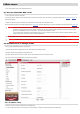
3. Click “Settings” – “Network settings” – “Protocol Settings” – “Wired IP Configuration”.
4. Set the IPv4 address assignment mode as “Manual”.
5. Input “IPv4 Address”, “Subnet Mask” and “Gateway Address”, and then click “Apply”.
6.2.1.2.IPv6 setup
1. Turn on printer power to connect printer to network.
2. Log in the embedded Web server (please refer to Chapter 6.1
for login method).
3. Click “Settings” – “Network settings” – “Protocol Settings” – “IPv6”.
4. Tick “Enable IPv6 protocol” and “Enable DHCPv6” (ticked by default) and then click “Apply”.
You can refresh the browser and view the “IPv6 Local Link Address” and “Stateful Address” in “Wired IP Configuration” interface.
Note: The printer supports using the following IPv6 addresses for network printing and management.
• IPv6 local-link address: local IPv6 address set up by oneself (addresses beginning with FE80).
• Stateful address: IPv6 address set up by DHCPv6 server (if there is no DHCPv6 server in network, the “Stateful
Address” cannot be assigned).
• Stateless address: IPv6 address set up by network router automatically (please refer to Chapter 9.4
and print
“NetConf Pg” view IPv6 address).
6.2.2.Wireless setup
You can set up the wireless network, wireless IP setup, Wi-Fi Direct and WPS via wireless setup page. Before setup, please log in the embedded Web server (please
refer to Chapter 6.1
for login method).
6.2.2.1.Wireless network
1. Click “Settings” – “Network settings” – “Wireless setup” – “Wireless Network”.
1) The wireless network is defaulted on; please select “Off” option box and then click “Apply” if it needs to be turned off.
2) If you need to set up wireless network, please click the SSID of access point (wireless router) in search list, input secret key and click “Apply”.
6.2.2.2.Wireless IP setup
Only when the wireless network of printer is turned on, the Wireless IP Configuration can be displayed on Web server.
1. Click “Settings” – “Network settings” – “Wireless setup” – “Wireless IP Configuration”.
1) DHCPv4 is ticked by default. If IP address needs to be set up manually, please cancel the DHCPv4 checkbox ticked and input the “IPv4 Address”, “Subnet Mask” and
“Gateway Address” that you need to set up and then click “Apply”.
6.2.2.3.WPS setup
1. Click “Settings” – “Network settings” – “Wireless setup” – “WPS”.
1) Select the “WPS Startup Method” you need, and then click “Apply” and operate according to page prompt.
6.2.2.4.Wi-Fi Direct setup
1. Click “Settings” – “Network settings” – “Wireless setup” – “Wi-Fi Direct”.
1) Wi-Fi Direct is off as default. If it needs to be enabled, please tick “Enable P2P pairing” and then click “Apply”.
6.2.3.Machine setu
p