
User's Manual
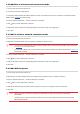
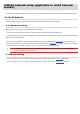



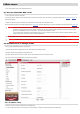
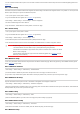

3. Select “Advanced” and then select “Wi-Fi Direct” in advanced WLAN interface.
4. Select printer SSID on direct interface to launch a connection invitation.
5. Press “OK key” to confirm connection when the panel lead to prompts whether to connect to start Wi-Fi Direct connection.
Note: • In case of auto connection mode, the mobile device will start to connect automatically after initiating connection invitation without panel
confirmation.
5.2.2.2.Connection method of wireless client that does not support Wi-Fi Direct function (input password to connect)
1. Turn on printer power.
2. Press the “Menu key” – “Network Info” – “Wi-Fi dir. Info” on control panel of printer to view SSID and password.
3. Turn on the computer or mobile device with wireless network function; select the SSID of Wi-Fi Direct and input password to connect.
5.3.Wireless network setup FAQs
1. The printer is not found.
• If the power of computer, access point (wireless router) or printer is turned on.
• If the computer is connected to printer with USB cable.
• If the printer supports wireless network connection.
2. SSID cannot be found when network is connected