
User`s manual



Chapter 3_______________________________________________________Zaxcom Deva User’s Manual
120
Mirror Drive page
Page purpose: This page sets the options for mirroring data from the Primary Drive onto other media through
the Internal DVD drive, the Internal CF card drive or an externally connected FireWire device.
How to get here:
(MENU key My Deva button Mirror Drive button)
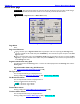
Figure 3-61 Mirror Drive page
Page Notes
None
Page Level Shortcuts
Typing a number opens a Segment number data entry field (this is the same as pressing the Start Seg button).
Type the remainder of the number and press the ENTER key. Once entered, the system accepts it as the Start
Seg button data.
Typing a second number opens a second Segment number data entry field (this is the same as pressing the End
Seg button). Type the remainder of the number and press the ENTER key. Once entered, the system accepts it
as the End Seg button data.
Segment number data entry field
This field appears above the Start Seg button. It’s tied to the values displayed above the Start Seg button and the
End Seg button.
Segment number data entry field Shortcuts
See: Common Data Entry Field Shortcuts List {p.159}
File Type button
The currently selected file type is displayed above it.
Pressing it displays the Mirror File Type page {p.122}. Default setting: Wav Poly
File Resolution button
The currently selected resolution is displayed above it.
Pressing it toggles between the following:
24 Bits – the mirror copy is 24 bits.
16 Bits – the mirror copy is 16 bits.
Format Drive button
Pressing it displays the Format Mirror Drive Caution page {p.123}.
Tracks to Mirror button
The currently selected track(s) are displayed above it.
Pressing it displays the Tracks to Mirror page {p.124}. Default setting: All