
User's Guide

83
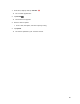
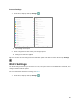
2. Tap Network & internet > Wi-Fi.
The Wi-Fi settings menu appears.
3. Tap the Wi-Fi slider to turn Wi-Fi on .
Wi-Fi is enabled. You will see the names and security settings of in-range Wi-Fi networks.
To disable Wi-Fi, tap the slider again .
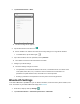
4. Tap a Wi-Fi network, enter the password, and tap Connect.
Your tablet is connected to the selected Wi-Fi network.
5. Configure your Wi-Fi settings.
Your Wi-Fi settings changes are saved.
The password, for a household wireless LAN router, is sometimes found on a sticker on the
router (WEP, WPA, KEY, etc.). Contact the router manufacturer for information. For
password for a public wireless LAN, check with user's service provider.
Entering a password is not required if an access point is not security protected.
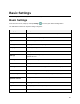
Bluetooth Settings
Your tablet’s Bluetooth
®
capabilities let you use wireless headsets, send and receive photos and files, and
more. For details on your tablet’s Bluetooth usage, see Bluetooth.
1. From home, swipe up and tap Settings .
2. Tap Connected devices > Connection preferences > Bluetooth.