
User's Guide

30
Your Tablet's Home Screen
The following topics describe how to use and customize your tablet’s home screen, understand the status
bar, and use the notification panel.
Home Screen Basics
The home screen is the starting point for your tablet’s applications, functions, and menus. You can
customize your home screen by adding application icons, shortcuts, folders, and more.
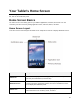
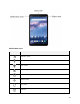
Home Screen Layout
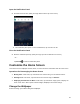
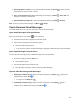
Your home screen extends beyond the initial screen. Swipe the screen left to display additional screens.
Item
Description
Status bar
The status bar displays icons to notify you of your tablet’s status (on the
right side) and notifications (on the left side).
Notification area
The notification area of the status bar (on the left) displays notifications for
incoming messages, application updates, and more. Pull down the status
bar to display the notification panel.
Status area
The status area of the status bar (on the right) displays tablet and service
status information such as battery status, and Wi-Fi.