
User's Guide

28
Software Update Cautions
During update: The tablet cannot be used until the software update is complete. It may take time to
update your tablet’s software.
Signal during update: Update your tablet where signal reception is good, and do not change
location during the update process. Make sure the battery is adequately charged before beginning an
update. A weak signal or low battery during an update may cause the update to fail. An update failure
may disable the tablet.
Other functions during update: Other tablet functions cannot be used during a software update.
Update Your Tablet Software
You can update your tablet's software using the System update option.
Before Updating Your Tablet
Updating your tablet may result in a loss of saved data depending on the condition of your tablet
(malfunctioning, damaged, water seepage, etc.). You must back up all critical information before updating
your tablet firmware.
Back Up All Data Prior to Update
To back up your Gmail information:
1. From home, swipe up and tap Settings > Accounts.
2. Tap the Automatically sync data option to enable the feature.
If the Automatically sync data option is on, email, Calendar and Contacts automatically
synchronize whenever a change is made.
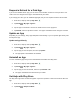
To restore your Google apps following the update:
1. From home, swipe up and tap Play Store .
2. Tap Menu > My apps & games > Library tab.
3. Scroll through the list of previously downloaded Google apps and choose those you wish to
reinstall.
4. Follow the onscreen instructions.
Note: Your Google app purchases are reloaded remotely and can be re-installed after the update is
applied.
As an added precaution, to preserve any data on your microSD card, please unmount it from your tablet
prior to starting the update process. From home, swipe up and tap Settings > Storage > Unmount
SD card.