Rank Xerox Electronic Documentation Solution for Xerox Printers Xerox 4500 PS TR User’s Guide Doc. no D60323 Revision 02 WARNING: This equipment generates, uses, and can radiate radio frequency energy and if not installed and used in accordance with the instruction manual, may cause interference to radio communications.
Preface Xerox 4500 PS TR Preface June 1997 We congratulate you on your purchase of the Xerox 4500 PrintServer Token Ring. The Xerox 4500 PS TR forms part of a series of print servers developed with the purpose of migrating printing know-how into the LAN environment.
Table of Contents Xerox 4500 PS TR Table of Contents Preface....................................................................................................................... 2 Prerequisite manuals ................................ ................................ ........................... 2 Related manuals ................................ ................................ ................................ .. 2 Changes with this revision ................................ ................................
Table of Contents Xerox 4500 PS TR 3.3.7 End of Configuration - Downloading Settings to the PrintServer ............. 43 3.3.8 Firmware download ................................ ................................ .................. 46 3.3.9 Broadcasting ................................ ................................ ............................ 47 3.4 Configuration using Web Browser ................................ ................................ ... 49 3.4.1 Requirements ................................
Table of Contents Xerox 4500 PS TR 7. UNIX Printing Using TCP/IP LPR/LPD ............................................................. 101 7.1 AIX printing using TCP/IP LPR/LPD ................................ .............................. 101 7.2 SUN OS printing using TCP/IP LPR/LPD ................................ ...................... 103 7.3 HP-UX printing with SAM using TCP/IP LPR/LPD ................................ ........ 105 8. Windows NT Printing Using TCP/IP LPR/LPD ..........................
Table of Contents Xerox 4500 PS TR 19.1.2 LED Status error messages ................................ ................................ .. 146 19.2 Troubleshooting ................................ ................................ .......................... 147 19.2.1 When installing ................................ ................................ ..................... 147 19.2.2 When configuring ................................ ................................ .................. 149 19.2.3 When printing ...
Items Supplied Xerox 4500 PS TR Items Supplied with Xerox 4500 PS TR Before you begin installing the Xerox 4500 PS TR make sure that you have all the items shown below.
Introduction Xerox 4500 PS TR 1. Introduction to Xerox 4500 PS TR The Xerox 4500 PS TR is basically viewed as a “Plug and Go” product in terms of printing directly from Windows using NetBIOS/NetBEUI. To print using one of the other protocols supported, a minimum configuration on protocol level is required. This minimum configuration is system dependent and no default value will apply. For details on minimum configuration on protocol level, see the chapter: “Configuration of Xerox 4500 PS TR”.
Introduction Xerox 4500 PS TR Redirected host print The Xerox 4500 PS TR may also be used for redirected printing using the ida ReRouter, idaMON or idaIPPC. See the separate document “Redirected SNA AFP Printing - Token Ring” included on the diskette for details).
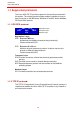
Introduction Xerox 4500 PS TR 1.1 Supported protocols The Xerox 4500 PS TR provides support for the protocols mentioned in this section. The multiple procotol support makes it possible to have an easy conversion to the IBM hosts, Windows NT and 95, Novell NetWare, OS/2 and UNIX systems. 1.1.1 IPX/SPX protocol ENP - EPS SPX SAP NCP IPX Application Layer Transport Layer Network Layer Application Layer ENP: Embedded NPrinter Implements the NetWare remote printing functionality. Communicates with SPX.
Introduction Xerox 4500 PS TR The following TCP/IP protocols are supported by the Xerox 4500 PS TR: IP Layer IP (RFC 791) ARP (RFC 826) Supported TCP/IP Protocols Internet Layer Internet Protocol Address Resolution Protocol TCP Layer TCP (RFC 793) UDP (RFC 768) ICMP Transport Layer Transmission Control Protocol User Datagram Protocol Internet Control Message Protocol Application Layer Bootp (RFC 951,1048 and 1084) Bootstrap Protocol LPD (RFC 1179) Line Printer Daemon SNMP (RFC 1157) SNMP - MIB II (RFC
Introduction Xerox 4500 PS TR 1.1.5 PU/LU protocol When running in SNA IPDS mode, the Xerox 4500 PS TR will provide support for LU1 IPDS. The Xerox 4500 PS TR supports SNA IPDS printing via PU2/LU1. It is installed and behaves as a network connected SNA PU2 cluster controller with 1 printer attached. This can be equated to a PC with a single LU1 attached printer. Xerox 4500 PS TR will emuate the IBM 4028, IBM 3116 or similar printers running IPDS mode. 1.1.
Introduction Xerox 4500 PS TR 1.2 The Xerox 4500 PS TR features The Xerox 4500 PS TR has the following features: Xerox 4500 PS TR - non-IPDS: • FLASH prom for firmware upgrading and settings download • Online microcode upgrade facility • High Performance Intel 80960 JX RISC Processor offering increased processing speed • Setup routines for the Xerox 4500 PS TR : - via PSInst32 - via Web browser - via Telnet - via BOOTP server For details, see the chapter “Configuration of Xerox 4500 PS TR”.
Introduction Xerox 4500 PS TR Redirected printing: • Xerox 4500 PS TR IPC prints redirected IPDS data from PSF/MVS, PSF/VM, PSF/VSE, PSF/400 Redirection can be accomplished with the following products: PSF/2, PSF/AIX, ida ReRouter, ida IPPC 1.3 System requirements This section will briefly touch upon the various software requirements needed for the environments supported by the Xerox 4500 PS TR. A specific description of system requirements will be provided with each supported printing environment.
Introduction Xerox 4500 PS TR 1.4 Supported printers The Xerox 4500 PS TR supports the following printers: Xerox 4505 Xerox 4510 Xerox 4517 Xerox 4520 See the chapter on Installation for details of how to install the Xerox 4500 PS TR interface into the above supported printers.
Installation Xerox 4500 PS TR 2. Installation of Xerox 4500 PS TR When unpacking the unit, record the universal MAC address on the label attached to the rear panel of the unit. Installation, configuration and changes to the mainframe and LAN of the Xerox 4500 PS TR must only be carried out by a person with authority and knowledge of the relevant environment. CAUTION The interface can be damaged by static discharge. To prevent this damage, the interface comes wrapped in an antistatic bag.
Installation Xerox 4500 PS TR 2.1.2 EU - US language settings Dip switch number 2 is used for language setting. ON You can select between EU and US language settings. OFF 1 2 3 4 Should you need to change language setting, set dip switch number 2 as follows: EU language setting - set the switch to OFF US language setting - set the switch to ON 2.1.
Installation Xerox 4500 PS TR In the test page containing the IPDS resident code pages you will find the decimal number (second column) to be specified. Appendix E contains a list of IPDS resident code pages. In the idaSetup program, you must open the menu “IPDS Setup” (see section 2.5.2 in the accompanying manual). In the entry field “Default CPGID” you must enter the decimal number for the required national language. Example: You wish to change to the Japanese (English) code page. Enter decimal no.
Installation Xerox 4500 PS TR UTP Unshielded twisted pair connector (RJ 45). NOTE: If your system is running STP you must connect the cable supplied with the kit. LAN SES PRT LED indicators The LEDs are used for verification purposes. The tables below show the LED status once the Xerox 4500 PS TR is up and running. PRT Indicating data to the printer.
Installation Xerox 4500 PS TR 2.3 Installation procedure This section describes the installation of the Xerox 4500 PS TR interface into one of the supported printers. NOTE: Before you start the installation you must power OFF. 2.3.1 Installing into Xerox 4505 / 4510 printer 1. Remove the plastic cover from the rear of the printer. 2. Loosen the thumb screws. 3. Pull out the motherboard by the handle. 4. Dismantle the two blankets indicated as “ A” and “B” in the figure below.
Installation Xerox 4500 PS TR 7. Now fasten the two screws you loosely inserted in step 3. 8. Fasten the two remaining screws. 9. Re-insert the motherboard into the printer and fasten the “thumbscrews”. NOTE: Turn power ON and generate a settings printout - pressing the test key on the rear panel - to check that the connection to the printer has been established.
Installation Xerox 4500 PS TR 2.3.2 Installing into Xerox 4517 printer 1. Loosen the “thumbscrews”. 2. Pull out the motherboard from the printer. 3. Dismantle the two blankets and save the 4 screws for later use (see step 4). 4. Prior to inserting the interface in the motherboard, you are recommended to tighten loosely one screw in the interface’s rear panel and one in the Centronics panel. 5.
Installation Xerox 4500 PS TR 2.3.3 Installing into Xerox 4520 printer 1. Loosen the “thumbscrews”. 2. Pull out the motherboard from the printer. 3. Dismantle the two blankets and save the 4 screws for later use (see step 4). 4. Prior to inserting the interface in the motherboard, you are recommended to tighten loosely one screw in the interface’s rear panel and one in the Centronics panel. 5. The interface is to be placed in the slot marked “ A” and the Centronics in the slot marked “ B”.
Installation Xerox 4500 PS TR 2.4 Share timeout When Xerox 4500 PS TR operates as a print server for multiple environments simultaneously, print corruption is avoided by excluding all other printing as long as a print job is being printed. This is done via a Share Timeout. The Share Timeout defines an idle time for switching between printer sessions. As a default, the Share Timeout is set to 20 seconds, but this can be changed via the configuration file (See the various configuration options for details ).
Installation Xerox 4500 PS TR When IP address has been defined: If the TCP/IP is enabled, the LAN LED will - if BOOTP parameter set to YES - start to flash as the Xerox 4500 PS TR tries to contact a BOOTP server. If no BOOTP server is availab le, the Xerox 4500 PS TR will use defaults. If valid default values are found , the LAN LED will remain lit. The printer and network installation is now complete. For advanced configuration, see the chapter “Configuration of Xerox 4500 PS TR”. 2.
Configuration Xerox 4500 PS TR 3. Configuration This chapter describes how the PrintServer may be subject to a more advanced configuration using the supported setup facilities (see below). However, with a minimum configuration of the selected protocol, the PrintServer is ready for operation. For details on operation based on default settings, see below. 3.
Configuration Xerox 4500 PS TR 3.1.1 Which Configuration Tool Do I Choose to Configure My PrintServer? When delivered, the product has a MAC address but no IP address. NOTE: If the PrintServer is to be used for TCP/IP print, you need to define an IP address in the PrintServer. If you wish to configure via the Web browser or using Telnet, you need to define an IP address in the PrintServer as well. You do this in Psinst32 or via BOOTP.
Configuration Xerox 4500 PS TR 3.2 Minimum configuration With a minimum configuration on protocol level in addition to the default settings, the PrintServer is ready for operation. A minimum configuration is necessary as it is system dependent and no default value will apply in this case. The parameters stated in the minimum configuration are mandatorysettings for the PrintServer to become operational.
Configuration Xerox 4500 PS TR Subnet masks are determined by assigning ones to bits belonging to the network ID and zeros to bits belonging to the host ID. The subnet masks may be represented in 32-bit values or as dotted decimal notation. E.g.: Class values Subnet mask A 1-126 255.0.0.0 B 128-191 255.255.0.0 C 192-223 255.255.255.
Configuration Xerox 4500 PS TR NetBEUI / NetBios To operate via the NetBeui / NetBios network protocol no need for special setup is required as printing can be performed using default values. ida 802.2 To operate via the ida 802.2 protocol, no need for special setup is required as printing is performed using default values.
Configuration Xerox 4500 PS TR 3.3 Configuration using PSinst32 The PSinst32 is a 32 bit i-data program using ida 802.2 to be run under Windows 95 or Windows NT . The program may be used for setting up basic parametersin the PrintServer via GUI panels. The program is designed to complement the other PrintServer configuration tools used for more advanced settings. This section will limit itself to an outline description. For details you are referred to the extensive Help provided with the program.
Configuration Xerox 4500 PS TR - if installed then click “OK” and continue with the installation of Psinst32 - if NOT then continue below: Click “Add” Highlight “Protocol” Click “Add” Highlight “Microsoft” in the manufacturer window Click “Have disk” - insert the “PS configuration, disk 2/2” supplied with the ida PS x4 NP in drive a: Click “OK” Click “OK” and the installation begins Click “OK” when returning to the “Network Configuration Form” You are now prompted to insert the CD-ROM with your original op
Configuration Xerox 4500 PS TR You are prompted to insert the CD-ROM with your original operating system mentioned in the beginning. The installation commences so please be sure to follow the instructions given. When finished, click “Close”. Click “Yes” to restart the computer to activate the DLC protocol. You can now proceed with the PSinst32 installation. No configuration of the DLC protocol is necessary.
Configuration Xerox 4500 PS TR 3.3.3 Help You may obtain further information/Help wherever you are in the program. The main menu and every other menu has a Help button - click this to know more about the present panel or to look up a search word in general. You may also obtain context sensitive help for a particular field or form in the program. Go to the toolbar and click this icon. The cursor will become the shape of a question mark. Now you may choose to query menus from e.g.
Configuration Xerox 4500 PS TR 3.3.4 Main menu - Where do I start with PSinst32? When you have installed the program, you will be met with the Main menu. The main menu has two overall sub-category forms: - Hardware PS Property Form From here you enable the protocol(s) of your choice and subsequently make the necessary configuration entries. - “Monitor” Property Form When you have selected a DLC download port (LAN), this menu will list all the devices attached to the LAN.
Configuration Xerox 4500 PS TR 3.3.5 Program setup - Configuring Your Preferred Protocol When you have filled in the first three entries in the menu for the Hardware Property Form: - PrintServer name (a fully qualified domain name) - Contact name - Location (physical location of the unit) .. you proceed to the selection of your preferred protocol environment and subsequently to the configuration of. it This is necessary in order for your system to be able to communicate with your PrintServer.
Configuration Xerox 4500 PS TR 3.3.5.2 Configure SNMP If you click the “SNMP” button in the TCP/IP menu, you will see the following screen: Seek additional information here 3.3.5.3 Configure SPX/IPX (NetWare - ENP) Protocol settings Seek additional information here For indepth details on the configuration of Embedded NPrinter and Embedded PServer see the extensive Help menu as well as overleaf.
Configuration Xerox 4500 PS TR The ENP (Embedded N-Printer) submenu: The EPS (Embedded PrintServer) submenu: 38
Configuration Xerox 4500 PS TR 3.3.5.4 Configure SNA (PU/LU) Enter remote upstream PU MAC address of the host - contact system administrator for details Seek additional information here 3.3.5.5 Configure NetBEUI/NetBIOS (Windows and OS/2) NetBEUI means “NetBIOS Extended User Interface”. Enable the Windows NetBEUI protocol from the Main menu to enter/modify the settings for the Windows and OS/2 protocol.
Configuration Xerox 4500 PS TR 3.3.
Configuration Xerox 4500 PS TR The File menu has the following actions available: Open an existing configuration file Discover command for new devices on the LAN Refresh status on existing devices (no new devices) Switch among various adapters installed locally When downloading............. You need to select a target port for download Below you will find guidelines to the various options listed on this menu “Discover..
Configuration Xerox 4500 PS TR “Select Download Port..” In order to download a configured file, you will have to select a target port. The PSinst32 leaves you with two options: - Download via Parallel port (select LPT 1, 2 or 3) If using this option you will not be able to use the monitor function. Download via LAN (select DLC - NOTE: Check installation) When using LAN as download method, you will be presented with a dialog containing a list of discovered devices. The devices are discovered by MAC address.
Configuration Xerox 4500 PS TR 3.3.7 End of Configuration - Downloading Settings to the PrintServer When you have completed the configuration of the selected protocol environment(s), you must download the new settings to the selected target port. This download target port may be the parallel portor the LAN. “Select download port...” Choose the “Select Download Port” option from the “File” menu in the top left corner of the screen.
Configuration Xerox 4500 PS TR Next, select the menu “Download” in the “File” menu which you will find in the top left corner of your main menu. Now the Monitor form will appear listing all available devices on the network. NOTE: If the Monitor formdoes not appear by itself, click the Monitor form and select the “Discover” function to contact your device. The “Discover” function will perform a broadcast on your network, contacting and subsequently listing all available devices.
Configuration Xerox 4500 PS TR Boot PrintServer after download You will find this option in the main menu “Hardware PS” Form. If the new settings you have just downloaded differ from the current settings - and no error situations have occured - , the PrintServer will immediately be booted when ticking the field “ Boot PrintServer............” . The display of warning messages does not prevent the PrintServer from being booted.
Configuration Xerox 4500 PS TR 3.3.8 Firmware download It is possible to download firmware via PSinst32 by activating the menu “Download From..” from the “File” menu.
Configuration Xerox 4500 PS TR PCL/SCS (Mainframe) PCL/DCA (AS/400) 3270 /SCS XES/DCA (Mainframe) (AS/400) XES/SCS 150/SCS (Mainframe) (AS/400) 170/SCS (Mainframe) 4. Highlight the driver you wish to use and click “ Open”. 5. Now the Monitor Form screen with the attached devices will appear. In this menu, you highlight the device to where you wish to download the PrintServer driver. 6. When selected, click “ OK” and the firmware is downloaded to the device. 3.3.
Configuration Xerox 4500 PS TR The Monitor menu screen consists of the following information fields: - MAC address: This is the MAC address of the device. When activating the discover (or Refresh) command, the device will sort the devices according to MAC address and Name. New configured devices will be displayed at the top. - Name: This is the name ( if any) the user has attached to the PrintServer - Status: The status menu will show the present status of the output ports on the device.
Configuration Xerox 4500 PS TR 3.4 Configuration using Web Browser With a standard Web Browser, the PrintServer supports configuration and status tasks. This section provides an outline description of the settings to be performed using the Web browser. 3.4.1 Requirements A standard Web browser with Frame support. If you use a no-frame browser (e.g. Microsoft Explorer), certain functions will not be supported. 3.4.
Configuration Xerox 4500 PS TR *** 3.4.2.2 Password You will now be prompted for a password. From the factory, the password is “adm”. Once the has accepted the default password, you are ready to make the desired configuration / view status on your PrintServer. NOTE: • You are recommended to change this password. See the menu “Change Password” for details. • All settings must be confirmed using the menu “ Save Configuration ” to become effective.
Configuration Xerox 4500 PS TR 3.4.3 Overview This contains an outline description of the PrintServer and other printing options. Click this to enter the main configuration menu - see below for details. If you are connected to the Internet, you will get direct access to the i-data Homepage clicking this button. Should the session time out, you can re-establish activating this button. When you have made the necessary settings, you terminate the session via this menu. 3.4.
Configuration Xerox 4500 PS TR 3.4.5 Main Menu When you click the Main Menu, you will be presented with the two main tasks in the PrintServer HTML configuration program: 3.4.
Configuration Xerox 4500 PS TR When you have made all the necessary configurations via this entry menu, click the menu at the very bottom to the right - Previous Menu (not visible on this screen). Remember to save via “Save Configuration” for the changes to become effective 3.4.7 PrintServer Status Menu The status menus provide you with various product information depending on which panel you select. You can update the information by clicking the menu “ Refresh”.
Configuration Xerox 4500 PS TR 3.5 Configuration using Telnet The Telnet support (Terminal Emulation Protocol) offers yet another way of configuring and monitoring the PrintServer. For this you will need the emulations VT 100 and NVT. Telnet is a standard TCP/IP application permitting access from TCP/IP attached host systems. ida PrintServer x3 MIO A) 083.
Configuration Xerox 4500 PS TR Once the PrintServer has accepted the default password, the following screen will appear. For details on the main menu, see section 3.5.1 Main Menu 0xx.xxx A) B) Configure PrintServer Status PrintServer X) Logout EnterSelection Navigation keys When configuring using the Telnet, the following navigation keys will be used: Selecting menu fields Toggling between entry options Selecting a given value Return to previous level/exit Key value (e.g.
Configuration Xerox 4500 PS TR 3.5.1 Menu Structure This section provides an outline description of how to configure and monitor the PrintServer using Telnet. Main Menu Main Menu 0xx.xxx A) Configure PrintServer section 3.5.2 B) Status PrintServer section 3.5.11 X) Logout EnterSelection If you wish to configure the PrintServer, type A at the selection prompt. 3.5.2 Configuring PrintServer Configure PrintServer - Submenu Configuration Menu 0xx.
Configuration Xerox 4500 PS TR 3.5.3 General Parameters Menu Type A to enter the submenu for further configuration of the PrintServer. Configure PrintServer 0xx.xxx A) Configure PrintServer Parameters B) C) D) E) F) Configure TCP/IP Configure IPX/SPX Configure ida 802.2 Configure PU/LU Configure NetBios F) Configure SNMP X) Return to previous menu NOTE: Remember to enable the protocol first. Press A.
Configuration Xerox 4500 PS TR Enter Selection To make an entry for the local MAC address, type A. This will place you in the prompt for the local MAC address. If the entry is incorrect, you will receive an error message. To return to the “Enter Selection” prompt, press Enter. For action fields other than text entries (e.g. MAC Address) use the space bar to toggle the entry options. TCP/IP Configuration Remember to set “TCP/IP enabled” to YES. Configure TCP/IP 0xx.xxx A) HostName.......
Configuration Xerox 4500 PS TR IPX/SPX Configuration Remember to set “IPX/SPX enabled” to YES. Use the space bar to toggle through the options Configure IPX/SPX 0xx.xxx Frames:1) 802.2:YES 2) SNAP: YES A) B) C) D) NCP mode........................: NCP preferred Server.... ..: NCP preferred DStree.....: NCP DSname context.....: E) F) G) H) I) EPS mode........................: EPS PrintServer..............: EPS FileServer................: EPS Bindery Poll Tim.....: EPS Password...........
Configuration Xerox 4500 PS TR PU/LU Configuration Remember to set “PU/LU enabled” to YES. A) B) C) D) E) Configure PU/LU 0xx.xxx Blocknumber.................: 05D ID number......................: 00000 Remote MACaddress...: Local SAP......................: Remote SAP..................: 04 X) Save and Return Z) Return without saving Enter Selection: NetBios Configuration Remember to set “NetBeui enabled” to YES. A) B) Configure NetBios 0xx.xxx Servername............
Configuration Xerox 4500 PS TR SNMP Configuration Configure SNMP agent SNMP Trap Destinations 0xx.xxx Authentication Traps: No. Index Community Name IP Address - SNMP Manager Access Authorization No. Index Community Name Access Network Address Mask - A) Add D) Delete C) Change AuthTrap X) Return Enter Action For adding an SNMP Trap parameter or configuring the access parameters press A for ADD. You can now select between T)rap or A)uthorize parameters.
Configuration Xerox 4500 PS TR Selecting Authorize will present the following screen: Configure SNMPAccess Parameters 0xx.xxx A) Community Name.....................................: B) Manager IP Address.................................: C) IP Address Mask.......................................: D) Manager Access Type..............................
Configuration Xerox 4500 PS TR 3.5.4 Configure Sessions In the sub-menu for the “Configure PrintServer”, select “Configure Sessions” typing B at the selection prompts. You will see the following screen: “+” Means that Trace has been activated Means session is active Configure sessions No.
Configuration Xerox 4500 PS TR NOTE: Only the password for the current session can be changed. If an invalid password is entered, the previous menu level is displayed. 3.5.6 Save Configuration NOTE: When you have made new settings or changed existing, you must save the settings with this menu. Then reboot the printserver (see section “Reboot PrintServer below). If you fail to do this the new/modified settings will be lost when the printer is turned off.
Configuration Xerox 4500 PS TR 3.5.9 Reboot PrintServer In the sub-menu for the “Configure PrintServer” select “Reboot PrintServer” by typing R at the selection prompts. Follow the instructions on the screen. 3.5.10 Trace destination Type T at the selection prompt to enable the trace facility. A) B) C) D) Trace destination parameters 0xx.xxx FTP Host Name..............: User Name......................: Password........................: File Name........................
Configuration Xerox 4500 PS TR 3.5.11 Status PrintServer From the main menu select the menu “Status PrintServer” by typing B at the selection prompt. This will lead to the following screen. Status Menu 0xx.xxx A) B) C) D) E) F) Status LAN interface Status TCP/IP Status IPX/SPX Status PU/LU Status NetBios Status Printer G) Status SNMP Agent L) List Last Error Log X) Return to previous menu Enter Selection: Enter a selection to view the current status.
Configuration Xerox 4500 PS TR 3.6 Configuration using Setup File Only modify or change the settings via the configuration file if strictly necessary. Otherwise, you are recommended to use one of the other configuration tools (see above) The sample configuration files supplied with the PrintServer may be used to configure or re-configure the product. The files may be sent directly via the LAN. The protocols used may be programmed in the PrintServer.
Configuration Xerox 4500 PS TR 3.6.1 Sample minimum configuration file &&??##N1,0# : Start of file - Don’t remove this! Short configuration for a PrintServer (This is an example. Please modify the parameters to match your configuration).
Configuration Xerox 4500 PS TR ********************************************************************* ENP ID 2 ******************************************************************** BEGIN_CONFIGURATION ENP 2 PRINTERNUMBER FILESERVER PRINTSERVER MODE XXXXXXXXX XXXXXXXXX XXXXXXXXX XXXXXXXXX ; ; ; ; Capture Name of Name of BINDERY printer 1 on Novell server fileserver printserver or DS, match server ********************************************************************** NETBIOS ******************************
Configuration Xerox 4500 PS TR 3.6.2 Advanced configuration In this section you will find examples of how to configure the various setup file parameters. The purpose of these examples is to provide you with simple guidelines for configuration using the setup file. The chart below provides an overview of the various configuration options. GROUP PARAMETERS PU/LU SNA NetBios/ NetBeui TCP/IP LPD PPD ICDS IPDS PRINTER 70 NETWARE IDA 802.2 ENP 802.
Configuration Xerox 4500 PS TR Enabling IDAPS Here the following group parameters are enabled / disabled. If a group parameter is following the setup definitions for the various sessions, e.g. IPDS input for a session, these must be configured. See the following sections.
Configuration Xerox 4500 PS TR Define TCP/IP To select and define TCP/IP session see the following sample configuration. The details on configuration parameters are available in Appendix A. NOTE: The values to be configured must match your environment. BEGIN_CONFIGURATION TCPIP BOOTP YES TCP_MSS 1400 TCP_WINDOW 4200 DEFAULT_IP ????? DEFAULT_SM ????? DEFAULT_GW ?????? END Printing LPD To select and define an LPD session see the following sample configuration.
Configuration Xerox 4500 PS TR Printing IPDS To select and define an IPDS session see the following sample configuration. The details on configuration parameters are available in Appendix A. BEGIN_CONFIGURATION SESSION SESSION 1 PRESENT INPUT_DEF INPUT_SEL ID END_SET TRANSFORM_DEF 1 TRANSFORM_SEL ID END_SET OUTPUT_DEF OUTPUT_SEL ID END_SET END_SET . . . . . . .
Configuration Xerox 4500 PS TR BEGIN_CONFIGURATION ICDS X LANGUAGE AUTOCONFIG NOGRAPHICS QUERYPAGES HOLDTIMEOUT IRQTIMEOUT DLDTIMEOUT AFPTRAY_DEF X TRAY_SE L MANUAL ENVELOPE END_SET END NOTE: PPD port selection for ICDS print is port no. 5005 and 5006. See the “Define PPD”.
Configuration Xerox 4500 PS TR Define NetWare To select and define a NetWare session see the following sample configuration. The details on configuration parameters are available in Appendix A. BEGIN_CONFIGURATION_NETWARE LSL_FRAME_802_2 LSL_FRAME_802_SNAP NCP_MODE NCP_PREFERRED_SERVER NCP_PREFERRED_DSTREE NCP_DSNAME_CONTEXT EPS_MODE EPS_PRINTSERV ER EPS_PASSWORD EPS_FILESERVER EPS_MSG_FILENAME EPS_BINDERY_POLL_TIMEOUT END YES NO DS I-DATA O=IDA DS _PS.
Configuration Xerox 4500 PS TR Define ida 802.2 To select and define an ida 802.2 protocol for a session, see the following sample configuration. The details on configuration parameters are available in Appendix A. BEGIN_CONFIGURATION 802_2 ALIASNAME END Define ida 802.2 Subsequently you should check the configuration of the ida 802.2. See the sample below.
Configuration Xerox 4500 PS TR Define Printer session To select and define a Printer session see the following sample configuration. The details on configuration parameters are available in Appendix A. BEGIN_CONFIGURATION PRINTER X DESCRIPTION DUPLEXINTALLED OFFSETINSTALLED PRINTPORT_SER TRAY_DEF X DESCRIPTION PAPER_SEL END_SET . . . . . . LANGUAGE_DEF_PCL5 OFFSETREG GMACROS RASTEROP PATTERNS CTABLES . . . .
Configuration Xerox 4500 PS TR 3.7 Setting Up via BOOTP server The TCP/IP BOOTP daemon on the server supports one or more remote devices. When the PrintServer is powered on, it broadcasts an initialisation request to all LAN systems. The BOOTP server receives the hardware address and looks for a match of the hardware address in the BOOTPTAB file. The BOOTP server has a BOOTPTAB file which is a correspondence file for hardware addresses and IP addresses.
Configuration Xerox 4500 PS TR Bootfile Entry The bootfile entry refers to a file which contains the additional configuration settings for the particular device. In the bootfile, a reference may also be given to a microcode file. Microcode File This file contains the microcode file that can be downloaded to the print server. For further details please see Appendix B: Microcode Upgrading.
Configuration Xerox 4500 PS TR Typical BOOTPTAB file entry: ps13: ht=6: ha=00036e00172a: ip=192.0.110.1:\ sm=255.255.255.0: gw=192.0.110.0: bf=/tcp/etc/myfile.cf2 Fig. 3-2 BOOTPTAB file sample (OS/2 environment) where ht = ha= ip = sm = gw = bf = 6 (Token Ring hardware type) 00036E00172A (MAC address) 192.0.110.1 (IP address) 255.255.255.0 (subnet mask) 192.0.110.0 (gateway) /TCP/etc/myprint.cf2 (path to boot file; i.e.
Configuration Xerox 4500 PS TR 3.7.1 BOOTP process So far, this chapter has only been dealing with the setting up of the PrintServer from a BOOTP server. However, the PrintServer can also be equipped with a so-called “ default configuration”. This default configuration will be carried out if the PrintServer cannot detect a BOOTP server at the time the PrintServer is powered on. The default settings are similar to the ones defined on the BOOTP server.
Configuration Xerox 4500 PS TR 3.7.2 Setting up the TFTP Daemon For the BOOTP server to download the settings to the print server, TFTP must be enabled. TFTP in AIX Environment The TFTP daemon is normally managed by the INETD super-daemon. The INETD starts a TFTPD when a request is received. The TFTPD satisfies the request and then dies. You need to configure INETD so that it performs this service.
Configuration Xerox 4500 PS TR TFTP in OS/2 Environment 1. Start TCP/IP Configuration located in the T CP/IP folder. 2. Select the Autostart tab. 3. Tick the box labelled "Enable this machine to start the INETD super server". 4. Tick the box labelled "Enable others to access your files by using TFTP". Also tick the "INETD" push-button. 5. Shutdown your “TCP/IP Configuration” and check that the new settings have been saved. 6. Restart the INETD.
Configuration Xerox 4500 PS TR 3.7.3 Starting the BOOTP Server This section provides you with instructions for starting the BOOTP server. After making the necessary amendments to the BOOTPTAB file, you are now ready to start the BOOTP server and then verify the configuration by performing a test printout. 1. Start the BOOTP server Use the BOOTP server debug option (-d) to verify the correct operation. E.g.
Configuration Xerox 4500 PS TR 3.8 Testing PrintServer 1. Perform a test printout by pressing the TEST key on the rear panel. 2. Verify that the settings match the definitions in the BOOTPTAB file and the bootfile. Appendix F contains settings printout. 3. ‘’PING’’ the unit from the workstation to verify physical LAN and IP network connectivity. a. Invoke the PING command and the IP address or host name of the unit. For example: PING 192.0.110.1 b.
Configuration Xerox 4500 PS TR 3.9 About the PING function The ICMP PING function sends an echo request to the PrintServer stated in the IP address. The PING function is useful for: - Determining the status of the network and various foreign hosts - Tracking and isolating hardware and software probl ems. - Testing, measuring and managing networks.
Novell Setup for IPX/SPX Xerox 4500 PS TR 4. Novell Setup for IPX/SPX This chapter provides instructions as to the configuration of Novell NetWare to connect the PrintServer using the IPX/SPX protocol. The PrintServer is able to run with NetWare v.3.1x in BINDERY emulation as well as v.4.xx (the latter being backwards compatible) in Directory Services (DS) or BINDERY emulation. The PrintServer supports printing through an embedded PSERVER (EPS) fully emulating a standard NetWare PSERVER.NLM.
Novell Setup for IPX/SPX Xerox 4500 PS TR 4.1 Before you begin.....
Novell Setup for IPX/SPX Xerox 4500 PS TR The following keywords are EPS specific and must be specified either via TELNET, PSinst32 or via the configuration file. EPS mode: The PSERVER is able to run in both Bindery (3.1x) and Directory Service (4.xx) modes. EPS printserver: The print server name (i.e. logon name). (NOTE: In DS mode, it must be a typeless distinguished name, e.g. _PS.international.i-data ######), except if “Country” is top level of the NDS tree (typefull), it will be e.g. CN=_PS.
Novell Setup for IPX/SPX Xerox 4500 PS TR The following keywords are ENP specific and must be specified in either TELNET, PSinst32 or the configuration file. ENP mode: Selects which mode to use. Options are Bindery and DS mode. ENP printer number: Selects which Novell NetWare printer number to use. Printserver: Selects which Novell NetWare printserver to use. Fileserver: Selects which Novell NetWare fileserver to attach to. NOTE: The Xerox 4500 PS TR is able to support up to 2 ENPs.
Novell Setup for IPX/SPX Xerox 4500 PS TR 4.4 NetWare setup - Bindery mode This section describes the setting up of the NetWare version 3.1x or later for IPX/SPX printing using Bindery mode. If you use NetWare version 4.xx you should consider using DS mode as described in the next section. NOTE: You must either load the PSERVER.NLM on the server or define the embedded PRINTSERVER in the Xerox 4500 PS TR before connecting the NPRINTER. 1. Type “PCONSOLE” to start the PCONSOLE program 2.
Novell Setup for IPX/SPX Xerox 4500 PS TR 12. Then from the “ Print Server Configuration ” menu select “Printer Configuration” and press ENTER 13. From the list “Configured Printers ” select either an already configured printer to change or select one of the printers “ Not Installed” and press ENTER. Notice that the number of the printer must correspond to the ENP number in the PrintServer configuration of ENPs. The default PrintServer ENP numbers are 0 and 1. 14.
Novell Setup for IPX/SPX Xerox 4500 PS TR 4.5 NetWare setup - DS mode This section describes the setting up of the NetWare version 4.xx for IPX/SPX printing using Directory Services (DS) mode. NOTE: You must either load the PSERVER.NLM on the server or define the embedded PRINTSERVER in the Xerox 4500 PS TR before connecting the NPRINTER. 1. Type PCONSOLEto start the PCONSOLE program. 2. Make sure that you have the correct curre nt context. If not specify a new by selecting the menu “ Change Context”.
Novell Setup for IPX/SPX Xerox 4500 PS TR 12. Type the name of the new queue. The name of the queue is user-defined. A commonly used convention is to give it the same name as the print server with the addition of “_Q”. (e.g. sales4_Q) 13. Select the volume where you want the print jobs to be stored. Do not use the volume SYS as this may cause problems in certain situations. 14. Select the new printer and press ENTER and then ESC. Now make other NPRINTER configurations if so required. 15. Press ESC twice. .
Novell Setup for IPX/SPX Xerox 4500 PS TR 4.6 Illustration See the illustration in the following how the print request from the user is sent to the assigned printer.
NetBEUI/NetBIOS Printing Xerox 4500 PS TR 5. NetBEUI/NetBIOS Printing Using Windows ‘95, NT or OS/2 This chapter provides instructions for setting up the Windows ‘95, NT or OS/2 operating systems for native printing via the Xerox 4500 PS TR using the NetBEUI/NetBIOS protocols. Before you begin the setup procedure, please ensure that the NetBEUI/NetBIOS protocols have been properly installed on your network. 5.
NetBEUI/NetBIOS Printing Xerox 4500 PS TR The “Add Printer Wizard” will then open and you may select manufacturor and printer model via the wizard. NOTE: Windows ‘95 Xerox drivers may be obtained from the Xerox Web Site at: http:\\www.xerox.com or you may contact your point of purchase for details. NOTE: During the set up, you may need access to the original installation CDROM for Windows ‘95 and NT. 5.2 OS/2 Setup To set up the OS/2 operating system follow these instructions: 1. Open an OS/2 window 2.
NetBEUI/NetBIOS Printing Xerox 4500 PS TR 5.3 Changing the default PrintServer Name and Workgroup This can be done using any of the available configuration methods: Psinst32: see section 3.3 Web Browser: see section 3.4 Telnet: see section 3.5 Setup file: see section 3.
OS/2 Printing Using TCP/IP LPR/LPD Xerox 4500 PS TR 6. OS/2 Printing Using TCP/IP LPR/LPD This chapter provides the three methods available for printing from OS/2 based PC’s with TCP/IP installed: 1. Via print queue output port selection (see Section 5.1 below for details). 2. Via redirection of LPTx port wit h LPR command (see Section 5.2 below for details). 3. Redirection of LPTx port with LPRMON command (see Section 5.3 below for details).
OS/2 Printing Using TCP/IP LPR/LPD Xerox 4500 PS TR 8. Click on “OK” and the window will close. 9. Click on “Create” to create the printer NOTE: The LPRPORTD program must be started for this facility to function. 6.2 OS/2 printing using LPR command The LPR command may be used to print to the Xerox 4500 PS TR. To invoke the LPR command from the command line, type e.g. the following command:: LPR -b -pLPDPrt1 -s192.0.110.1 myprint.
UNIX Printing Using TCP/IP LPR/LPD Xerox 4500 PS TR 7. UNIX Printing Using TCP/IP LPR/LPD Below is information on how you print from the three following UNIX systems. 1. AIX Version 3.2.5 Version 4.1 (see Section 6.1 below for details) 2. SunOS Rel. 5.3, Open Windows Version 3.3 (equ ivalent to Solaris) (see Section.6.2 below for details) 3. HP-UX (TCP/IP spooler not used) (see Section 6.
UNIX Printing Using TCP/IP LPR/LPD Xerox 4500 PS TR [Entry Fields] NAME of queue to add [your name] ACTIVATE the queue? yes Will this become the DEFAULT queue? no Queuing DISCIPLINE first come first served ACCOUNTING FILE pathname [] DESTINATION HOST for remote jobs [your host] Pathname of the SHORT FORM FILTER [/usr/lpd/bsdshort] for queue status output Pathname of the LONG FORM FILTER [/usr/lpd/bsdlong ] for queue status output Name of QUEUE on remote printer [LPDPrt1] NAME of device to add [LPDPrt1] BAC
UNIX Printing Using TCP/IP LPR/LPD Xerox 4500 PS TR 2. Define the remote printer using smit 1. Enter the smit command 2.
UNIX Printing Using TCP/IP LPR/LPD Xerox 4500 PS TR 2. Defining the remote printer/plotter using ’admintool’’ ‘ 1. Enter the admintool command. (Use of this command will require root authority) 2. Use the following menu items to supply the printer information: Printer manager (Edit) Add printer Add access to remote printer The following information must be supplied on the ‘’Add access to remote printer panel’’: Printer Name The printer name is the queue name on the Xerox 4500 PS TR.
UNIX Printing Using TCP/IP LPR/LPD Xerox 4500 PS TR 7.3 HP-UX printing with SAM using TCP/IP LPR/LPD This procedure can be used to configure a printer on a remote system without using the TCP/IP print spooler function. 1. Host Configuration Ensure that the Xerox 4500 PS TR is defined as a host system. This can be done using the ‘’System Administrator Manager (SAM)’’. Use of this command requires root authority (i.e. use the su command to switch to the root user).
WIndows NT Printing Using TCP/IP LPR/LPD Xerox 4500 PS TR 8. Windows NT Printing Using TCP/IP LPR/LPD This section describes how to select an LPR/LPD printer from Windows NT. 1. From the Main menu select the icon “ Control Panel”. 2. Select the “Network” icon. Make certain that the entry “ Microsoft TCP/IP Printing ” is entered into the menu “Installed Network Software ”. If not, click on “ Add Software”. From here you select the above mentioned network software from the list.
AS/400 Printing Using HPT and TCP/IP Xerox 4500 PS TR 9. AS/400 Printing Using Host Print Transform and TCP/IP This chapter provides: AS/400 definitions for ASCII printing Once these parameters have been configured, and the basic TCP/IP configuration of the Xerox 4500 PS TR has been completed, printing from AS/400 will be possible. This will use the AS/400 Host Print Transform to format and translate EBCDIC data, the command language used by the printer selected on the AS/400.
AS/400 Printing Using HPT and TCP/IP Xerox 4500 PS TR Create Output Queue (CRTOUTQ) Type choices, press Enter. Output queue . . . . Library . . . . . Maximum spooled file Number of pages . Starting time . . Ending time . . . . . . . . . size: . . . . . . . . . . . . OUTQ . . . MAXPAGES . . . . . . . . . + for more values Order of files on queue . . . . SEQ Remote system . . . . . . . . . RMTSYS > PSX3OUTQ *CURLIB Remote printer queue . . . . . . RMTPRTQ Writers to autostart . . . . . .
AS/400 Printing Using HPT and TCP/IP Xerox 4500 PS TR 9.2 AS/400 printing In order to print to the Xerox 4500 PS TR, the OUTQ defined above must be started with the STRRMTWTR command. The data to be printed must be associated with the defined OUTQ via the various PRTF commands.
PSF/400 AFP Printing Using TCP/IP Xerox 4500 PS TR 10. PSF/400 AFP Printing Using TCP/IP This chapter provides configuration guidelines for AS/400 using TCP/IP. The versions differ somewhat in the setup. If you are running AS/400 version 3.1 or 3.6 , you should see section 13.1. If you are running AS/400 version 3.2 or 3.7 , see section 13.2. Requirements: Before IPDS printing using TCP/IP can be accomplished, the following points need to be checked: 1. TCP/IP is installed and enabled 2.
PSF/400 AFP Printing Using TCP/IP Xerox 4500 PS TR When using TCP/IP support from PSF/400 version 3.1, the stated value is not used, but must be set to a unique name that is NOT used on your AS/400.
PSF/400 AFP Printing Using TCP/IP Xerox 4500 PS TR 10.1.2 Configuring WRKAFP2 for direct TCP/IP connection WRKAFP2 DEVD (PRTPS123 ) RETRY (2) TCPIP (*YES) RMTSYS (‘192.0.110.21’) PORT (5001) ACTTMR (170) INACTTMR (*NOMAX) DEVD This value must match the DEVD in the printer device description. RETRY Specifies the number of retry attempts to establish a sessi on TCPIP This value must be set to *YES. RMTSYS An IP address or a host name may be used for this parameter.
PSF/400 AFP Printing Using TCP/IP Xerox 4500 PS TR 10.2 AS/400 version 3.2 and 3.7 This section describes the following configuration: CRTDEVPRT samples CRTPSFCFG samples (version 3.2 only) 10.2.1 CRTDEVPRT Create a printer device (CRTDEVPRT) description for version 3.2 or 3.7. Type the entry of choice and press Enter. The value must be unique within the network. Device description . . . . . . . > Device class . . . . . . . . . . > Device type . . . . . . . . . . > Device model . . . . . . . . . .
PSF/400 AFP Printing Using TCP/IP Xerox 4500 PS TR 10.2.2 CRTPSFCFG (version 3.2 only) When the printer device has been created, you are to make the configuration for direct TCP/IP connection using PSF/400 running version 3.2. Below you will find a sample configuration. Create PSF Configuration (CRTPSFCFG) PSF configuration . . . . . . . Name Library . . . . . . . . . . . *CURLIB Name, *CURLIB User resource library list . . *JOBLIBL *JOBLIBL, *CURLIB, *PRTF... Device resource library list . .
AS/400 SCS Printing Using SNA Xerox 4500 PS TR 11. AS/400 SCS Printing Using SNA This chapter provides: AS/400 definitions for 3270 SCS printing Once these parameters have been configured, and the basic SNA installation of the Xerox 4500 PS TR (equipped with an FSL top module) has been completed, direct SCS print will be possible. This method enables printing of datasets that would have been printed on a 5256 twinax or 3287 coax attached printer.
AS/400 SCS Printing Using SNA Xerox 4500 PS TR 11.1 AS/400 controller definition The CRTCTLRWS command is used to create a Remote Work Station Controller. The following example shows the values required to create a controller called PS3174. Create Ctl Desc (Remote WS) (CRTCTLRWS) Type choices, press Enter. Controller description Controller type . . . Controller model . . . Link type . . . . . . Online at IPL . . . . Switched line list . . . . CTLD . . TYPE . . MODEL . . LINKTYPE . . ONLINE . .
AS/400 SCS Printing Using SNA Xerox 4500 PS TR 11.2 AS/400 printer definition The CRTDEVPRT command is used to create a Printer device. The following example shows the values required to create a printer called PS3287. Create Device Desc (Printer) (CRTDEVPRT) Type choices, press Enter. Device description . . Device class . . . . . Device type . . . . . Device model . . . . . Local location address Online at IPL . . . . Attached controller . Separator program . . Library . . . . . .
AS/400 SCS-DCA Printing Using TCP/IP Xerox 4500 PS TR 12. AS/400 SCS-DCA Printing Using TCP/IP This chapter provides: AS/400 definitions for SCS/DCA printing Once these parameters have been configured, and the basic TCP/IP installation of the Xerox 4500 PS TR (equipped with an FSL top) has been completed, direct SCS/DCA will be possible. This will off-load the AS/400 as Host Print Transform is not used. Requirements: - AS/400 version 3.
AS/400 SCS-DCA Printing Using TCP/IP Xerox 4500 PS TR Create Output Queue (CRTOUTQ) Type choices, press Enter. Queue for writer messages Library . . . . . . . . Connection type . . . . . Destination type . . . . . Transform SCS to ASCII . . Internet address . . . . . Destination options . . . . . . . . . . . . . . . . . . . . . . . . MSGQ CNNTYPE DESTTYPE TRANSFORM INTNETADR DESTOPT Text 'description' . . . . . . . TEXT More... F3=Exit F4=Prompt QSYSOPR *LIBL > *IP > *OS400 > *NO 192.0.110.
PSF/MVS AFP Printing Using TCP/IP Xerox 4500 PS TR 13. PSF/MVS AFP Printing Using TCP/IP This chapter provides: JES installation statements PSF Startup Procedures Once these parameters have been configured, and the basic TCP/IP installation of the Xerox 4500 PS TR IPC (equipped with an IPDS top) has been completed, direct AFP / IPDS from PSF / MVS will be possible. Requirements: - use of PSF/MVS version 2.2.
PSF/MVS AFP Printing Using TCP/IP Xerox 4500 PS TR 13.
SNA IPDS and SCS Priting from MVS or VM Xerox 4500 PS TR 14. SNA IPDS and SCS Printing from MVS or VM This chapter provides: - sample LU1 printer logmode definitions for SCS and IPDS print - sample definitions for installation in association with a locally attached 3174 and 3745 - sample definitions for installation in association with a locally attached 3174 and a downstream OS/2 gateway. - method of configuring a Novell SAA gateway so as to attach an PS as a PU type 2.
SNA IPDS and SCS Priting from MVS or VM Xerox 4500 PS TR 14.2 PS PU definition for 3174 Sample definition for installation in association with a locally attached 3174.
SNA IPDS and SCS Priting from MVS or VM Xerox 4500 PS TR PrintServer Definition file extract &&??##N1,0# ; Start of file - Don't remove this ! ;-----------------------------------------------------------------------; Configuration for the TokenRing PrintServer ; (This is an example. Please modify the parameters to match ; your configuration).
SNA IPDS and SCS Priting from MVS or VM Xerox 4500 PS TR 14.
SNA IPDS and SCS Priting from MVS or VM Xerox 4500 PS TR OS/2 Protocol.ini definitions [LANDD_nif] DriverName = LANDD$ Bindings = OLITOKCE_nif NETADDRESS = "40005a0001C3" ETHERAND_TYPE = "I" OS/2 CM/2 gateway definitions DEFINE_LOCAL_CP FQ_CP_NAME(DKIDTN01.
SNA IPDS and SCS Priting from MVS or VM Xerox 4500 PS TR ; I D A P S ;*************************************#********************************** BEGIN_CONFIGURATION IDAPS LOCAL_MAC 40005A01C302; Set LOCAL MAC-address SEL_MAC LOCAL ; Use universal MAC-address EARLY_TOKEN YES ; Early Token Release DISABLED. ENABLE_TCPIP YES ; ENABLE TCP/IP protocol. ENABLE_NETWARE YES ; ENABLE Netware protocol. ENABLE_802_2 YES ; ENABLE 802.2 protocol. ENABLE_PU_LU YES ; ENABLE PU/LU protocol. BOOT YES ; Reboot PS if conf.
SNA IPDS and SCS Priting from MVS or VM Xerox 4500 PS TR 14.4 PS PU definition for 3745 Sample definition for installation in association with a locally attached 3745.
SNA IPDS and SCS Priting from MVS or VM Xerox 4500 PS TR 14.4 Configuring NetWare SAA gateway for direct SNA connection to PS The following will describe the normal procedures for configuring the PS to a NetWare for SAA Gateway version 2.0. The main advantage for this type of connection is that the print application on the mainframe has direct printer control through VTAM. NOTE Most NetWare SAA installations use the IPX/SPX protocol as downstream protocol for the workstations.
SNA IPDS and SCS Priting from MVS or VM Xerox 4500 PS TR The following definitions are based on an assumption that the SAA server is already up and running. If this is not the case, please refer to the appropriate NetWare documentation before proceeding with the following. 1. Log in to the NetWare server running NetWare for SAA as supervisor. 2. Run SYSTEM\CSCON\cscon.exe and choose the appropriate SAA server. It is also possible to configure via SAA Administrator for Windows. 3.
SNA IPDS and SCS Priting from MVS or VM Xerox 4500 PS TR c) Press on d) Select: Dedicated Printer (the name defined in VTAM) or (system dependant) e) Enter (Make sure that the number is not already in use by the existing profile) f) Enter (This number should reflect the number of Xerox 4500 PS TRs that will connect to this SAA gateway.
SNA IPDS and SCS Priting from MVS or VM Xerox 4500 PS TR (If you have created a new PU profile in main step 4) you should choose this one, e.g. IDAPROF. If not, choose the existing PU profile) c) Choose the LU to be used by the first Xerox 4500 PS TR. d) Press three times You have now completed the configuration of the NetWare SAA Gateway. To activate the new configuration, please restart the SAA gateway.
SNA IPDS and SCS Priting from MVS or VM Xerox 4500 PS TR 00035e001cfb is the MAC address for the Xerox 4500 PS TR and ETHERNET1 is the name of the downstream link. If the above is not true, you need to reconfigure your definitions. 14.5 FSL Configuration The FSL top can be configured using FSL from the host. FSL Configuration FSL support will be as on the standard i-data PCL platform with the exception of non-relevant coax line functions which will be received but ignored.
PSS/MVS AFP Printing Using TCP/IP Xerox 4500 PS TR 15. PSS/MVS AFP Printing Using TCP/IP This chapter provides: JES installation statements PSS Startup Procedure PSS Printer Profile Once these parameters have been configured and the basic TCP/IP installation of the PrintServer (non-IPDS) has been completed, direct AFP/ICDS from PSS / MVS will be possible. Requirements: - use of ida PSS, version 6.
PSS/MVS AFP Printing Using TCP/IP Xerox 4500 PS TR 15.2 PSS printer profile using TCP/IP attachment *TCPIP DEFINITIONS TCPIP USER=TCPIP NAMESRV IP=192.0.15.0 NAMESRV IP=192.0.14.1 *------------------------------------------------------------------* PSS PRINTER DEFINITION FOR USE WITH DIRECT TCP/IP CONNECTION *------------------------------------------------------------------PRINTER PRTID=PRT411,IP=192.0.110.
PSS/VM AFP Printing Using TCP/IP Xerox 4500 PS TR 16. PSS/VM AFP Printing Using TCP/IP This chapter provides: PSS VM printer profile statements Once these parameters have been configured, and the basic TCP/IP installation of the PrintServer (non-IPDS) has been completed, direct AFP/ICDS from PSS / VM will be possible. Requirements: - use of ida PSS, version 6.01 or higher - use of TCP/IP for VM, version 2, release 2.1 16.
PSF/2 AFP Printing Using TCP/IP Xerox 4500 PS TR 17. PSF/2 AFP Printing Using TCP/IP This chapter provides details on how to: Create an IPDS printer profile Setup the “Keep Alive” TCP/IP feature Requirements: Before IPDS printing using TCP/IP can be accomplished, the following points need to be checked: 1. OS/2 2.0 with APAR IR28716 or later version must be installed. 2. TCP/IP 2.0 with CSD UN64092 or later version must be installed 3. PSF/2 1.
PSF/2 AFP Printing Using TCP/IP Xerox 4500 PS TR Create New Profile 3. Enter the Device Name 4. Select Resolution 240 or 300 according to the resolution of emulation used on the PrintServer (IPDS). 5. Select TCP/IP in the menu “Attachment Type” 6. Click on Settings (see figure in the following) Select Settings 7. Enter IP Address Enter the IP address of the PrintServer (IPDS).
PSF/2 AFP Printing Using TCP/IP Xerox 4500 PS TR 8. Select Port Number If the output device is attached to PARALLEL 1 of the print server, then select TCP/IP port number 5001. The value 5002 may also be used. The value chosen must match the value defined for the session in the PrintServer (IPDS) 9. Select OK 10. Select Create The device created can be used with PSF/2 direct and with PSF/2 DPF printing methods. 17.
PSF/2 AFP Printing Using TCP/IP Xerox 4500 PS TR 17.3 OS/2 KEEPALIVE configuration The TCP/IP "inetcfg" command can be used to configure the "KEEPALIVE" parameter. inetcfg KEEPALIVE=nnn where nnn is the number of minutes a TCP connection must remain inactive before TCP generates a KEEPALIVE transmission for an application that requests them. Default is 120 minutes. The inetcfg command must be run each time the OS/2 system is started. Adding the inetcfg command to \tcpip\bin\tcpstart.
PSF/AIX Printing Using TCP/IP Xerox 4500 PS TR 18. PSF/AIX Printing Using TCP/IP This chapter provides details on: Adding a TCP/IP attached printer Setup of the KEEPALIVE TCP/IP feature Requirements Before IPDS printing using TCP/IP can be accomplished, the following points need to be checked: 1. AIX1.2 with PTF U436937 or later must be installed.
PSF/AIX Printing Using TCP/IP Xerox 4500 PS TR 18.2 KEEPALIVE support for AIX The TCP/IP components in AIX offer network attachment for printers. However, these TCPIP components do not always detect connection failures if a point-to-point session between the AIX machine and the device has failed (e.g. in connection with a printer being abruptly powered off).
PSF/AIX Printing Using TCP/IP Xerox 4500 PS TR The "no" commands must be run each time the AIX system is started. Adding the "no" commands to /etc/rc.net is a convenient way of automating this step. Adding e.g. no -o tcp_keepidle=480 no -o tcp_keepintvl=80 to /etc/rc.net causes the TCP to send a KEEPALIVE transmission if a TCP connection has been inactive for 4 minutes and the application requested KEEPALIVE transmissions, as AIX now does.
Problem Determination Xerox 4500 PS TR 19. Problem Determination This chapter describes how to monitor the operations of the Xerox 4500 PS TR and how to troubleshoot the supported protocols during installation, configuration, and printing. 19.1 Monitoring tools The operations of the Xerox 4500 PS TR may be monitored using the SNMP (MIB II) or the LEDs on the rear panel. 19.1.1 SNMP support The Xerox 4500 PS TR has been added support for SNMP using TCP/IP as protocol for LAN access.
Problem Determination Xerox 4500 PS TR 19.1.1.2 Preparing for use of SNMP To use the SNMP, the SNMP related parameters for the Xerox 4500 PS TR must be defined using one of the supported configuration tools (see chapter 3). PS name Specifies the attached PrintServer. Contact name: Specifies the contact person for this managed node. System location: Specifies the physical location of this node.
Problem Determination Xerox 4500 PS TR 19.1.2 LED Status error messages The LED status error messages below indicate some problems encountered during printing. Condition LAN LED Status SES PRT OFF OFF OFF Ring failure (e.g. Ring not present Fast OFF OFF OFF OFF OFF Slow blink on specific LEDs Unit powered off/ power failure blink No LAN contact (e.g.
Problem Determination Xerox 4500 PS TR 19.2 Troubleshooting This chapter helps you resolve some problems you may encounter when installing, configuring or operating the Xerox 4500 PS TR. To maintain print integrity if the Xerox 4500 PS TR is powered off, the attached printer must also be powered off. The printers can be powered off independently of the Xerox 4500 PS TR . 19.2.
Problem Determination Xerox 4500 PS TR BOOTP server should therefore not be separated by such router. LAN LED is lit but PRT LED is not lit • AFP printing using TCP/IP - check that the port number and IP address used by the PPR (idaPSS, ida ReRouter, AS/400, PSF/2, PSF/AIX) are the same as those defined on the Xerox 4500 PS TR . IPDS applications must use port nos. 5001 and 5002 ICDS applications must use port nos.
Problem Determination Xerox 4500 PS TR • Check that a printer intervention is not pending. PRT LED flashes slowly • Check that a printer intervention is not pending. • Check that either a PCL or PostScript printer is attached. Message AIN1049 Communication failure • Check that the printer is ready (powered on and on-line). • Check cabling. 19.2.2 When configuring The following guidelines help you detect problem areas, particu larly when configuring the Xerox 4500 PS TR.
Problem Determination Xerox 4500 PS TR Does the LED status of theXerox 4500 PS TR appear normal? • Check for status of the LEDs. Can you PING theXerox 4500 PS TR ? • If not, the reason may be that one of the bridges is actually a router. In that case, the Xerox 4500 PS TR and PSF/2-PSF/AIX should have different IP network IDs. PSF2/PSF6000 should have a default router and the Xerox 4500 PS TR should be configured with a gateway address. • You may also have used an invalid IP address in network.
Problem Determination Xerox 4500 PS TR What are the symptoms you have recorded or detected? Host systems record all errors in an error log file. For additional info rmation, see the documentation for PSF/2, PSF/AIX, ida PSS, ida ReRouter or ida IPPC. • Have any messages been produced? • Make a list of all the symptoms you have recorded for subsequent problem determination.
Problem Determination Xerox 4500 PS TR Excerpt from test page with NetWare settings: ----- NetWare settings ---NEST Component NCP mode Frame Types Preferred Server Preferred DS Tree DS Name Context : 00755.008 : DS : 802.2:YES : : :o=IDA SNAP: NO EPS: Mode File Server Print Server Bindery Poll Timeout Password usage Pserver State : Bindery : xxxxxxx : xxxxxxx : 15 : Disabled : Connecting... 1) OR Running...
Problem Determination Xerox 4500 PS TR 2. PServer state : Running. “Running...”means that the PServer has been configured correctly and is ready to receive print jobs and Nprinters can be attached. 3. Printer State : Waiting for job “Waiting for job...”status. The” printer is idle and ready for processing print jobs. 4. Printer State : Connecting “Connecting...”There is an error in the configuration of the ENP or the PServer. Network attachment is achieved.
Problem Determination Xerox 4500 PS TR 19.3 Intervention required (IRQ) The Xerox 4500 PS TR supports IRQ - Intervention Required. When the intervention required status message is sent, the print session will be responsible for the recovery action. To control the printer error conditions, two separate IRQ timers are available: - IRQ timeout Used to report printer error / fault conditions to the initiating application - Hold timeout Used to report printer hold conditions to the initiating application.
Problem Determination Xerox 4500 PS TR ENP Ready? 1) The intervention condition is reported to the host. The user is required to perform intervention recovery (i.e. attend to the printer problem). Once the printer is Online, printing will restart from the last checkpoint. 2) The HOLD timeout parameter is used to determine when hold conditions are reported to the host SCS Ready? 1) There will be no response or notification with any intervention condition, i.e.
Problem Determination Xerox 4500 PS TR 19.4 Printer errors in front panel The PCL printer may also display error messages. Try to correct the problem by turning power off for a few seconds and then back on again. If the error message is still displayed, use the following: Printer may indicate a physical printer intervention message • Check for pending printe r intervention messages, such as paper jam, out of paper, out of toner, and so on.
Appendix Section Xerox 4500 PS TR APPENDICES Appendix A: Configuration using setup file Appendix B: Microcode upgrading Appendix C: idaSetup Appendix D: IPDS resident codepages Appendix E: Test printout Appendix F: Error messages Appendix G: List of abbreviations Appendix H: Selected products for Xerox Printers 157
Appendix Section Xerox 4500 PS TR Appendix A: Configuration Using Setup File You should only modify or change the settings via the bootfile for strictly necessary purposes. Otherwise, you are recommended to use e.g.Telnet. (see the chapter on Configuration) Appendix A 1: Configuring via parallel port The default LAN and TCP/IP parameters may be set up via the parallel port.
Appendix Section Xerox 4500 PS TR Appendix A 2: Configuration file parameters This appendix describes the entire range of parameters available for programming the Xerox 4500 PS TR.
Appendix Section Xerox 4500 PS TR ENABLE_PU_LU Description: Enables or disables the use of the NetWare (IPX/SPX) protocols. Range: NO (0) YES (1) Default: YES BOOT Description: The BOOT parameter causes the Xerox 4500 PS TR to compare new and old settings. If the current configuration is identical to the new setting, the latter will become non-operational. If on the other hand the new setting is differen t from the current, the Xerox 4500 PS TR is rebooted immediately.
Appendix Section Xerox 4500 PS TR LOCATION Description: The physical location of this node (be it building, floor or office room). Range: 255 ASCII character Default: END Description: Ends the substate and sets the settings state to HOME state. BEGIN_CONFIGURATION SESSION SESSION Description: Starts definitions for a session. A session contains one INPUT_DEF, one TRANSFORM_SEL and one OUTPUT_DEF (see these descriptions below).
Appendix Section Xerox 4500 PS TR BEGIN_CONFIGURATION TCPIP HOSTNAME Description: Sets the Host name for the device Range: String of printable characters Default: BOOTP Description: Defines the use of a Bootp server Range: NO (0) YES (1) Default: YES TCP_MSS Description: Sets the TCP/IP Maximum Segment Size in bytes Range: 256-4096 Default: 1400 TCP_WINDOW Description: Sets the TCP/IP Window Size in bytes Range: 256-8192 Default: 4200 MICROCODE Description: Defines the path on the Bootp server where a micr
Appendix Section Xerox 4500 PS TR BEGIN_CONFIGURATION NETWARE LSL_FRAME_802_2 Description: Selects 802.2 frametype support Range: NO (0) YES (!) Default: YES LSL_FRAME_802_SNAP Description: Selects 802.
Appendix Section Xerox 4500 PS TR EPS_PASSWORD Description: Selects which password the EPS should use when logging into the fileserver. Range: ASCII string Default: EPS_FILESERVER Description: Selects which fileserver the EPS logs into. Range: ASCII string Default: EPS_MSG_FILENAME Description: Selects which msgfile the EPS should use. Range: ASCII string Default: BEGIN_CONFIGURATION IDA 802.2 ALIASNAME Description: The Alias name of the 802.
Appendix Section Xerox 4500 PS TR LOCAL_SAP Description: Service Access Point of the device Range: 0x04 - 0xEC modulus 4 Default: 0x04 BEGIN_CONFIGURATION PPDX PORT_PORT Description: The TCP/IP port number Range: 5001, 5002, 5005, 5006 Default: N/A RESPONSE Description: Sets the Response timeout. The response timeout is used when a KEEPALIVE message is sent. If the message is not deleted from the socket (sent and TCP acknowledged), before response timeout, the session is assumed interrupted.
Appendix Section Xerox 4500 PS TR BEGIN_CONFIGURATION ENPX PRINTERNUMBER Description: Selects which printer number to be used. . Range: 0-255 Default: 0 FILESERVER Description: Selects which fileserver to attach. Range: ASCII string Default: PRINTSERVER Description: Selects which printserver to use. Range: ASCII string Default: MODE Description: Selects ENP mode.
Appendix Section Xerox 4500 PS TR BEGIN_CONFIGURATION TESTPGX INSTREAM_TESTPG Description: Specifies the incoming data Range: BASE (0) IPDS (1) Default: N/A BEGIN_CONFIGURATION IPDS1 IPDS_VP Description: Selects the IPDS Virtual Printer to be used in the data path.
Appendix Section Xerox 4500 PS TR COLORAFP Description: Printing with AFP colours. Range: NO (0) YES (1) Default: NO NOGRAPHICS Description: Selects whether to send HPGL graphics or bitmaps to the printer. Range: NO (0) YES (1) Default: NO QUERYPAGES Description: Defines whether to query for printed pages. Range: NO (0) YES (1) Default: NO HOLDTIMEOUT (See description above) IRQTIMEOUT (See description above) DLDTIMEOUT Description: Deadlock detection used to release forced queries.
Appendix Section Xerox 4500 PS TR ENVELOPE Description: Selects the tray for envelope feed Range: NO (0) YES (1) Default: NO BEGIN_CONFIGURATION PRINTERX DUPLEXINSTALLED Description: Defines whether the attached printer supports duplex printing Range: YES (TRUE (!) ) NO (FALSE (0) ) Default: NO OFFSETINSTALLED Description: Used for offset stacker Range: NO (0) YES (1) IIISI (2) Default: NO TRAY_DEF X Description: Starts definition of a printer tray Range: 1-9 Default N/A PAPER_SEL Description: Selects th
Appendix Section Xerox 4500 PS TR PAGEHEIGHT Description: PostScript page size height Range: Default N/A PAGESIZE Description: Range: Default PCL page size identifier 0-255 N/A PRINTAREAX Description: Defines X-offset from the left edge of the paper to the printable area. The value is defined in 300 dpi dots. Range: 0..9999 Default 50 PRINTAREAY Description: Defines Y-offset from the top edge of the paper to the printable area. The value is defined in 300 dpi dots. Range: 0..
Appendix Section Xerox 4500 PS TR LOGICALPAGEY Description: Defines Y-offset from the top edge of the paper to the printer’s logical page. The value is defined in 300 dpi dots. Range: -999..999 Default 0 LOGICALPAGEWIDTH Description: Defines the width (X-extent) of the printer’s logical page. The value is defined in 300 dpi dots. Range: 0..9999 Default 2338 (for A4 paper) LOGICALPAGEHEIGHT Description: Defines the height (Y-extent) of the printer’s logical page. The value is defined in 300 dpi dots.
Appendix Section Xerox 4500 PS TR CTABLES Description: Range: Default: Selects PCL colour tables NO (0) YES (1) NO LANGUAGE_DEF POSTSCRIPT TRAY_DEFX: INPUTPRIO Description: PostScript input priority Range: Default: N/A MANUALFEED Description: PostScript manual feed selection Range: Default N/A PAPER_DEF: (see description above) DEFINE SNMP AUTHEN_TRAPS Description: Indicates whether the SNMP agent is permitted to generate authentication failure.
Appendix Section Xerox 4500 PS TR TRAP_COMM_NAME Description: Community name. A unique string of characters used by the manager to recognise and validate the source of the TRAP information. . Range: 255 ASCII characters Default: ACCESS_AUTH Description: Starts definition for an SNMP Manager Access Authorisation used for verifying the fact that a host is authorised to request SNMP information from the node. Contains community name, network address, network mask and read/write access. .
Appendix Section Xerox 4500 PS TR Appendix B: Microcode upgrading The Xerox 4500 PS TR supports an online microcode upgrade facility permitting the installation of revised product microcode. Operation of this facility will be possible in the following ways: 1. 2. Via the TCP/IP boot server Via the centronics port CAUTION: • During the initial 20-30 seconds after the microcode download, a failure (power off) will have fatal consequences, because the code will be lost and the previously stored code erased.
Appendix Section Xerox 4500 PS TR NOTE: If you are making use of printer drivers in connection with your PC's centronics port, it is important that these drivers are temporarily disabled while you perform the actual microcode download using the "copy"-command. Otherwise the printer drivers may interfere in the microcode image sent to the Xerox 4500 PS TR implying serious problems. You should use a generic/text printer driver when running Windows environment and IBM NULL when running in OS/2. 6.
Appendix Section Xerox 4500 PS TR Preparing for Microcode Upgrade via TCP/IP Prerequisites: • Microcode update file supplied by your i-data distributor • BOOTP server access (BOOTPTAB file) • Bootfile (configuration file ) Update process 1. Generate a test printout from the Xerox 4500 PS TR by pressing the TEST key. (Ensure that no sessions are active.) 2. Edit the BOOTPTAB file for the Xerox 4500 PS TR device address. Add the bootfile parameter, e.g.
Appendix Section Xerox 4500 PS TR • On AIX, you must ensure general read access to the microcode file (TFTP users have login "nobody"). The microcode filename has the fol lowing format and should not be changed: 095XXYZZ.B80 where XX represents version Y represents variant ZZ represents release no. - generally not stated. e.g.: 095022.B80 (microcode level 2, xerox product (2)) • Ensure that TFTP read access to this file is allowed. 4. Restart the BOOTP server.
Appendix Section Xerox 4500 PS TR Appendix B.3: Problem determination • What action do I take if a communication error occurs during the upgrade process? If the microcode download fails while you are using the TCP/IP boot server, power the Xerox 4500 PS TR off and back on again.
Appendix Section Xerox 4500 PS TR Appendix C: idaSetup - IPDS configuration idaSetup is a GUI ( graphical user interface) program developed with the purpose of setting up the wide range of IPDS protocol converters via a PC share port or from a Host. For details on how to configure the IPDS parameters for the PrintServer using the program idaSetup, see the separate documentation for this. The manual is available as an electronic document. See the supplied “Documentation” kit.
Appendix Section Xerox 4500 PS TR Appendix D: IPDS resident codepages CPGID Decimal GROUP NAME 37 38 256 260 273 274 275 276 277 278 280 281 282 283 284 285 286 287 288 289 297 361 367 382 383 384 385 386 387 388 389 390 391 392 393 394 395 500 831 850 870 871 1002 1003 USA/Canada US ASCII-L International #1 Canadian French Germany/ Austria Begium Brazil Canada (French) Denmark/Norway Finland/Sweden Italy Japan (English) Portugal Spanish Spain/Latin America United Kingdom Austria/Germany (alt) Denmark/N
Appendix Section Xerox 4500 PS TR Appendix E: Test printout TEST key Pressing the TEST key on the side panel once generates a settings printout. This test printout consists of six or more pages: The first six pages contain details of device settings and information related to the protocol used (i.e. TCP/IP). The remaining pages contain settings printout for the IPDS or FSL module.
Appendix Section Xerox 4500 PS TR Test PrintoutPages Xerox 4500 PS TR General Information Device Settings (C) 1996 i-data international a -s e-mail: i-data@i-data.com www: www.i-data.
Appendix Section Xerox 4500 PS TR Xerox 4500 PS TR Description Session Status (NETB_PRINT 1) (PRINTER 1, PSIO) Active TCP/IP Port 5002 PrinterLanguage : ICDS to PCL5 Output destination : PSIO Duplex : YES Graphics Disbaled : NO (AFP.Printer) trays: (1,1) (2,2) (64,4) (100,3) (PPD 5, 5005) (ICDS 1, PCL5) (PRINTER 1, PSIO) Not Active No remote hosts TCP/IP Port : 5006 PrinterLanguage : ICDS to PCL Output destination : Duplex : NO Graphics Disbaled : NO (AFP.
Appendix Section Xerox 4500 PS TR Appendix F: Error messages The error codes stated below may occur during operation. If you are faced with an error situation, i.e. if a Fatal error or an Error code occur, you should contact your system administrator or your local i-data distributor for help and assistance.
Appendix Section Xerox 4500 PS TR 0x5002 0x5003 0x5004 0x5010 0x5100 0x5101 0x5102 0x5108 0x5109 0x5110 0x7001 0x8100 0x8101 0x8200 0x9100 0x9101 0x9102 0x9200 0x9201 0x9202 0x9203 0x9204 F F E F F F F I I I F F F E W W W E E E E E Hardware error in EEPROM EEPROM checksum error Settings invalid Side Panel switch in invalid position Checksum error in FLASH (boot block) Checksum error in FLASH (base block) Checksum error in FLASH (main block) Awaiting microcode download Awaiting microcode download ( bad ba
Appendix Section Xerox 4500 PS TR Appendix G: List of abbreviations ARP Address Resolution Protocol BOOTP Bootstrap Protocol CSD Corrective Services Diskette ENP EPS Embedded Nprinter Embedded Print Server FTP File Transfer Protocol ICDS ICMP IP IPDS IRQ i-data Compressed Data Stream Internet Control Message Protocol Internet Protocol Intelligent Printer Data Stream Intervention ReQuired LED LPD LPR MAC IOP Light Emitting Diode Line Printer Daemon Line Printer Requester Medium Access Control M
Appendix Section Xerox 4500 PS TR Appendix H: Selected products for Xerox printers Coax Supported Printers External Xerox LS 3270 Any Xerox decentralized PCL printer Xerox 3270 C/RS Any Xerox decentralized PCL printer Xerox 3270/X C/RS Any Xerox decentralized XES & PCL printer Xerox Flex + Xerox 3270 PCL/XES Any Xerox decentralized XES & PCL printer External IPDS Xerox 3270 IPC C/RS Any Xerox decentralized PCL printer Xerox 3270/X IPC C/RS Any Xerox decentralized PCL printer Internal Xerox