
Quick Guide




Getting Started WorkCentre
®
5945/5955
52 Quick Start Guide
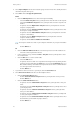
10. If you want the device to print a confirmation sheet, use a specific send speed or resolution,
send at a specific time, use a dialing prefix or include credit card details, click the Options tab.
•If required, select Print a Confirmation Sheet from the Confirmation Sheet menu to have
the device print a page stating that your job has successfully faxed. Depending on how
your System Administrator has configured the device an error sheet may print if the job
fails.
• If required, select the starting transmission speed you require from the Send Speed menu.
• If required, select the resolution you require from the Fax Resolution menu. Higher
resolutions take longer to transmit.
• If required, select the time the device should send your job using the Send Time options.
• If required, select the Dialing Prefix entry box and use your keyboard to enter a character
that should be dialled before the main fax number.
• If required, select the Credit Card entry box and use your keyboard to enter a credit card
number.
•Click the OK button.
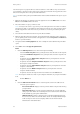
11. Click the OK button to save your settings.
12. Select the confirmation button, the name will vary depending on the application you are
printing from. From most applications select the OK or Print button.
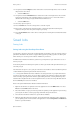
13. Depending on how your device has been set up, the Fax Confirmation screen may display with
the fax recipients for your job. If required, click the OK button to confirm.