V1.
©2010 Xerox Corporation. All Rights Reserved. Unpublished rights reserved under the copyright laws of the United States. Contents of this publication may not be reproduced in any form without permission of Xerox Corporation. Xerox® and the sphere of connectivity design are trademarks of Xerox Corporation in the United States and/or other countries. Document version 1.
Table of Contents 1 Getting Started Machine Overview. . . . . . . . . . . . . . . . . . . . . . . . . . . . . . . . . . . . . . . . . . . . . . . . . . . . . . . . . . . . . . . . . . . . . . . . .8 Powering on the Machine . . . . . . . . . . . . . . . . . . . . . . . . . . . . . . . . . . . . . . . . . . . . . . . . . . . . . . . . . . . . . . . . 11 Control Panel Overview . . . . . . . . . . . . . . . . . . . . . . . . . . . . . . . . . . . . . . . . . . . . . . . . . . . . . . . . . . . . . . . . . .
5 E-mail E-mail Procedure . . . . . . . . . . . . . . . . . . . . . . . . . . . . . . . . . . . . . . . . . . . . . . . . . . . . . . . . . . . . . . . . . . . . . . . . E-mail Options . . . . . . . . . . . . . . . . . . . . . . . . . . . . . . . . . . . . . . . . . . . . . . . . . . . . . . . . . . . . . . . . . . . . . . . . . . Address Book. . . . . . . . . . . . . . . . . . . . . . . . . . . . . . . . . . . . . . . . . . . . . . . . . . . . . . . . . . . . . . . . . . . . . . . . . . . .
Troubleshooting. . . . . . . . . . . . . . . . . . . . . . . . . . . . . . . . . . . . . . . . . . . . . . . . . . . . . . . . . . . . . . . . . . . . . . . . 161 Further Assistance. . . . . . . . . . . . . . . . . . . . . . . . . . . . . . . . . . . . . . . . . . . . . . . . . . . . . . . . . . . . . . . . . . . . . . 190 12 Specifications Machine Specifications . . . . . . . . . . . . . . . . . . . . . . . . . . . . . . . . . . . . . . . . . . . . . . . . . . . . . . . . . . . . . . . . .
Xerox WorkCentre 3550 User Guide
Getting Started 1 This chapter includes: • Machine Overview on page 8 • Powering on the Machine on page 11 • Control Panel Overview on page 12 • Supplied Software on page 16 • Loading Paper on page 17 • Loading Documents on page 18 • Media Output Locations on page 19 • Machine Status on page 20 • General Care and Consumables on page 23 • Further Assistance on page 24 Xerox WorkCentre 3550 User Guide 7
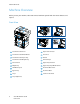
Machine Overview Machine Overview Before you use your machine, take some time to familiarize yourself with the various features and options.
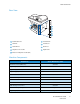
Machine Overview Rear View 8 6 1 7 9 2 3 4 5 1 Card Reader Slot 6 Power Switch 2 USB Port 7 Power Cord 3 Network Port 8 Rear Door 4 Telephone Line Socket 9 Duplex Unit 5 Extension Telephone Socket (Ext) Machine Components Component Xerox WorkCentre 3550 Document Feeder (60 sheets) Standard Paper Tray 1 (500 sheets) Standard Bypass Tray (50 sheets) Standard Digital Copying Standard Fax and Fax from PC Standard Network Printing Standard Scan and E-mail Standard Embedded F
Machine Overview Component Xerox WorkCentre 3550 Stand Option Foreign Interface Device Option 10 Xerox WorkCentre 3550 User Guide
Powering on the Machine Powering on the Machine The On/Off switch and the power inlet are at the rear of the machine. 1. Connect the AC Power Cord 1 to the machine and a power outlet. The power cord must be plugged into a grounded power socket. 2. 3. Press the ON/OFF 2 switch to the ON (I) position. To power OFF, press the ON/OFF switch to the (O) position.
Control Panel Overview Control Panel Overview 1 14 7 21 9 2 3 4 20 10 12 22 19 11 5 6 18 15 13 16 17 23 1 Copy: Activates Copy mode. 2 E-mail: Activates E-mail mode. 3 Fax: Activates Fax mode. 4 Scan: Activates Scan mode. 5 Paper Supply: Use to select a paper tray for the copy job. 6 2 Sided: Use to select whether your originals are 1 sided or 2 sided, or to produce 1 or 2 sided output. 7 Job Status: Displays job progress information.
Control Panel Overview 19 Interrupt Printing: Use to interrupt the current job to run a more urgent job. 20 Clear All: Press to clear the last selections made. 21 22 23 Power Saver: Sends the machine into power saver mode or power down. Press the button again to restart a powered off machine. Stop: Pressing the Stop button once displays a confirmation message but does not stop the machine. Press Stop again to stop the job in progress. Pressing Stop also exits the Menu Mode.
Control Panel Overview Keypad Characters Key Assigned Numbers, Letters or Characters 1 space @ / . ‘ 1 2 ABCabc2 3 DEFdef3 4 GHIghi4 5 JKLjkl5 6 MNOmno6 7 PQRSpqrs7 8 TUVtuv8 9 WXYZwxyz9 0 &+-,0 * * # # Inserting a Pause With some telephone systems, you must dial an access code (9, for example) and listen for a second dial tone. In such cases, you must insert a pause in the telephone number. You can insert a pause while you are setting up speed dial numbers.
Control Panel Overview Menu Overview The control panel provides access to various menus to setup the machine or use the machine’s functions. These menus can be accessed by pressing the appropriate service button e.g. Copy, Fax or Email and the Menu button.
Supplied Software Supplied Software After you have setup your machine and connected it to your computer, you must install the printer and scanner software. The software is supplied on the CD delivered with your machine, or can be downloaded from www.xerox.com. The following software is provided: CD Contents Printer Software CD Windows • Printer Driver: Use the printer driver to take full advantage of your printer’s features.PCL6 and Postscript drivers are provided.
Loading Paper Loading Paper 1. Open the paper tray. The paper level indicator on the front of the tray 1 and the optional tray 2 shows the amount of paper currently left in the tray. When the tray is empty, the indicator of the bar is completely lowered. Note: The paper trays can each hold a maximum of 500 sheets of 20 lb (80 g/m²) bond paper. The bypass tray can hold 50 sheets 20 lb (80 g/m²) bond paper. 2. If loading Legal, Oficio and Folio open the back of the paper tray. 3.
Loading Documents Loading Documents Documents can be loaded either into the document feeder or onto the document glass. Document Feeder 1. 2. Load documents to be scanned face up in the input tray of the document feeder with the top of the document to the left or rear of the tray. Move the document guide to just touch both sides of the document. Document Glass 1. 2. Open the document feeder and place single documents face down on the document glass aligned with the rear left corner.
Media Output Locations Media Output Locations The machine has two output locations: • Output Tray 1 • Rear Door (face up) 2 (face down) 2 The machine sends output to the Output Tray by default. If printing on envelopes and other special media, the Rear Door is recommended. 1 Using the Output Tray The Output Tray collects printed paper face down, in the order in which the sheets were printed. The Output Tray should be used for most jobs.
Machine Status Machine Status The Machine Status button provides information about the machine and access to the machine setups. After your machine is installed, it is recommended that the settings and options are customized to fully meet the requirements of the Users. Please discuss your requirements with your System or Machine Administrator to ensure you get optimum performance from your machine.
Machine Status Report Sent Report Description This report shows information on the faxes and e-mails you have recently sent. Note: You can set the machine to automatically print this report every 50 communications. (See Fax Setup on page 140.) Fax Recv Report This report shows information on the faxes you have recently received. Schedule Job This list shows the documents currently stored for delayed faxes along with the starting time and type of each operation.
Machine Status Fax Setup Your machine provides you with various user-selectable options for setting up the fax system. You can change the default settings for your preferences and needs. Receiving and Sending settings can be customized. A passcode is required to access and change the default settings. Scan Defaults The scan options, including File Format, Output Color and Resolution, can be set to those most frequently used for the Scan to USB, Scan to FTP and Scan to SMB options.
General Care and Consumables General Care and Consumables There are several consumables on the machine that need replenishing or replacing, such as paper and the Customer Replaceable Unit. To place an order for Xerox consumables, please contact your local Xerox Representative giving your Company Name, product number and the machine serial number. Supplies can also be ordered from www.xerox.com, refer to Supplies on page 111 for further information.
Further Assistance Further Assistance For any additional help visit our customer web site at www.xerox.com or contact the Xerox Support Center quoting the machine serial number. Xerox Support Center If a fault cannot be resolved by following the display instructions, check Error Messages on page 169. If the difficulty persists, contact the Xerox Support Center.
Copy 2 This chapter includes: • Copy Procedure on page 26 • Copy Options on page 29 • Using the Layout Options on page 31 • Media Output Locations on page 35 Xerox WorkCentre 3550 User Guide 25
Copy Procedure Copy Procedure This section describes the basic procedure for making copies. Follow the steps below. • Load the Documents on page 26 • Select the Features on page 27 • Enter the Quantity on page 28 • Start the Job on page 28 • Check the Job Status on page 28 • Stop the Job on page 28 If an authentication feature is enabled, you may need an account before using the machine. To get an account, or for more information, contact the System Administrator.
Copy Procedure Document Glass The following steps explain how to load documents using the document glass: 1. Raise the document feeder. 2. Place the document face down on the document glass, aligned with the tip of the registration arrow near the top left of the document glass. The default document size is 8.5 x 11” or A4. For other sized documents change the Original Size option. Refer to Copy Options on page 29 for further information. 3. Lower the document feeder.
Copy Procedure 4. scanned, the output will be “head to toe”. If “head to toe” orientation originals are scanned, the output produced will be “head to head”. Select the 2 Sided option required using the up/down arrows and press OK. Additional Copy options are available through the Menu button. For information about programming additional options, refer to Copy Options on page 29. Enter the Quantity • • The maximum copy quantity is 999.
Copy Options Copy Options Your machine provides the following options to customize your Copy jobs. Use the Menu button to access the options. For information about changing the default Copy settings, refer to Copy Defaults on page 136. Note: If you press Stop while setting the copy options, all of the options you have set for the current copy job will be canceled and return to their default status after the machine completes the copy job in progress.
Copy Options Feature Description Options Layout This option is used to copy multiple documents onto one sheet of paper, copy from book originals, create booklet output and produce documents which can be pasted together to make a poster. • Normal: Select this option to match the layout of the originals. • 2 Up: This feature is used to copy two documents, in a reduced size, onto one sheet of paper. • 4 Up: This feature is used to copy four documents, in a reduced size, onto one sheet of paper.
Using the Layout Options Using the Layout Options This option is used to copy multiple documents onto one sheet of paper, copy from book originals, create booklet output and produce documents which can be pasted together to make a poster. 2 Up or 4 Up Copying 1. 2. 3. 4. Press Copy on the control panel. Press Menu on the control panel. Press the up/down arrows to highlight Layout and press OK. Select the option required: • Normal: Copies an original onto one sheet of paper.
Using the Layout Options 6. 7. Place the front side of the original face down on the document glass, aligned with the tip of the registration arrow and close the document feeder. Press Start. Place Front Side Press OK appears on the display. Press OK on the control panel. Your machine begins scanning the front side and shows Place Rear Side Press Start. 8. Turn the original over and place the rear side of the original face down on the document glass and close the document feeder. 9.
Using the Layout Options Booklet Creation This allows you to print your document on both sides of the paper and arranges the pages so that the paper can be folded in half after printing to produce a booklet. 1. Insert the documents neatly into the document feeder, face up. The first page should be on top with the headings towards the left of the machine. Note: The originals must be loaded in the document feeder to enable the Booklet Creation feature to be selected. 2. 3. 4. 5. 6. 7. 8.
Using the Layout Options Clone Copy The machine prints multiple original images on a single page. The number of images is automatically determined by the original image and the paper size. Note: This copy feature is available only when you place originals on the document glass. 1. 2. 3. 4. 5. 6. 34 Press Copy on the control panel. Press Menu on the control panel. Press the up/down arrows to highlight Layout and press OK. Press the up/down arrows to highlight Clone Copy and press OK.
Media Output Locations Media Output Locations The machine has two output locations: • Output Tray 1 • Rear Door (face up) 2 (face down) 2 The machine sends output to the Output Tray by default. If printing on envelopes and other special media, the Rear Door is recommended. 1 Using the Output Tray The Output Tray collects printed paper face down, in the order in which the sheets were printed. The Output Tray should be used for most jobs.
Media Output Locations 36 Xerox WorkCentre 3550 User Guide
Fax 3 This chapter includes: • Fax Procedure on page 38 • Fax Options on page 42 • Using Fax Send Options on page 45 • Using Fax Forward on page 48 • Using Secure Receive on page 50 • Address Book on page 51 • Fax from PC on page 55 • Receiving Faxes on page 56 Xerox WorkCentre 3550 User Guide 37
Fax Procedure Fax Procedure This section describes the basic procedure for sending faxes. Follow the steps below. • Load the Documents on page 38 • Select the Features on page 39 • Enter the Fax Number on page 40 • Start the Job on page 40 • Check the Job Status on page 41 • Stop the Job on page 41 • Fax Confirmation on page 41 If an authentication feature is enabled, you may need an account before using the machine. To get an account, or for more information, contact the System Administrator.
Fax Procedure Document Glass The following steps explain how to load documents using the document glass: 1. Raise the document feeder. 2. Place the document face down on the document glass, aligned with the tip of the registration arrow near the top left of the document glass. The default document size is 8.5 x 11” or A4. For other sized documents change the Original Size option. Refer to Fax Options on page 42 for further information. 3. Lower the document feeder.
Fax Procedure Press the up/down arrows until the feature you want highlights and press OK. Select the setting required and press OK. For more information about each of the options refer to Fax Options on page 42. Enter the Fax Number 1. 2. Press the Fax button on the control panel. Enter the recipient’s fax number by: • Keypad Dial: Use this option to enter the number using the keypad. For instructions refer to Using the Keypad on page 13.
Fax Procedure Check the Job Status 1. 2. 3. Press the Job Status button on the control panel to display job status information. A list of Active Jobs is displayed. Select your job using the up/down arrows and press OK. The following Job Options are available: • Required Resources: Use this option to view the media requirements for incoming Fax jobs. • Delete: Select this option to delete the job. Use the left/right arrows to select Yes or No. • Details: Select this option to display details about the job.
Fax Options Fax Options Your machine provides the following options to customize your Fax jobs. Use the Menu button to access the options. For information about changing the default Fax settings, refer to Fax Setup on page 140. Note: If you press Stop while setting the fax options, all of the options you have set for the current Fax job will be canceled and return to their default status after the machine completes the job in progress.
Fax Options Feature Description Options Original Size Allows you to specify the size of the image to be scanned. • • • • • • • • A4 A5 B5 Letter Legal Executive Folio Oficio Multi Send You can use the Multi Send feature to send a fax to multiple locations. • Fax 1: Use this option to enter the first fax number. • Fax 2: Use this option to enter the second fax number. • Another Number?: Use this option to enter additional fax numbers. Refer to Multi Send on page 45 for instructions.
Fax Options Feature Description Options Add Page Use to add additional documents to a delayed Fax job which is saved in memory. Refer to Adding Documents to a Delayed Fax on page 46 for instructions. Cancel Job You can cancel a delayed Fax job which is saved in memory. Refer to Canceling a Delayed Fax on page 46 for instructions.
Using Fax Send Options Using Fax Send Options Multi Send You can use the Multi Send feature to send a fax to multiple locations. The fax is automatically stored in memory and then transmitted from memory to the fax destinations entered. After transmission, the job is automatically erased from memory. You cannot send a color fax using this feature. 1. Press Fax on the control panel. 2. Press Menu on the control panel. 3. Press the up/down arrows to highlight Multi Send and press OK. 4.
Using Fax Send Options 5. 6. 7. When you have finished entering fax numbers, press the left/right arrows to select No at the Another No.? prompt and press OK. Enter the Job Name you want and press OK. If you do not want to assign a name, skip this step. For details on how to enter alphanumeric characters, refer to Using the Keypad on page 13. Enter the time using the number keypad and press OK. If you set a time earlier than the current time, the fax will be sent at that time on the following day.
Using Fax Send Options destinations, for example after the transmission to destination A ends and before the transmission to destination B begins, or between redial attempts. 1. Press Fax on the control panel. 2. Press Menu on the control panel. 3. Press the up/down arrows to highlight Priority Send and press OK. 4. Enter the number of the receiving fax machine and press OK. You can select speed dial numbers or a group dial number using the Address book button. For details, see Address Book on page 51. 5.
Using Fax Forward Using Fax Forward You can set the machine to forward a received or sent fax to another fax, e-mail or server destination. If you are out of office but have to receive the fax, this feature may be useful. When you forward a fax to an e-mail address or an FTP or SMB server, you must use CentreWare Internet Services to setup the destination details. You can forward a fax to a total of five destinations. Refer to the System Administrator Guide for instructions.
Using Fax Forward 3. 4. Press the up/down arrows to highlight Forward and press OK. Select the option required: Fax a. Press the up/down arrows to highlight Fax and press OK. b. Press the up/down arrows to highlight Receive Forward and press OK. c. Press the up/down arrows to highlight On and press OK. d. Enter the fax number to which faxes are to be sent and press OK. E-mail a. Press the up/down arrows to highlight E-mail and press OK. b.
Using Secure Receive Using Secure Receive You may need to prevent your received faxes from being accessed by unauthorized people. In Secure Receive mode, all incoming faxes go into memory until they are accessed and released for printing. A 4digit passcode can be set to prevent faxes being printed by unauthorized users. If Secure Receive mode is deactivated, any faxes stored in memory are automatically printed. Activating Secure Receive 1. 2. 3. 4. 5. Press Fax on the control panel.
Address Book Address Book You can set up an Address Book with the fax numbers you use most frequently. Before beginning to store fax numbers, make sure that your machine is in Fax mode. Your machine provides you with the following features for setting up the Address Book. Speed Dial Numbers You can store up to 200 frequently-used fax numbers as speed dial numbers. Registering a Speed Dial Number 1. 2. 3. 4. 5. 6. 7. 8. Press Fax on the control panel. Press Address Book on the control panel.
Address Book • For a two or three-digit speed dial number, press the first digit button(s) and then hold down the last digit button. You can also search through memory for an entry by pressing Address Book. (See Address Book on page 51.) Group Dial Numbers If you frequently send the same document to several destinations, you can group these destinations and set them under a group dial number. You can then use a group dial number to send a document to all of the destinations within the group.
Address Book Press OK to add or delete the number. 9. Press OK when Yes highlights to add or delete more numbers and repeat the steps. When you have finished, press the left/right arrows to select No at the Another Number? and press OK. 10. Press Stop to return to ready mode. Using Group Dial Numbers To use a group dial entry, you need to search for and select it from memory. When you are prompted to enter a fax number while sending a fax, press Address Book.
Address Book 7. 8. Press OK when Yes highlights to confirm the deletion. Press Stop to return to ready mode. Printing the Address Book You can check your Address Book settings by printing a list. 1. Press Fax on the control panel. 2. Press Address Book on the control panel. 3. Press the up/down arrows to highlight Print and press OK.
Fax from PC Fax from PC You can send a fax from your PC without going to the machine. To a fax from your PC you will need to install the PC-Fax software and customize the software settings. Refer to the System Administrator Guide for setup instructions. 1. Open the document you want to send. 2. Select Print from the File menu. The Print window is displayed. It may look slightly different depending on your application. 3. Select Xerox MFP PC Fax from the Name drop-down list box. 4. Select OK. 5. 6.
Receiving Faxes Receiving Faxes This part explains how to receive a fax, and the special receiving methods available. Manual Receive There are two methods for receiving a fax manually: • On Hook Dial: You can receive a fax call by pressing On Hook Dial and then pressing Start when you hear a fax tone from the remote machine. The machine begins receiving a fax. If a handset is available you can answer calls using the handset. To change the number of rings, see Fax Setup on page 140.
Receiving Faxes will continue to be recognized and answered as a fax call, and all other ringing patterns will be forwarded to the extension telephone or answering machine plugged into the EXT socket. You can easily suspend or change DRPD at any time. Before using the DRPD option, Distinctive Ring service must be installed on your telephone line by the telephone company. To set up DRPD, you will need another telephone line at your location, or someone available to dial your fax number from outside.
Receiving Faxes 58 Xerox WorkCentre 3550 User Guide
Scan 4 This chapter includes: • Introduction on page 60 • Scan Procedure on page 61 • Scan Options on page 66 • Scan Using TWAIN on page 68 • Scan Using WIA Driver on page 69 • Network Scan Manager on page 70 • Macintosh Scanning on page 71 • Linux Scanning on page 72 Xerox WorkCentre 3550 User Guide 59
Introduction Introduction Scanning with your machine lets you turn pictures and text into digital files that can be stored on your computer or sent to a repository. Your machine can scan via USB or network to a PC or server, as well as directly to a USB memory device. The following filing options are available for Scan: • USB: Using this option, you can scan an image to a USB Memory Device inserted into the USB Memory Device port.
Scan Procedure Scan Procedure Using Scan, an electronic file can be created from a hard copy original. The electronic file can be filed to a specified destination. This section describes the basic procedure for scanning. Follow the steps below.
Scan Procedure Document Glass The following steps explain how to load documents using the document glass: 1. Raise the document feeder. 2. Place the document face down on the document glass, aligned with the tip of the registration arrow near the top left of the document glass. The default document size is 8.5 x 11” or A4. For other sized documents change the Original Size option. Refer to Scan Options on page 66 for further information. 3. Lower the document feeder.
Scan Procedure Scan to Network PC Make sure that your machine is connected to a network. Make sure the machine has been configured using the Network Scan Manager utility and the scan driver has been installed. For instructions, refer to the System Administrator guide. Note: The Xerox Network Scan Manager program can only be used in the Windows system. Press the Scan button on the control panel. Press the up/down arrows to highlight Network PC. Press the 2 Sided button to customize Scan settings. Press OK.
Scan Procedure 5. 6. 7. If Authentication is enabled, enter your Login ID and Password (if required). Press the up/down arrows until the server you want highlights and press OK. Press the up/down arrows to highlight the File Format you want and press OK. The images are scanned and filed to the destination selected. Select the Features Various features can be selected for your scan job when the machine is in the Ready mode. Once you have made a selection, press Back to return to the Ready screen. 1.
Scan Procedure Start the Job 1. 2. Press the Start button. If using the document glass to scan 2 sided originals, the machine displays a message when ready to scan side 2. Continue scanning until all sides have been scanned. The images are scanned and filed to the destination selected. Check the Job Status 1. 2. 3. Press the Job Status button on the control panel to display job status information. A list of Active Jobs is displayed. Select your job using the up/down arrows and press OK.
Scan Options Scan Options Your machine provides the following options to customize your Scan jobs. Use the Menu button to access the options. For information about changing the default Scan settings, refer to Scan Defaults on page 145. Feature Description Options File Format File Format determines the type of file created and can be temporarily changed for the current job. Select the file format you wish to use for your scanned image.
Scan Options Feature Resolution Original Size Description Options Resolution affects the appearance of the scanned image. A higher resolution produces a better quality image. A lower resolution reduces communication time when sending the file over the network. • 600 dpi: Recommended for high quality photos and graphics. It produces the largest image file size, but delivers the best image quality. Allows you to specify the size of the image to be scanned.
Scan Using TWAIN Scan Using TWAIN If you want to scan documents using other software, you will need to use TWAIN compliant software, such as Adobe Photoshop. Follow the steps below to scan with TWAIN compliant software: 1. Make sure that the machine is connected to your computer and powered on. 2. Install the TWAIN driver. Follow the install instructions provided with your driver. 3. Load originals face up into the document feeder, or place a single original face down on the document glass. 4.
Scan Using WIA Driver Scan Using WIA Driver Your machine also supports the Windows Image Acquisition (WIA) driver for scanning images. WIA is one of the standard components provided by Microsoft Windows XP and works with digital cameras and scanners. Note: The WIA driver works only on Windows XP/Vista/7.0 with a USB port. 1. 2. 3. 4. Make sure that the machine is connected to your computer and powered on. Install the WIA driver. Follow the install instructions provided with your driver.
Network Scan Manager Network Scan Manager If you have installed the scan driver, the Network Scan Manager program has been automatically installed too. Through this program, you can change scan settings and add or delete the folders where scanned documents are saved on your computer. Note: The Xerox Network Scan Manager program can only be used in the Windows system. 1. 2. 3. 4.
Macintosh Scanning Macintosh Scanning You can scan documents using Image Capture on Macintosh systems. Scanning with USB Connection Make sure that the machine is connected to your computer and powered on. Install the scan driver. Follow the install instructions provided with your driver. 1. Make sure that the machine and your workstation are connected to the network. 2. Load originals face up into the document feeder, or place a single original face down on the document glass. 3.
Linux Scanning Linux Scanning You can scan a document using the Unified Driver Configurator window. Make sure that the machine is powered on and connected to your computer via USB cable, or connected to the network. Install the scan driver. Follow the install instructions provided with your driver. Scanning 1. Double-click the Unified Driver Configurator on your desktop. 2. 3. Click the button to switch to Scanners Configuration. Select the scanner on the list.
Linux Scanning Saving a New Job Type Setting 1. 2. 3. 4. Change the options from the Scanner Properties window. Click Save As. Enter the name for your setting. Click OK. Your setting is added to the Job Type drop-down list. Deleting a Job Type Setting 1. 2. Select the setting you want to delete from the Job Type drop-down list. Click Delete. The setting is deleted from the list. Using the Image Manager The Image Manager application provides you with menu commands and tools to edit your scanned image.
Linux Scanning Tools Name Function Flip Allows you to flip the image vertically or horizontally. Effect Allows you to adjust the brightness or contrast of the image, or to invert the image. Properties Shows the properties of the image. For further details about the Image Manager application, refer to the on screen help.
E-mail 5 E-mailing with your machine lets you turn pictures and text into digital files that can be sent to an email address. You can scan the originals and e-mail the scanned image to several destinations from the machine by e-mail.
E-mail Procedure E-mail Procedure If E-mail has been enabled, an electronic file can be created from a hard copy original. The electronic file can be e-mailed to a specified address. This section describes the basic procedure for e-mailing. Follow the steps below.
E-mail Procedure Document Glass: The following steps explain how to load documents using the document glass: 1. Raise the document feeder. 2. Place the document face down on the document glass, aligned with the tip of the registration arrow near the top left of the document glass. The default document size is 8.5 x 11” or A4. For other sized documents change the Original Size option. Refer to E-mail Options on page 80 for further information. 3. Lower the document feeder. Enter the E-mail Address 1. 2.
E-mail Procedure Select the Features Various features can be selected for your e-mail job. The most common features are selected from the control panel. Once you have made a selection, press Back to return to the Ready screen. 1. Press the 2 Sided button on the control panel. The following 2 Sided options are available: • 1 1 Sided: Use this option for 1 sided originals. • 2 1 Sided: Use this option for 2 sided originals.
E-mail Procedure Check the Job Status 1. 2. 3. Press the Job Status button on the control panel to display job status information. A list of Active Jobs is displayed. Select your job using the up/down arrows and press OK. The following Job Options are available: • Delete: Select this option to delete the job. Use the left/right arrows to select Yes or No. • Details: Select this option to display details about the job. The job name, owner, type, status and submission time is displayed.
E-mail Options E-mail Options Your machine provides the following options to customize your E-mail jobs. Use the Menu button to access the options. For information about changing the default E-mail settings, refer to E-mail Defaults on page 138. Feature Description Options File Format File Format determines the type of file created and can be temporarily changed for the current job. Select the file format you wish to use for your scanned image.
E-mail Options Feature Description Options Resolution Resolution affects the appearance of the scanned image. A higher resolution produces a better quality image. A lower resolution reduces communication time when sending the file over the network. • 300 dpi: Recommended for high quality text documents that are to pass through OCR applications. Also recommended for high quality line art or medium quality photos and graphics. This is the default resolution and the best choice in most cases.
Address Book Address Book You can set up an Address Book with the e-mail addresses you use frequently via CentreWare Internet Services and then easily and quickly enter e-mail addresses by selecting them from the Address Book. Store on Local Machine (Local Address Book) This method means that you store e-mail addresses in your machine memory. You can add addresses, as well as group them in particular categories. Individual 1. 2. 3. Open the web browser from your workstation.
Address Book 4. 5. 6. 7. 8. Make sure you have configured Local Address Book. Select the Properties tab and enter the login details. The default User Name is admin and the default password is 1111. Select E-mail > E-mail Setup > Group Address Book. The screen shows Group Address Book on the right side of the screen. Click Add. Select the Group number and enter Group Name. Select e-mail addresses by clicking the check boxes. Searching the Address Book There are two ways to search for an address in memory.
Smart Key Addresses Smart Key Addresses Customizing the Smart Key addresses enables you to quickly access and select commonly used e-mail address text, for example .com or @yourdomainname.com. Up to six Smart Key addresses can be entered using the E-mail Setup options in CentreWare Internet Services. To customize the E-mail Smart Key addresses: 1. Open the web browser from your workstation. 2. In the URL field, enter http:// followed by the IP Address of the machine. For example: if the IP Address is 192.
Print 6 The Xerox WorkCentre 3550 produces high quality prints from electronic documents. You can access the printer from your PC by installing the appropriate printer driver. To access the many printer drivers which can be used with your machine, refer to the Drivers CD or download the latest versions from the Xerox website at www.xerox.com.
Printing using Windows Printing using Windows The following provides an overview of the print procedure and features available when printing using Windows. Install Printer Software You can install the printer software for local printing and network printing. To install the printer software on the computer, perform the appropriate installation procedure depending on the printer in use. The printer software also provides the Fax from PC function if selected during the installation process.
Printing using Windows 4. Click Typical installation for a local printer and follow the wizard instructions to install the local printer. Note: For Custom install instructions, refer to the System Administrator Guide. If your printer is not already connected to the computer, the Connect Device screen will appear. After connecting the printer, click Next. If you don’t want to connect the printer at this time, click Next, and No on the following screen.
Printing using Windows 2. 3. 4. Insert the supplied CD-ROM into your CD-ROM drive. The CD-ROM should automatically run, and an installation window appears. • If the installation window does not appear, click Start and then Run. Type X:\Setup.exe, replacing “X” with the letter which represents your drive and click OK. • If you use Windows Vista, click Start > All programs > Accessories > Run, and type X:\Setup.exe. If the AutoPlay window appears in Windows Vista, click Run Setup.
Printing using Windows Print Procedure Documents can be printed from your PC using the print drivers supplied. The print driver must be loaded on each PC which uses the machine for printing. Note: If an authentication feature is enabled, you may need an account before using the machine. To get an account, or for more information, contact the System Administrator. 1. 2. Click Print in your application. From the Printer: Name drop down menu, click on your machine. 3.
Printing using Windows Basic Tab The Basic Tab provides options to adjust how the document appears on the printed page. The options include orientation settings, quality settings, layout options and double-sided printing settings. Orientation Orientation allows you to select the direction in which information is printed on a page. • Portrait: Prints across the width of the page, letter style. • Landscape: Prints across the length of the page, spreadsheet style.
Printing using Windows • • • • None: The document is printed single-sided. Long Edge: This is the conventional layout used in book binding. Short Edge: This is the type often used with calendars. Reverse Double-Sided Printing: The document is printed 2 sided and the second side images are rotated 180 degrees. Paper Tab Use the Paper Tab options to set the basic paper handling specifications when you access the printer properties. Copies This allows you to choose the number of copies to be printed.
Printing using Windows Graphics Tab Use the following options to adjust the print quality for your specific printing needs. Font/Text • • • Darken Text: Use this option to increase the darkness of the text in your document. All Text Black: All text in your document prints solid black, regardless of the color it appears on the screen. Advanced: Use this option to set font options. True Type fonts can be downloaded as Outline or Bitmap Images or printed as Graphics.
Printing using Windows 3. 4. 5. Select the watermark options. You can select the font name, style, size or shade from the Font Attributes section and set the angle of the watermark from the Message Angle section. Click Add to add the new watermark to the list. When you have finished editing, click OK. Editing a Watermark 1. Select Edit from the Watermark drop-down list. The Edit Watermark window appears. 2.
Printing using Windows 2. 3. After you select the file, click Open. The file appears in the Overlay List box and is available for printing. Select the overlay from the Overlay List box. If necessary, click Confirm Page Overlay When Printing. If this box is checked, a message window appears each time you submit a document for printing, asking you to confirm your wish to print an overlay on your document.
Printing using Windows Xerox Tab This tab provides version and copyright information and a link to the Xerox website.
Printing using Macintosh Printing using Macintosh This section explains how to print using Macintosh. You need to set the print environment before printing. Refer to the System Administrator Guide. Printing a Document When you print with a Macintosh, you need to check the printer driver setting in each application you use. Follow the steps below to print from a Macintosh: 1. Open the document you want to print. 2. Open the File menu and click Page Setup (Document Setup in some applications). 3.
Printing using Macintosh Paper Set Paper Type to correspond to the paper loaded in the tray from which you want to print. This will let you get the best quality printout. If you load a different type of print material, select the corresponding paper type. Printer Features Printer Features tab provides Reverse Duplex Printing and Fit to Page options. Select Printer Features from the drop-down list under Orientation to access the following features.
Printing using Macintosh 5. Click Print, then the machine prints on both sides of the paper. Note: If you print more than 2 copies, the first copy and the second copy might print on the same sheet of paper.
Printing using Linux Printing using Linux Printing from Applications There are a lot of Linux applications that allow you to print using Common UNIX Printing System (CUPS). You can print on your machine from any such application. 1. Open an application, and select Print from the File menu 2. Select Print directly using lpr. 3. In the LPR GUI window, select the machine from the printer list and click Properties. 4.
Printing using Linux 3. 4. 100 The Printer Properties window opens. The following five tabs display at the top of the window: • General: This option allows you to change the printer location and name. The name entered in this tab displays on the printer list in Printers configuration. • Connection: This option allows you to view or select another port. If you change the machine port from USB to parallel or vice versa while in use, you must re-configure the machine port in this tab.
USB Port 7 USB memory devices are available with a variety of memory capacities to give you more room for storing documents. For information about setting up and enabling the USB Port, refer to the System Administrator Guide.
Inserting the USB Memory Device Inserting the USB Memory Device Your machine supports USB memory devices with FAT16/FAT32 and sector size of 512 bytes. 1. Check your USB Memory Device is within specification. • You must use only an authorized USB memory device with an A plug type connector. • Use only an USB memory device with metal-shielded connector. 2. Insert the USB memory device into the USB memory port on your machine. CAUTIONS: • Do not remove the USB memory device while it is in use.
Scanning to USB Memory Device Scanning to USB Memory Device You can scan a document and save the scanned image onto a USB memory device. When the USB Memory Device is inserted into the USB memory port, the option to Scan To USB is automatically displayed. If this option is selected, the machine immediately scans your documents using the default scan settings. If you want to customize the scan settings, such as the File Format or Resolution, use the following procedure: 1.
Scanning to USB Memory Device After scanning is complete, you can remove the USB memory device from the machine.
Printing from USB Memory Device Printing from USB Memory Device You can directly print files stored on a USB memory device. You can print the following supported file types: • PRN: Only files created by the driver provided with your machine are compatible. PRN files can be created by selecting the Print to file check box when you print a document. The document will be saved as a PRN file, rather than printed on paper. Only PRN files created using this method can be printed directly from USB memory device.
Managing USB Memory Managing USB Memory You can delete image files stored on a USB memory device one by one or all at once by reformatting the device. CAUTION: After deleting files or reformatting a USB memory device, files cannot be restored. Therefore, confirm that you no longer need the data before deleting it. Deleting an Image File 1. 2. 3. 4. 5. 6. Insert a USB memory device into the USB memory port on your machine. Press the up/down arrows to highlight Manage Files and press OK.
CentreWare Internet Services 8 CentreWare Internet Services uses the embedded HTTP Server on the machine. This allows you to communicate with your machine through a web browser. Entering the IP Address of the machine as the URL (Universal Resource Locator) in the browser provides direct access to the machine over the internet or intranet.
Using CentreWare Internet Services Using CentreWare Internet Services Prior to connecting to CentreWare Internet Services the machine must be physically connected to the network with TCP/IP and HTTP enabled. An operational workstation with TCP/IP Internet or Intranet accessibility is also required. To access CentreWare Internet Services: 1. Open the web browser from your workstation. 2. In the URL field, enter http:// followed by the IP Address of the machine. For example: if the IP Address is 192.168.100.
Welcome Welcome The Welcome page provides information about your machine and access to the CentreWare Internet Services options. A summary of the machine features is listed, along with the machine name and address details. Use the Refresh Status to update the machine status information. If a different language is required, select the language drop-down menu and change to the language required. Use the Index option to navigate to specific topics, or the Help option to access Xerox.
Status Status Use this option to review status information about your machine. General Status This option provides information about the paper trays, the total number of impressions made, and the current polling interval. To change the polling interval, use the drop down menu and select the number of seconds required. Select Change Refresh Behavior to confirm the change.
Status Supplies This option provides information on the life of the print cartridge. Use the Order Supplies link to access the Xerox website and search for supplies information.
Jobs Jobs Use this option to check the status of your job. The Active Jobs list displays a list of the current jobs and the status of each job. Select Delete to delete the highlighted job. Select Refresh to update the jobs list and status information.
Print Print The Print option enables you to print configuration pages, or to send a print ready job such as a PDF or PostScript file to the printer over the internet. You can send the job from your desktop or from a remote location. Print Configuration Pages To print a Configuration Page: 1. Ensure Print Configuration Pages is selected in the Print menu on the left. 2. Select the configuration page required, Printer Configuration Page or Network Configuration Page. 3. Select the print button.
Properties Properties The Properties option contains all the settings, setups and default values for installing and setting up the machine. These are protected by a user name and password and should only be changed by your System Administrator. For information about all the Properties options, refer to the System Administrator Guide.
Support Support The Support option contains the contact information for your System Administrator. It also provides links to the Xerox website for downloading the Printer Drivers and User Manuals, ordering supplies, accessing Technical Support or registering your machine.
Support 116 Xerox WorkCentre 3550 User Guide
Paper and Media 9 This chapter contains information about the different types of stock and stock sizes that can be used on your machine, available paper trays and the types of stock and sizes supported by each tray.
Loading Paper Loading Paper One Paper Tray and a Bypass Tray are standard on your machine. A second Paper Tray is available to purchase as an option. Various media sizes and types can be used in the trays. For more media specifications, refer to Media Specifications on page 124. Preparing Paper for Loading Before loading paper into the paper trays, fan the edges. This procedure separates any sheets of paper that are stuck together and reduces the possibility of paper jams.
Loading Paper 3. Squeeze the rear guide and move from the current position and into the correct position for the current paper size. Make sure the guide clicks into place. 4. Load paper into the tray. Do not fill above the 28lb (105g) line at the rear of the tray. Position the side guide by squeezing the lever and sliding it towards the stack of paper, until it gently touches the side of the stack. Insert the paper tray into the machine.
Loading Paper Loading the Bypass Tray 1. Lower the Bypass Tray, located on the front of the machine and unfold the paper support extension. Note: Remove any curl on postcards and labels before loading them into the Bypass Tray. 2. Prepare a stack of paper for loading by flexing or fanning them back and forth. Straighten the edges on a level surface. Note: The Bypass Tray can hold a maximum of 50 sheets of 20 lb (80 g/m²) bond paper, 5 transparency sheets or 5 envelopes. 3.
Loading Paper 5. 6. 7. Open the Rear Door and release the Green Levers on the fuser. When printing from your PC, ensure you select the Select Paper button to specify the correct paper size, color and type. Not confirming the paper details may result in printing delays. For information about setting the paper type and size on the control panel, refer to Setting Paper Size and Type on page 122. The settings made from the machine driver override the settings on the control panel.
Setting Paper Size and Type Setting Paper Size and Type After loading paper in the paper tray, set the paper size and type using the control panel. These settings will apply to Copy and Fax modes. For computer printing, select the paper size and type in the application program you use on your computer. Note: The settings made from the print driver override the settings on the control panel. After closing the paper tray the Paper Size and Type settings are automatically displayed.
Setting Paper Size and Type 6. 7. 8. Press the up/down arrows to select the paper tray you want. Press OK to save the selection. Press Stop to return to ready mode.
Media Specifications Media Specifications Media Guidelines When selecting or loading paper, envelopes or other special media please adhere to these guidelines: • Attempting to print on damp, curled, wrinkled or torn paper can cause paper jams and poor print quality. • Use only high quality copier grade paper. Avoid paper with embossed lettering, perforations or texture that is too smooth or too rough. • Store paper in its ream wrapper until ready to use.
Media Specifications Media Types The table below shows the media types supported for each tray.
Media Specifications 126 Xerox WorkCentre 3550 User Guide
Machine Status and Setups 10 This chapter identifies the key settings that you can customize to meet your requirements. Changing these settings is easy and will save you time when using the machine.
Machine Status Menu Machine Status Menu All the machine setup features are accessed through the Machine Status button on the control panel. The setup and default options should be setup and customized by the System Administrator. Therefore access to these options is passcode protected. Accessing the Setup Options To access the default and setup options: 1. Press the Machine Status button on the Control Panel. 2. Press the up/down arrow buttons to highlight the required option. Press OK. 3.
Machine Status Menu Feature Information Pages Option Option Settings All Pages • Printing? Yes ! No Configuration Page • Printing? Yes ! No Address Book • Fax • E-mail Send Report • Printing? Yes ! No Sent Report • Fax • E-mail Fax Rcv Report • Printing? Yes ! No Scheduled Jobs • Printing? Yes ! No Junk Fax Report • Printing? Yes ! No Network Information • Printing? Yes ! No User Auth List • Printing? Yes ! No Billing Counters • Printing? Yes ! No Xerox WorkCentre 3550 User Guide
Machine Status Menu Feature Copy Defaults 130 Option Option Settings Copy Quantity • Copy Quantity Default Reduce/Enlarge • • • • • • • 100% Variable % Auto Fit LGL->LTR (78%) LGL->A4 (83%) A4->A5 (71%) A4->LTR (94%) Lighten/Darken • • • • • Lightest Light Normal Dark Darkest Original Type • Text • Photo and Text • Photo Background Suppression • Off • On Layout • • • • Collation • Collated • Uncollated Original Size • • • • Xerox WorkCentre 3550 User Guide Normal 2-Up 4-Up ID Card Co
Machine Status Menu Feature E-mail Defaults Fax Setup Option Option Settings File Format • PDF • TIFF • Multi-Page TIFF • JPEG Lighten/Darken • • • • • Output Color • Color • Grayscale • Black and White Original Type • Text • Photo and Text • Photo Background Suppression • Off • On Resolution • 300 dpi • 200 dpi • 100 dpi Original Size • • • • Enable/Disable • Disabled • Enabled Sending • • • • Redial Times Redial Term Prefix Dial ECM Mode • Send Report • Image TCR • Dial Mode Rece
Machine Status Menu Feature Scan Defaults System Setup 132 Option Option Settings USB Defaults • • • • File Format Lighten/Darken Output Color Original Type • Background Suppression • Resolution • Original Size FTP Defaults • • • • File Format Lighten/Darken Output Color Original Type • Background Suppression • Resolution • Original Size SMB Defaults • • • • File Format Lighten/Darken Output Color Original Type • Background Suppression • Resolution • Original Size Machine Settings • • • •
Machine Status Menu Feature Network Settings Option Option Settings TCP/IPv4 • DHCP • BOOTP • Static TCP/IPv6 • IPv6 • DHCPv6 Mode Network Services • 802.1x • HTTP Ethernet Speed • Auto • 10Mbps Half • 10Mbps Full Network Ping Test • IPv4 Address • IPv6 Address • HostName Clear Settings • Clear Settings? Yes ! No Print Network Info.
Information Pages Information Pages 1. 2. Press Machine Status on the control panel. Press the up/down arrows to highlight Information Pages and press OK. The following Information Pages options and settings are available: Option Description Settings All Pages This option enables you to print all the Information Pages. • Printing? Yes | No Configuration Report This list shows the status of the userselectable options.
Information Pages Option Description Settings User Auth List This list shows authorized users who are allowed to use the e-mail function. • Printing? Yes | No Billing Counters This list shows the total number of impressions, black Impressions and maintenance impressions which have been made on the machine. It also shows the total number of sheets and 2 sided sheets put through the machine. • Printing? Yes | No 3. 4. 5. Press the up/down arrows to highlight the option required and press OK.
Copy Defaults Copy Defaults The Copy options, including Lighten/Darken, Original Type, Collation and number of copies, can be set to those most frequently used. When you copy a document, the default settings are used unless they have been changed for the current job. To access the options: 1. Press Machine Status on the control panel. 2. Press the up/down arrows to highlight Copy Defaults and press OK. 3. Enter the Administrator’s Password using the keypad.
Copy Defaults Option 4. 5. 6. 7. Description Settings Normal * 2-Up 4-Up ID Card Copy Book Copy Booklet Creation Poster Copy Clone Copy Layout Use this option to set the default Layout setting for Copy jobs. • • • • • • • • Collation Use this option to select collated or uncollated output for Copy jobs. • Collated * • Uncollated Original Size Use this option to select the default Original Size setting for Copy jobs.
E-mail Defaults E-mail Defaults The E-mail options, including File Format, Original Type, Output Color and Resolution, can be set to those most frequently used. When you e-mail a document, the default settings are used unless they have been changed for the current job. 1. Press Machine Status on the control panel. 2. Press the up/down arrows to highlight E-mail Defaults and press OK. 3. Enter the Administrator’s Password using the keypad. Refer to Accessing the Setup Options on page 128 for instructions.
E-mail Defaults Option 4. 5. 6. Description Settings Resolution Use this option to select the default Resolution for E-mail jobs. • 300 dpi * • 200 dpi • 100 dpi Original Size Use this option to select the default Original Size setting for E-mail jobs. • • • • • • • A4 / Letter * A5 B5 Legal Executive Folio Oficio Press the up/down arrows to highlight the option required and press OK. Press the up/down arrows to highlight the setting required and press OK to save the selection.
Fax Setup Fax Setup Your machine provides you with various user-selectable options for setting up the fax system. You can change the default settings for your preferences and needs. Enable/Disable Use this option to enable or disable the Fax service: 1. Press Machine Status on the control panel. 2. Press the up/down arrows to highlight Fax Setup and press OK. 3. Enter the Administrator’s Password using the keypad. Refer to Accessing the Setup Options on page 128 for instructions. 4.
Fax Setup Option 7. 8. Settings ECM Mode (Error Correction Mode) This mode helps with poor line quality and makes sure any faxes you send are sent smoothly to any other ECMequipped fax machine. Sending a fax using ECM may take more time. • On * • Off Send Report You can set your machine to print a confirmation report showing whether a transmission was successful, how many pages were sent and other transmission details.
Fax Setup 4. Press the up/down arrows to highlight Receiving and press OK. The following Receiving options and settings are available: Note: * indicates the factory default setting. Option Description Settings Fax * Tel Ans Fax DRPD Receive Mode You can select the default fax receiving mode. • • • • • Ring to Answer You can specify the number of times the machine rings before answering an incoming call.
Fax Setup Option Description Settings Using this feature, the system will not accept faxes received from numbers stored in the memory as junk fax numbers. This feature is useful for blocking any unwanted faxes. • On • Add: Allows you to add up to 10 junk fax numbers. • Delete: Allows you to delete one fax number, or all the fax numbers from the list. • Off * DRPD Mode This mode enables a single telephone line to answer several different telephone numbers.
Fax Setup same line to be sure the call is forwarded to the extension telephone or answering machine plugged into the EXT socket. Defaults 1. 2. 3. 4. Press Machine Status on the control panel. Press the up/down arrows to highlight Fax Setup and press OK. Enter the Administrator’s Password using the keypad. Refer to Accessing the Setup Options on page 128 for instructions. Press the up/down arrows to highlight Defaults and press OK.
Scan Defaults Scan Defaults The Scan options, including File Format, Output Color and Resolution, can be set to those most frequently used for the following scan services: • Scan to USB • Scan to FTP • Scan to SMB When you scan a document, the default settings are used unless they have been changed for the current job. 1. Press Machine Status on the control panel. 2. Press the up/down arrows to highlight Scan Defaults and press OK. 3. Enter the Administrator’s Password using the keypad.
Scan Defaults Option Resolution Description Use this option to select the default Resolution for Scan jobs. Settings • 600 dpi Note: 600dpi is only supported for Scan to USB when the maximum memory is installed. • 300 dpi * • 200 dpi • 100 dpi Original Size 5. 6. 7. 146 Use this option to select the default Original Size setting for Scan jobs. • • • • • • • • A4 / Letter * A5 B5 Letter Legal Executive Folio Oficio Press the up/down arrows to highlight the option required and press OK.
System Setup System Setup System Setup options enable you to customize settings which are specific to the machine, such as Date & Time and Power Save. Machine Settings 1. 2. 3. 4. Press Machine Status on the control panel. Press the up/down arrows to highlight System Setup and press OK. Enter the Administrator’s Password using the keypad. Refer to Accessing the Setup Options on page 128 for instructions. Press the up/down arrows to highlight Machine Settings and press OK.
System Setup Option 148 Description Settings Power Save Use this option to set the time the machine waits before entering power save mode. • • • • • • • • Scan PWR Save Scan power save mode allows you to save power by turning off the scan lamp. The scan lamp automatically turns off when it is not in use to reduce power consumption and extend the life of the lamp. The lamp automatically wakes up after some warm-up time when you start scanning.
System Setup Option 5. 6. 7. 8. Description Settings Auto Continue This option enables the machine to continue printing even if it detects a mismatch between the paper size set and the paper size in the tray. • On * • Off Auto Tray Switch This option enables the machine to switch between trays if both trays have the same size of paper and a tray becomes empty. • On * • Off Toner Save This option allows your machine to use less toner on each page.
System Setup The following Paper Settings options and settings are available: Note: * indicates the factory default setting. Option Paper Size Paper Type Paper Source 150 Xerox WorkCentre 3550 User Guide Description Sets the size of paper in the tray. Sets the type of paper in the tray. Sets the paper tray to be used for Copy and Fax jobs.
System Setup Option 5. 6. 7. 8. Description Settings Bypass Mode Use to enable or disable the Bypass Tray. • Disabled * • Enabled Tray Prompt Enables a prompt to change the tray settings when a tray is opened and closed. • Tray 1 • Tray 2 • On * • Off Press the up/down arrows to highlight the option required and press OK. Press the up/down arrows to highlight the setting required or enter the correct information using the keypad. Press OK to save the selection.
System Setup 7. Continue customizing the Sound Settings as required, then press Stop to return to ready mode. Maintenance 1. 2. 3. 4. Press Machine Status on the control panel. Press the up/down arrows to highlight System Setup and press OK. Enter the Administrator’s Password using the keypad. Refer to Accessing the Setup Options on page 128 for instructions. Press the up/down arrows to highlight Maintenance and press OK.
System Setup The following Clear Settings options and settings are available: Option 5. 6. 7. Description Settings All settings Clears all of the data stored in memory and resets all of your settings to the factory default. • Clear Settings? Yes | No Copy Setup Clears all Copy Setup settings and restores all of the copy options to the factory default. • Clear Settings? Yes | No Fax Setup Clears all Fax Setup settings and restores all of the fax options to the factory default.
Network Settings Network Settings You may set up the network using the machine's display screen. Before doing that, you must have the relevant information concerning the type of network protocols and computer system you use. If you are not sure which setting to use, contact your System Administrator to configure this machine on the network, or refer to the System Administrator Guide for instructions. 1. Press Machine Status on the control panel. 2.
General Care and Troubleshooting 11 This chapter includes: • General Care on page 156 • Troubleshooting on page 161 • Further Assistance on page 190 Xerox WorkCentre 3550 User Guide 155
General Care General Care There are several consumables on the machine that need replenishing or replacing, such as paper and the print cartridge. To place an order for Xerox consumables, please contact your local Xerox Representative giving your Company Name, product number and the machine serial number. Supplies can also be ordered from www.xerox.com, refer to Supplies on page 111 for further information.
General Care • • • • • A vehicle for a long period of time. • An environment where corrosive gases are present. • An environment with salty air. Do not store comsumables directly on the floor. Do not touch the surface of the photosensitive drum in the Print Cartridge. Do not expose the Print Cartridge to unnecessary vibrations or shock. Never manually rotate the drum in the Print Cartridge, especially in the reverse direction; this can cause internal damage and toner spillage.
General Care 6. 7. Tabs on the sides of the cartridge and corresponding grooves within the machine will guide the cartridge into the correct position until it locks into place completely. Close the front door. Make sure that the cover is securely closed. Checking the Supplies Life 1. 2. 3. Press Machine Status on the control panel. Press the up/down arrows to highlight Toner Level and press OK. The level of toner remaining is indicated on the status bar. Press Stop to return to ready mode.
General Care Document Glass and Constant Velocity Transport (CVT) Glass To ensure optimum print quality at all times, regularly clean the glass areas of your machine. This helps avoid output with lines, streaks, smears, spots and other marks that may appear on the output when scanning documents. When you use the document feeder, your documents will pass over the stationary scanner using the Constant Velocity Transport (CVT) glass.
General Care 4. With a dry, lint-free cloth, wipe away any dust and spilled toner from the print cartridge area. CAUTION: While cleaning the inside of the machine, be careful not to damage the transfer roller or any other inside parts. Do not use solvents such as benzene or thinner to clean. Printing quality problems can occur and cause damage to the machine. 5. 6. 7. Locate the long strip of glass (LSU) inside the top of the cartridge compartment and gently clean the glass with a swab.
Troubleshooting Troubleshooting If a problem occurs, messages appear on the control panel display to indicate the error. Perform the following problem solving procedure: 1. When errors occur, Check Status appears on the display. Press OK. 2. Check the display message to see what kind of error has occurred. If several messages appear, press the up/down arrows to highlight the message you want solve. 3.
Troubleshooting Redistributing Toner When the print cartridge is near the end of its life: • White streaks or light printing occurs. • Toner is Low. Order new one appears on the display. If this happens, you can temporarily improve print quality by redistributing the remaining toner in the cartridge. In some cases, white streaks or light printing will still occur even after you have redistributed the toner. 1. Release both latches on the side of the front door and open the door. 2.
Troubleshooting 6. Close the front door. Ensure that the door is securely closed. Document Feeder Jams When an original jams while passing through the document feeder, a warning message appears on the display screen. CAUTION: To avoid tearing the document, remove the jammed document slowly and gently. Note: To prevent document jams, use the document glass for thick, thin, or mixed paper-type originals. 1. 2. Remove any remaining pages from the document feeder. Open the document feeder cover. 3.
Troubleshooting 6. 7. Seize the misfeed paper, and remove the paper from the feed area by carefully pulling it to the right using both hands. Close the document feeder. Load the removed pages back into the document feeder. Paper Jams Tips for Avoiding Paper Curls 1. 2. 3. Open the rear door. Pull down the pressure lever on each side about 45 degrees. Close the rear door. Note: Only use when the printout has more than 20mm curl.
Troubleshooting When a paper jam occurs, a warning message appears on the display screen. CAUTION: To avoid tearing the paper, pull the jammed paper out slowly and gently. Follow the instructions in the following sections to clear the jam. Tray 1 1. 2. 3. 4. 5. Release both latches on the side of the front door and open and close the door. The jammed paper is automatically ejected from the machine. If the paper does not exit, go to the next step. Pull out tray 1.
Troubleshooting Bypass Tray 1. 2. 3. If the paper is not feeding properly, pull the paper out of the machine. Release both latches on the side of the front door and open and close the door. Re-load the Bypass Tray to resume printing. Inside the Machine CAUTION: The fuser area is hot. Take care when removing paper from the machine. 1. Release both latches on the side of the front door and open the door. Pull the print cartridge out, lightly pushing it down. 2. 3.
Troubleshooting 3. 4. Gently pull the paper out of the output tray. If you do not see the jammed paper or if there is any resistance when you pull, stop and go to the next step. Open the rear door. 5. If you see the jammed paper, pull down the pressure levers on each side and remove the paper. If you still do not see the paper, go to the next step. 6. Unfold the duplex guide fully and release the pressure lever on each side. 7. While pushing the fuser lever to the right, open the fuser door. 8.
Troubleshooting Duplex Unit Area If the duplex unit is not inserted correctly, a paper jam may occur. Make sure that the duplex unit is inserted correctly. The duplex unit is located at the rear of the machine. 1. Pull the duplex unit out of the machine. 2. Remove the jammed paper from the duplex unit. If the paper does not come out with the duplex unit, remove the paper from the bottom of the machine. 3. 4. Insert the duplex unit into the machine. If you still do not see the paper, go to the next step.
Troubleshooting Error Messages Use the following information to solve problems on the machine. Some messages may not appear in the display depending on options or models. Note: [xxx] indicates the media type, [zzz] indicates the paper size, [yyy] indicates the tray. Message Meaning Suggested Solutions BOOTP problem BOOTP has a problem. Reconfigure DHCP/static IP There is a problem with the network. • Check your network environment, or contact your network administrator.
Troubleshooting Message Meaning Suggested Solutions IP Conflict This IP address conflicts with that of other system The IP address is used elsewhere. • Check the IP address or obtain a new IP address. Jam bottom of duplex Paper has jammed during duplex printing. • Clear the jam. (See Paper Jams on page 164.) Jam in exit area Paper has jammed in exit area. • Clear the jam. (See Paper Jams on page 164.) Jam inside Machine Paper has jammed inside the machine. • Clear the jam.
Troubleshooting Message Meaning Suggested Solutions Network Error There is a problem with the network. There is a problem with the network. • Check your network environment, or contact your network administrator. Network Problem Network cable is not connected. Check it The machine is not connected with a network cable. • Connect the machine to the network with a network cable. Network Problem Network card is not installed. There is a problem on the network interface.
Troubleshooting Message Meaning Suggested Solutions Pickup roller is worn [yyy] pickup roller is worn. Replace with new one The pickup roller has reached the end of its lifespan. • This message appears when the pickup roller is worn. Replace the pickup roller with a new one. Call for service. Fuser Door is open. Close it The fuser door is not securely latched. • Close the fuser door until it locks into place.
Troubleshooting Message Meaning Suggested Solutions Toner Not Compatible Print cartridge is not compatible. Check guide The print cartridge you have installed is not for your machine. • Install a new print cartridge designed for your machine. Toner Not Installed Print cartridge is not Installed. Install it The print cartridge is not installed. • Install the print cartridge. Too many Faxes Too may faxes are received. Print or remove job. Too many faxes are received.
Troubleshooting Condition Suggested Solutions Multiple sheets of paper do not feed. • Different types of paper may be stacked in the tray. Load paper of only one type, size, and weight. Paper does not feed into the machine. • Remove any obstructions from inside the machine. • Paper has not been loaded correctly. Remove paper from the tray and reload it correctly. • There is too much paper in the tray. Remove excess paper from the tray. • The paper is too thick.
Troubleshooting Printing Problems Condition The machine does not print. Possible Cause Suggested Solutions The machine is not receiving power. • Check the power cord connections. Check the power switch and the power source. The machine is not selected as the default machine. • Select your machine as your default machine in Windows. Check the machine for the following: • The front door is not closed. Close the front door. • Paper is jammed. Clear the paper jam. (See Paper Jams on page 164.
Troubleshooting Condition Possible Cause Suggested Solutions The machine selects print materials from the wrong paper source. The paper option that was selected in the Printing Preferences may be incorrect. • For many software applications, the paper source selection is found under the Paper tab within the Printing Preferences. Select the correct paper source. (See Paper Options on page 91.) A print job is extremely slow. The job may be very complex.
Troubleshooting Condition Possible Cause Suggested Solutions The machine does not print PDF file correctly. Some parts of graphics, text, or illustrations are missing. Incompatibility between the PDF file and the Acrobat products. • Printing the PDF file as an image may enable the file to print. Turn on Print As Image from the Acrobat printing options. It will take longer to print when you print a PDF file as an image. The print quality of photos is not good. Images are not clear.
Troubleshooting Problem Possible Cause Solution The optional tray is not selected in the driver. The printer driver has not been configured to recognize the optional tray. • Open the PostScript driver properties, select the Device Settings tab, and set the tray option of the Installable Options section to Installed. When printing a document in Macintosh with Acrobat Reader 6.0 or higher, colors print incorrectly.
Troubleshooting Common Linux Problems Condition Suggested Solutions The machine does not print. • Check if the printer driver is installed on your system. Open Unified Driver Configurator and switch to the Printers tab in Printers configuration window to look at the list of available machines. Make sure that your machine is displayed on the list. If not, open Add new printer wizard to set up your machine. • Check if the machine is started.
Troubleshooting Condition Suggested Solutions Error message “Cannot open port device file” displays when printing a document. • Avoid changing print job parameters (via LPR GUI, for example) while a print job is in progress. Known versions of CUPS server break the print job whenever print options are changed and then try to restart the job from the beginning.
Troubleshooting Common Macintosh Problems Condition Suggested Solutions The machine does not print PDF files correctly. Some parts of graphics, text, or illustrations are missing. • Printing the PDF file as an image may enable the file to print. Turn on Print As Image from the Acrobat printing options. • It will take longer to print when you print a PDF file as an image. The document has printed, but the print job has not disappeared from the spooler in Mac OS X10.3.2.
Troubleshooting Printing Quality Problems If the inside of the machine is dirty or paper has been loaded improperly, there might be a reduction in print quality. See the table below to clear the problem. Condition Suggested Solutions Light or faded print • If a vertical white streak or faded area appears on the page, the toner supply is low. You may be able to temporarily extend the print cartridge life. (See Redistributing Toner on page 162.
Troubleshooting Condition Suggested Solutions Vertical lines If black vertical streaks appear on the page, isolate the problem to copying, printing or scanning and perform the following: • If copying or scanning, check the CVT glass and document glass and if necessary clean using a lint-free cloth. (See Document Glass and Constant Velocity Transport (CVT) Glass on page 159.) • If copying or printing, the surface (drum part) of the print cartridge inside the machine has probably been scratched.
Troubleshooting Condition Suggested Solutions Background scatter Background scatter results from bits of toner randomly distributed on the printed page. • The paper may be too damp. Try printing with a different batch of paper. Do not open packages of paper until necessary so that the paper does not absorb too much moisture. • If background scatter occurs on an envelope, change the printing layout to avoid printing over areas that have overlapping seams on the reverse side.
Troubleshooting Condition Suggested Solutions Back of printouts are dirty Check for leaking toner. Clean the inside of the machine. (See Internal Areas on page 159.) Solid Black pages • The print cartridge may not be installed properly. Remove the cartridge and reinsert it. • The print cartridge may be defective. Remove the print cartridge and install a new one. (See Replacing the Print Cartridge on page 157.) • The machine may require repair. Contact a service representative.
Troubleshooting Condition Suggested Solutions Curl If the printed paper is curled or paper does not feed into the machine: • Turn the stack of paper over in the tray. Also try rotating the paper 180° in the tray. • Change the printer option and try again. Go to Printing Preferences, click Paper tab, and set type to Thin. (See Paper Tab on page 91.) An unknown image repetitively appears on a few sheets or loose toner, light print, or contamination occurs.
Troubleshooting Condition Suggested Solutions Frequent copy paper jams occur. • Fan the stack of paper, then turn it over in the tray. Replace the paper in the tray with a fresh supply. Check/adjust the paper guides, if necessary. • Ensure that the paper is the proper paper weight. • Check for copy paper or pieces of copy paper remaining in the machine after a paper jam has been cleared. Print cartridge produces fewer copies than expected before running out of toner.
Troubleshooting Condition Suggested Solutions The unit scans very slowly. • Check if the machine is printing received data. If so, scan the document after the received data has been printed. • Graphics are scanned more slowly than text. Message appears on your computer screen: • Machine can’t be set to the H/W mode you want. • Port is being used by another program. • Port is Disabled. • Scanner is busy receiving or printing data. When the current job is completed., try again. • Invalid handle.
Troubleshooting Condition Suggested Solutions Faxes are not received automatically. • The receiving mode should be set to fax. • Make sure that there is paper in the tray. • Check to see if the display shows any error message. If it does, clear the problem The machine does not send. • Make sure that the original is loaded in the document feeder or on the document glass. • Check the fax machine you are sending to, to see if it can receive your fax.
Further Assistance Further Assistance For any additional help visit our customer web site at www.xerox.com or contact the Xerox Support Center quoting the machine serial number. Xerox Support Center If a fault cannot be resolved by following the display instructions, check Error Messages on page 169. If the difficulty persists, contact the Xerox Support Center.
Specifications 12 This chapter includes: • Machine Specifications on page 192 • Electrical Specifications on page 195 • Feature Specifications on page 196 Xerox WorkCentre 3550 User Guide 191
Machine Specifications Machine Specifications Machine Configurations Feature Specification Hardware Configuration Processor Document Feeder 1-2 Paper Trays and Bypass Tray Machine Size Base configuration: width 18.3 x depth 17.1 x height 18" (W 582 x D 488 x H 553 mm) Machine Weight Approx 51.59 lb (23.
Machine Specifications Paper Supply Trays 1, & 2 Feature Specification Capacity 500 sheets 20 lb (80 g/m²) bond paper per tray Paper Weights 16 lb - 24 lb (60 to 90 g/m²) Paper Sizes Length min 8.3 - max 14" (210 - 356 mm) Width min 5.8 - max 8.5" (148 - 216 mm) 8.5 x 11" 8.5 x 14" 8.5 x 13" ISO B5 (176 x 250mm) JIS B5 (182 x 257mm) Oficio A4 A5 Executive 7.25 x 10.5" (184.2 x 266.
Machine Specifications Document Feeder Feature Specification Capacity Approximately 60 sheets of 20 lb (80 g/m²) bond paper Paper Weights 12 lb - 28 lb (50 to 120 g/m²) Paper Sizes 2.75 x 5.7” to 8.5 x 14" (69.
Electrical Specifications Electrical Specifications Feature Specification Frequency 50/60 Hz Electrical Voltage 110 - 127 VAC & 220 - 240 VAC Average Power Consumption Power Save mode: Less than 18 Watts Stand By mode: Less than 60 Watts Xerox WorkCentre 3550 User Guide 195
Feature Specifications Feature Specifications Fax Feature Feature Specification Fax Transmission Speed 33.6 Kbps Telephone Line Type Standard public analogue switched telephone line or equivalent Communication Standard Super G3, IYU G3 Maximum Resolution Capability 600 x 600 dpi Standard Fax Memory 7MB Effective Scanning Width 8.2" (208 mm) Maximum Print Width 8.
Feature Specifications Scan Feature Feature Specification Maximum Document Width 8.5" (216 mm) Effective Scan Width 8.
Feature Specifications 198 Xerox WorkCentre 3550 User Guide
Safety 13 This chapter includes: • Notices and Safety on page 200 • Safety Labels and Symbols on page 201 • Operational Safety Information on page 202 • Basic Regulations on page 206 • Copy Regulations on page 208 • Fax Regulations on page 211 • Material Safety Data on page 214 • Product Recycling and Disposal on page 215 • Energy Program Compliance on page 217 • EH&S Contact Information on page 218 Xerox WorkCentre 3550 User Guide 199
Notices and Safety Notices and Safety Please read the following instructions carefully before operating the machine. Refer to them as needed to ensure the continued safe operation of your machine. Your Xerox machine and supplies have been designed and tested to meet strict safety requirements. These include safety agency evaluation and certification, and compliance with electromagnetic regulations and established environmental standards.
Safety Labels and Symbols Safety Labels and Symbols All warnings and instructions marked on or supplied with the machine should be followed. This WARNING alerts users to areas of the machine where there is the possibility of personal injury. This WARNING alerts users to areas of the machine where there are heated surfaces, which should not be touched.
Operational Safety Information Operational Safety Information Your Xerox machine and supplies have been designed and tested to meet strict safety requirements. These include safety agency examination, approval, and compliance with established environmental standards.
Operational Safety Information Laser Safety Information CAUTION: Use of controls, adjustments or performance of procedures other than those specified herein may result in hazardous light exposure. With specific regard to laser safety, the device complies with performance standards for laser products set by government, national and international agencies as a Class 1 laser product. It does not emit hazardous light, as the beam is totally enclosed during all phases of customer operation and maintenance.
Operational Safety Information • • • • Never push objects of any kind into the ventilation openings. Never override or “cheat” any of the electrical or mechanical interlock devices. Never place this device where people might step on or trip on the power cord. This device should not be placed in a room unless proper ventilation is provided. Please contact your local Authorized dealer for further information.
Operational Safety Information Maintenance Information WARNING: Do not use aerosol cleaners. Aerosol cleaners can be explosive or flammable when used on electromechanical equipment. • • • • Any operator device maintenance procedures will be described in the user documentation supplied with the device. Do not carry out any maintenance on this device which is not described in the customer documentation. Use supplies and cleaning materials only as directed in the user documentation.
Basic Regulations Basic Regulations Xerox has tested this device to electromagnetic emission and immunity standards. These standards are designed to mitigate interference caused or received by this device in a typical office environment. United States (FCC Regulations) This device has been tested and found to comply with the limits for a Class A digital device, pursuant to Part 15 of the FCC Rules.
Basic Regulations European Union WARNING: This is a Class A product. In a domestic environment this device may cause radio interference in which case the user may be required to take adequate measures. The CE mark applied to this device symbolizes Xerox’s declaration of conformity with the following applicable Directives of the European Union as of the dates indicated: • • • December 12, 2006: Low Voltage Directive 2006/95/EC.
Copy Regulations Copy Regulations United States Congress, by statute, has forbidden the reproduction of the following subjects under certain circumstances. Penalties of fine or imprisonment may be imposed on those guilty of making such reproductions. 1.
Copy Regulations 6. 7. 8. 9. Passports. Foreign Passports may be photographed. Immigration papers. Draft Registration Cards. Selective Service Induction papers that bear any of the following Registrant’s information: • Earnings or Income • Court Record • Physical or mental condition • Dependency Status • Previous military service Exception: United States military discharge certificates may be photographed. 10.
Copy Regulations Canada Parliament, by stature, has forbidden the reproduction of the following subjects under certain circumstances. Penalties of fine or imprisonment may be imposed on those guilty of making such reproductions. 1. Current bank notes or current paper money. 2. Obligations or securities of a government or bank. 3. Exchequer bill paper or revenue paper. 4. The public seal of Canada or of a province, or the seal of a public body or authority in Canada, or of a court of law. 5.
Fax Regulations Fax Regulations United States Fax Send Header Requirements The Telephone Consumer Protection Act of 1991 makes it unlawful for any person to use a computer or other electronic device, including a fax machine, to send any message unless such message clearly contains in a margin at the top or bottom of each transmitted page or on the first page of the transmission, the date and time it is sent and an identification of the business or other entity, or other individual sending the message and t
Fax Regulations If this Xerox device causes harm to the telephone network, the Telephone Company will notify you in advance that temporary discontinuance of service may be required. But if advance notice is not practical, the Telephone Company will notify the customer as soon as possible. Also, you will be advised of your right to file a complaint with the FCC if you believe it is necessary.
Fax Regulations Canada This product meets the applicable Industry Canada technical specifications. Repairs to certified equipment should be coordinated by a representative designated by the supplier. Any repairs or alterations made by the user to this device, or device malfunctions, may give the telecommunications company cause to request the user to disconnect the device.
Material Safety Data Material Safety Data For Material Safety Data information regarding your printer, go to: North America: www.xerox.com/msds European Union: www.xerox.com/environment_europe For the Customer Support Center phone numbers, go to www.xerox.com/office/worldcontacts.
Product Recycling and Disposal Product Recycling and Disposal USA & Canada Xerox operates a worldwide equipment take back and reuse/recycle program. Contact your Xerox sales representative (1-800-ASK-XEROX) to determine whether this Xerox device is part of the program. For more information about Xerox environmental programs, visit www.xerox.com/environment.html.
Product Recycling and Disposal European Union WEEE Directive 2002/96/EC Product Recycling and Disposal (EU Professional/Business Environment) Application of this symbol on your equipment is confirmation that you must dispose of this equipment in compliance with agreed national procedures. In accordance with European legislation, end of life electrical and electronic equipment subject to disposal must be managed within agreed procedures.
Energy Program Compliance Energy Program Compliance All Markets ENERGY STAR As an ENERGY STAR® partner, Xerox Corporation has determined that this device meets the ENERGY STAR guidelines for energy efficiency. The ENERGY STAR and ENERGY STAR MARK are registered United States trademarks. The ENERGY STAR Office Equipment Program is a team effort between U.S.
EH&S Contact Information EH&S Contact Information For more information on Environment, Health, and Safety in relation to this Xerox device and supplies, please contact the following customer help lines: USA: 1-800 828-6571 Canada: 1-800 828-6571 Europe: +44 1707 353 434 Device safety information is also available on the Xerox website: www.xerox.
Index Numerics 2 Sided Copying, 27 Printing, 90, 97 2 Up, 4 Up, 30, 31 A Accessing the Setup Options, 128 Active Jobs, 112 Add Page, 44 Adding Documents to a Delayed Fax, 46 Address Book, 40, 51, 82 Group, 82 Group Dial Numbers, 52 Individual, 82 Printing, 83 Searching, 83 Speed Dial Numbers, 51 Administrator Password, 128 Advanced Tab, 92 Alphanumeric Keys, 13 Answering Machine, 56 Auto Report, 144 B Background Suppression, 29, 42, 66, 80 Banner Sheet, 148 Basic Safety Regulations, 206 Basic Tab, 90 Bill
Original Type, 29 Reduce/Enlarge, 29 Copy Defaults, 21, 136 Copy Job Status, 28 Copy Options, 29 Copy Procedure, 26 Copy Regulations, 208 Copying Problems, 186 Counter, 21, 128, 129, 135 Customer Replaceable Unit, 23, 156 Print Cartridge, 157 Storage and Handling, 156 CVT Glass, 23 D Date & Time, 147 Deactivating Fax Forward, 49 Defaults Clear Settings, 152 Copy, 21, 136 E-mail, 21, 138 Fax, 144 Fax Setup, 22, 140 Machine Settings, 147 Maintenance, 152 Network Settings, 22, 154 Paper Settings, 149 Scan, 22
Output Area, 166 Paper Feeding, 173 Paper Jams, 164 PostScript Problems, 177 Print Quality, 182 Printing, 175 Scanning, 187 Tray 1, 165 Tray 2, 165 Windows Printing, 178 Fax, 37 Add Page, 44 Address Book, 51 Background Suppression, 42 Cancel a Job in Memory, 44 Confirmation, 41 Delayed Start, 43, 45 Fax Forward, 43 Group Dial, 52 Lighten/Darken, 42 Multi Send, 43, 45 Original Size, 43 Priority Send, 43, 46 Problems, 188 Resolution, 42 Secure Receive, 43 Send Options, 45 Setup, 140 Speed Dial, 51 Fax Auto Re
Job Status button, 12 Job Type Settings, 72 Jobs, 112 K Keypad, 12, 13 Keypad Characters, 14 Keypad Dial, 40 L Language, 147 Layout, 30 Layout Options, 90 Lighten/Darken, 29, 42, 66, 80 Linux Image Manager, 73 Printer Properties, 99 Linux Printing, 99 Linux Problems, 179 Linux Scanning, 72 Job Type Settings, 72 Loading Documents, 18, 26 Loading Paper, 17, 117, 118 Bypass Tray, 119 Envelopes, 120 Media Specifications, 124 Media Types, 125 Paper Size and Type, 122 Paper Trays 1 and 2, 118 Loading the Paper
Numeric Keys, 13 N-up printing, 97 O On/Off, 11 Operational Safety, 199 Operational Safety Information, 202 Optional Tray 2, 165 Options Copy, 29 E-mail, 80 Fax, 42 Scan, 66 Orientation, 90 Original Size, 30, 43, 67, 81 Original Type, 29, 66, 80 Originals, 18, 26 Output Area, 166 Output Color, 66, 80 Output Module Specifications, 194 Output Options, 94 Output Tray, 8, 19, 35, 159 Overlay, 93 Overview Scanning, 60 Overview of your Machine, 8 P Paper and Media, 117 Paper Curls, 164 Paper Feeding Problems, 1
Print Specifications, 196 Printer Settings Macintosh, 96 Printer Software, 86 Printing a Machine Report, 190 Printing from USB, 101, 105 Printing Problems, 175 Printing Quality Problems, 182 Printing Reports, 20, 134, 190 Printing the Information Pages, 134 Printing using Windows, 86 Priority Send, 43, 46 Problem Solving, 161 Problems Bypass Tray, 166 Copying, 186 Duplex Unit Area, 168 Fax, 188 Inside the Machine, 166 Linux, 179 Macintosh, 181 Output Area, 166 Paper Feeding, 173 PostScript, 177 Print Qualit
Scan Using WIA Driver, 69 Scanner Lock Switch, 8 Scanning, 60, 61 Scanning Methods, 60 Scanning Problems, 187 Scanning to USB, 101, 103 Secure Receive, 43, 50 Select, 27 Send Options, 45 Send Report, 20 Sending a Fax, 37, 38 Sending a Print Job, 85, 89 Sending an E-mail, 75, 76 Sending Setups, 140 Sent Report, 20 Serial Number, 190 Services CentreWare Internet Services, 107 Copy, 25 E-mail, 75 Fax, 37 Fax from PC, 55 Print, 85 Scan, 59 USB Port, 101 Setting Paper Size and Type, 122 Setting up DRPD Mode, 143
Macintosh, 71 USB Memory Port, 8 USB Port, 9, 101 Deleting an Image File, 106 Formatting, 106 Inserting the Device, 102 Memory Management, 106 Memory Status, 106 Print, 105 Scan, 103 Using Stop, 28, 41, 79 Using the Bypass Tray, 119 Using the Machine, 7 V Viewing the USB Memory Status, 106 W Watermark, 92 WEEE Directive 2002/96/EC, 216 Welcome, 109 WIA Driver, 69 Windows Printing, 86 Windows Problems, 178 X Xerox Support Center, 24, 190 226 Xerox WorkCentre 3550 User Guide