
User manual





Troubleshooting
Version 1.5 68
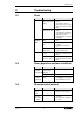
15.4 Image
SYMPTOM
POSSIBLE CAUSE
SOLUTION
no image
unit is in stand-by
mode
- switch on the unit by press-
ing the POWER-key. Power
indication LED has to be
green.
(depends on customer instal-
lation)
bad wiring to the
display device
- check connected cable
display device
- check display device settings
and connections
wrong resolution
and/or refresh rate
- check settings (may connect
another display, or check
settings via Ethernet/LAN or
RS-232) see page 54
Iris completely
closed
- press IRIS OPEN-key (or
press a ZOOM-key to acti-
vate the AUTO IRIS function)
Bad image
quality
wrong menu ad-
justments
- check settings like resolution,
gain, shutter, detail (reset
complete on-screen menu)
wrong display ad-
justments
- check adjustments, may use
color bar chart
Bright spots
front lens dirty
- clean the lens with a soft
tissue
light reflec-
tions
caused by room
light / sun light
- check room light conditions
caused by glossy
document
- switch off the light and work
with room light
image too
dark
Iris closed
- press IRIS OPEN-key to
open the IRIS or press a
ZOOM-key to activate AUTO
IRIS
wrong settings on
display device
- check settings
bad wiring to the
display device
- check wiring (Termination)
Auto Iris Level
- check Auto Iris Level in the
on-screen menu
image too
bright
Iris open
- press IRIS close-key to open
the IRIS or press a ZOOM-
key to activate AUTO IRIS
wrong settings on
display device
- check settings
bad wiring to the
display device
- check wiring (Termination)
Auto Iris Level
- check Auto Iris Level in the
on-screen menu
wrong colors
check white bal-
ance
- perform an One-Push-White-
Balance or change the White
Balance settings in the on-
screen menu
RGB
- check wiring to the display
device