
User manual






OSD
41 Version 1.5
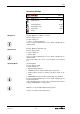
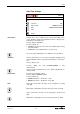
Transparency of OSD window background.
Factory setting is ON
Possible settings:
• ON: background of OSD window will be displayed transparent
and the image is still visible
• OFF: background of OSD window will be displayed in solid color.
Changes the size of the OSD window.
Factory setting is SMALL
Possible settings:
• SMALL: the OSD will be shown as small window
• LARGE: the OSD will be shown as large window for better read-
ability
The size of the OSD windows cannot be changed when one of the
following resolutions is selected: VGA, XGA
When the OSD window size is changed to large, the position of the
OSD window cannot be changed.
Horizontal position of OSD window on the screen.
Factory setting is 50%
Possible settings:
• 0% to 100%: in steps of 5%.
(0% moves the window to the left side; 100% to the right side)
Vertical position of OSD window on the screen.
Factory setting is 50%
Possible settings:
• 0% to 100%: in steps of 5%.
(0% moves the windows to the top; 100% to the bottom)
Position of status bar in relation to the OSD window.
Factory setting is BOTTOM
Possible settings:
• BOTTOM: the status bar will be displayed on the bottom of the
OSD window
• TOP: the status bar will be displayed on the top of the OSD win-
dow.
Changes the color of the bar which indicates the current selected
menu line.
Factory setting is WHITE
Changes the color of the selected text in the bar.
Factory setting is BLACK
Changes the color of the OSD text.
Factory setting is WHITE.
Changes the color of the text in the headline of the OSD.
Factory setting is Yellow.
Changes the color of the text in the status line.
Factory setting is WHITE.
Changes the language of the on-screen menu.
Returns to previous menu page.
Transparency
Size
Menu Hor. Position
Menu Ver. Position
Status Position
Selection Bar Color
Selected Text Color
Menu Text Color
Menu Headline Color
Status Text Color
Language
Return