A Leading Provider of Multimedia Communication Solutions 3GPP Camera User Guide Version 1.
Project code management 2006 Project code management 2006 © 2007 VIVOTEK Inc. All Right Reserved VIVOTEK may make changes to specifications and product descriptions at any time, without notice. The following is trademarks of VIVOTEK Inc., and may be used to identify VIVOTEK products only: VIVOTEK. Other product and company names contained herein may be trademarks of their respective owners.
Project code management 2006 Table of Contents Introduction ........................................................................................................................................... 3 Network setting for 3GPP camera ........................................................................................................ 4 Mobile viewing setting of Camera ......................................................................................................... 9 Supporting handsets list.....
Project code management 2006 Introduction 3GPP cameras meet the requirement of surveillance anywhere and anytime. However, it usually gives users a hard time to configure and make it work. Working 3GPP camera surveillance needs three parts: (1) A correct setting for 3GPP camera. (2) An operator supporting streaming service via 3G handset (3) A correct setting of 3G handset with RTSP complaint application on it. For item 2 and 3, they are co-related.
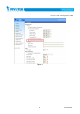
Project code management 2006 Network setting for 3GPP camera We divided network environment into 2 categories to guide user to install 3GPP camera correctly for mobile viewing. (1) With IP router If your 3GPP camera will be installed behind IP router, port forwarding is necessary for your IP router. You can just check the check box of “Enable UPnP port forwarding” (see figure 1) and network camera will automatically try to open all the necessary port for you.
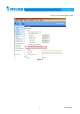
Project code management 2006 It is also feasible to install multiple 3GPP network cameras behind one IP router. Each camera should use a different set of ports.
Project code management 2006 Figure 1 6 Confidential
Project code management 2006 Figure 2 7 Confidential
Project code management 2006 (2) Without IP router The network setting becomes more straightforward in this scenario. Either fixed IP or PPPoE can be set in network camera. It depends on which kind of internet service user are subscribing. If PPPoE is applied, DDNS is strongly recommended since IP is floating. There are several DDNS services supported in VIVOTEK network camera.
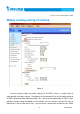
Project code management 2006 Mobile viewing setting of Camera Figure 3 From the page of video and audio setting (For IP7135/7), there is a radial check of “configuration for mobile viewing”. Checking this will automatically set all the media setting to fit 3GPP standard for both video and audio. This is the minimum requirement of 3GPP. If your operator provides higher bandwidth of 3G network, you can change “Constant bit rate” to better one as well as “Max frame rate”.
Project code management 2006 setting. The higher frame rate will lead to worse video quality. If you saw broken video on your handset, you might overdo the bandwidth adjusting As regarding to network camera of dual stream (IP7138/9), there is no mobile viewing option. Please make sure that video setting is correct in either stream 1 or stream 2.
Project code management 2006 Supporting handsets list Table below is the tested handsets that support VIVOTEK 3GPP camera. Basically, Nokia, Motorola and Sony-Ericsson use the same streaming player for most of their models. So the compatible handsets should be much more than the listed ones below. If you only want to install one camera behind IP router for mobile viewing, please choose RTSP default port 554. This will make the most compatibility of streaming to handsets.
Project code management 2006 Nokia 6170 Sony Ericsson W900i Nokia 6260 Sony Ericsson Z1010 Nokia 6270 Sony Ericsson Z520i Nokia 6600 Sony Ericsson W810i Nokia 6670 Sony Ericsson K600i Nokia 7280 Sony Ericsson K750i Nokia 7370 Sony Ericsson W800i Nokia 7600 Sony Ericsson Z800i Nokia 8800 Sony Ericsson K300i Nokia K600i Sony Ericsson K508i Nokia 6280 Sony Ericsson K700i Nokia 6230i Sony Ericsson P910i Nokia 6170 Sony Ericsson W550i Nokia 6260 Sony Ericsso
Project code management 2006 FAQ 1. How to configure my handset to support live streaming Ans. Call your phone company. Usually they will send you the configuration to your handset or show you where to download the configuration document. Please make sure your handset support streaming before install 3GPP camera. Test with some streaming provided by your phone company to make sure the handset is ready for streaming 2. How to know that my handset support VIVOTEK’s 3GPP network camera? Ans.
Project code management 2006 (1) Make sure your handset can view some streaming provided by your phone company. If it does not, (see FAQ1) (2) Use IE browser to http://60.248.39.152 to check VIVOTEK’s 3GPP camera demo site is working and make sure your PC is connecting to internet. (3) If your handset can see streaming, try to input “rtsp://60.248.39.152/live.sdp” to your player. If you can see the video, this means your handset is ready.