
Manual




20
ViewSonic Client Setup
User mode
CloseOverview
ViewSonic Client Setup
ViewSonic Client Setup
Customize your desktop
Desktop
Keyboard
Display
Mouse
Quick
Connection
Network
Switch to
Administrator
mode
Time
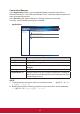
Item Description
Desktop (*1) Switch to the Desktop setting window to change wallpaper,
client name and client system language settings.
Display (*1) Switch to the Display setting window to set screen resolution
or dual display mode settings.
Keyboard (*1) Switch to the Keyboard setting window to set keyboard
setting and layout settings.
Mouse (*1) Switch to the Mouse setting window to set mouse settings.
Network Switch to the Network setting window to set LAN or wireless
network connection settings.
Quick Connection Switch to the Quick Connection setting window to enable/
disable the auto-start Quick Connection interface.
Time Switch to the Time setting window to set system date/time
and time zone settings.
Switch to
Administrator
mode
Switch to the administrator mode menu for advance
functions. You will need to input the administrator password
to authenticate any changes. (*2)
Overview Goes back to the ViewSonic Client Setup menu.
Close Close the ViewSonic Client Setup window.
*1. Some settings need time to be writen on to the configuration files (normally about
5 seconds). If a user shuts down the client just after changes these settings, the
modified setting values may be lost.
*2. The default administrator password is “Administrator”.