
Instruction manual






To choose a different Audio Language during DVD playback press the AUDIO
button on the DVD Player (14) or the Remote (18). Each time the AUDIO button is
pressed the selected audio language will change and the current language will be
displayed on the screen.
CHANGING CAMERA ANGLES DURING DVD PLAYBACK
NOTE: the DVD disc must have multi-angle capabilities for this function to work.
To choose a different Camera Angle during DVD playback press the ANGLE
button (19) on the Remote. With each press of the ANGLE button (19) the
camera angle will change.
USB & SD / MMC PLAYBACK
This DVD supports playback of MP3 audio files and JPEG photos from a USB
drive, SD or MMC card.
For USB Playback - Insert a USB flash drive into the USB Input (20) on the side of
the DVD player. If there is no disc inserted the DVD player will automatically enter
USB playback mode.
For SD / MMC Playback - Insert a SD or MMC card into the SD / MMC Card Slot
(21) on the side of the DVD player. If there is no disc inserted the DVD player will
automatically enter SD / MMC playback mode.
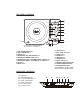
To enter the USB or SD playback mode press the DVD/USB/SD button on the
DVD player (11), or on the Remote (20), and the screen will display automatically
switch to display the files on the USB flash drive or SD card.
To play or view content from the USB flash drive or SD Card simply use the
Navigation buttons (4, 5, 6, 7) on the DVD player, or on the Remote (4, 5, 6, 7) to
highlight the desired file and press either the OK button (8) on the DVD player, or
the ENTER button (8) on the Remote to begin playing the file.
When you have finished using USB / SD / MMC playback mode, simply remove
the USB flash drive or SD / MMC card and the player will automatically return to
the DVD playback mode.
INSTALLING THE AUTO HEADREST CASE
1. Rotate the screen of the DVD player 180° and fold the screen flat as shown
below.