
User manual




8
Calendar Setup
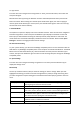
Use the up and down buttons (7 & 8) to select the setting you want to change. When you have
highlighted the setting you need use the left and right buttons (1 & 6) to change the setting. Once
you have changed the required setting press and hold the back button (10) to go back to the main
menu.
System Setup
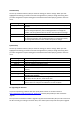
Use the up and down buttons (7 & 8) to select the setting you want to change. When you have
highlighted the setting you need use the left and right buttons (1 & 6) to change the setting. Once
you have changed the required setting press and hold the back button (10) to go back to the main
menu.
12. Upgrading the firmware
If you are experiencing problems with your Qudo please contact our Technical Team at
http://www.veho-world.com/main/ask_expert.aspx and they will provide you with a firmware
upgrade.
Once you have received the firmware upgrade copy the new firmware file (.bin) to an SD card. Insert
the SD card and go to setting in the main menu, then select system setup and then system upgrade.
Setting
Description
Display Mode
Select from
Monthly Calendar, Calendar or Clock
for
the default display
for
Calendar.
Date
Change the date that is displayed on the calendar
. The day, month and
year are changed separately. Use the left/right button to change the
number, and the up/down button to move to the next option to change.
Clock Mode
C
hange the time display between 12 and 24 hour modes
Clock
Change the
time
that is displayed on the calendar
. The
hour and minutes
are changed separately. Use the left/right button to change the number,
and the up/down button to move to the next option to change.
Setting
Description
Language
Change the language that
th
e Qudo displays in.
Brightness
Adjust the brightness of the
Qudo screen.
Contrast
Adjust the
contrast
of the
Qudo screen.
Saturation
Adjust the
saturation
of the
Qudo screen.
Disk Space
Press the OK button (9) to see available space on the
Qudo
’
s
internal
memory.
Version
Press the OK button (9) to see
the
version of Qudo software that you have.
System Upgrade
Press the OK button (9) to
upgrade the Qudo system (see section
12.
Upgrading the firmware)
ScreenSaver Time
Adjust the time it takes for the Qudo to go to screensaver when not in use
from None, 30 secs, 60 secs, 2 mins or 10 mins.
Reset default setting
Reset all of the Qudo settings to the original settings.
Press the OK button
(9) then select Yes and press the OK button to reset the Qudo.