
User manual




Table Of Contents
- Included Guides
- Safety Conventions in This Guide
- Symbols
- Contents
- Legal and Safety Information
- Notice on Software
- Notice
- Regarding Trade Names
- License Agreements
- Compliance and Conformity
- Energy Saving Control Function
- Automatic 2-Sided Print Function
- Resource Saving - Paper
- Environmental benefits of "Power Management"
- Environment
- Cautions when Handling Consumables
- Other precautions
- Laser Safety (Europe)
- About the Operation Guide
- Conventions
- 1 Part Names
- 2 Preparation before Use
- 3 Printing
- 4 Document Box
- 5 Status Menu
- 6 Operation Panel
- Report Print
- USB Memory (USB memory selection)
- Counter (Viewing the counter value)
- Paper Settings
- Print Settings
- Paper Source (Selecting the paper feed source)
- MP Tray Priority (the settings for priority paper feed from the MP tray)
- Paper Feed Mode (Setting the paper feed source)
- Duplex (Setting the duplex printing)
- Paper Output (Selecting the Paper Output Location)
- Override A4/LTR (Overriding difference between A4 and Letter)
- Emulation (Setting the emulation)
- Color Mode (Selecting color or black & white printing)
- Print Quality (Setting print quality)
- Page Setting (Setting pagination)
- Offset 1PageDoc. (Offset One Page Documents)
- User Name (The User Name display settings)
- Job Name (The Job Name display settings)
- Network (Network settings)
- Optional network (Optional Network settings)
- Device Common (Selecting/Setting the common device)
- Language (Selecting the message language)
- Def. Screen(Box) (Document Box default screen settings.)
- Date Setting (Date and time settings)
- Buzzer (Alarm (Buzzer) setting)
- Display Bright. (Display brightness setting)
- Disp. Backlight (Display backlight setting)
- Error Handling (Error detection setting)
- ColorToner Empty (Setting when color toner runs out)
- Timer Setting
- USB Keyboard Type (USB keyboard type selection)
- Manual Staple (Manual Staple setting)
- TonerAlert Level (Setting for the alert level for toner addition)
- Display Jobs Log
- Msg Banner Print (Preview screen setting for Banner Printing)
- Security (Security function setting)
- User/Job Account (User Login Setting/Job Account setting)
- Adjust/Maint. (Adjust/Maintenance selection/setting)
- Op Functions (Optional application settings)
- Shut down (Shutting down the machine)
- 7 Maintenance
- 8 Troubleshooting
- General Guidelines
- Print Quality Problems
- Error Messages
- Clearing Paper Jams
- Possible Paper Jam Locations
- General Considerations for Clearing Jams
- Utilizing Online Help Messages
- Cassette 1
- Cassette 2
- Optional Cassettes 3 and 4
- Multi Purpose Tray
- Inside the Right Covers 1, 3 and 4
- Duplex unit
- Duplex Unit and Cassette 1
- Bridge Unit (Option)
- 1,000-sheet Finisher (Option)
- 4,000-sheet Finisher (Option)
- Mailbox (Option)
- Center-Folding Unit (Option)
- Cassette 5 (Option)
- Cassette 6,7 (Option)
- Clearing a Staple Jam
- Appendix
- Optional Equipment
- Overview of Optional Equipment
- Paper Feeder (500-sheet x2)
- Large Capacity Feeder (1,500-sheet x 2)
- Side Feeder (3,000-sheet)
- Side Feeder (500-sheet x 3)
- Large Capacity Side Feeder (500, 1,500-sheet x 2)
- 1,000-sheet Finisher
- 4,000-sheet Finisher
- Manual staple mode
- Mailbox
- Folding Unit
- Banner Tray
- Network Interface Kit
- Wireless Network Interface Kit
- Data Security Kit
- ThinPrint Option
- Emulation Option
- Card Authentication Kit (B)
- USB Keyboard
- Character Entry Method
- Paper
- Specifications
- Common functions
- Paper Feeder (500-sheet x 2) (Option)
- Large Capacity Feeder (1,500-sheet x 2) (Option)
- Side Feeder (500-sheet x 3) (Option)
- Large Capacity Side Feeder (500, 1,500-sheet x 2) (Option)
- Side Feeder (3,000-sheet) (Option)
- 1,000-sheet Finisher (Option)
- 4,000-sheet Finisher (Option)
- Hole Punch Unit (Option)
- Mailbox (Option)
- Center-Folding Unit (Option)
- Glossary
- Optional Equipment
- Index
Troubleshooting
8-14
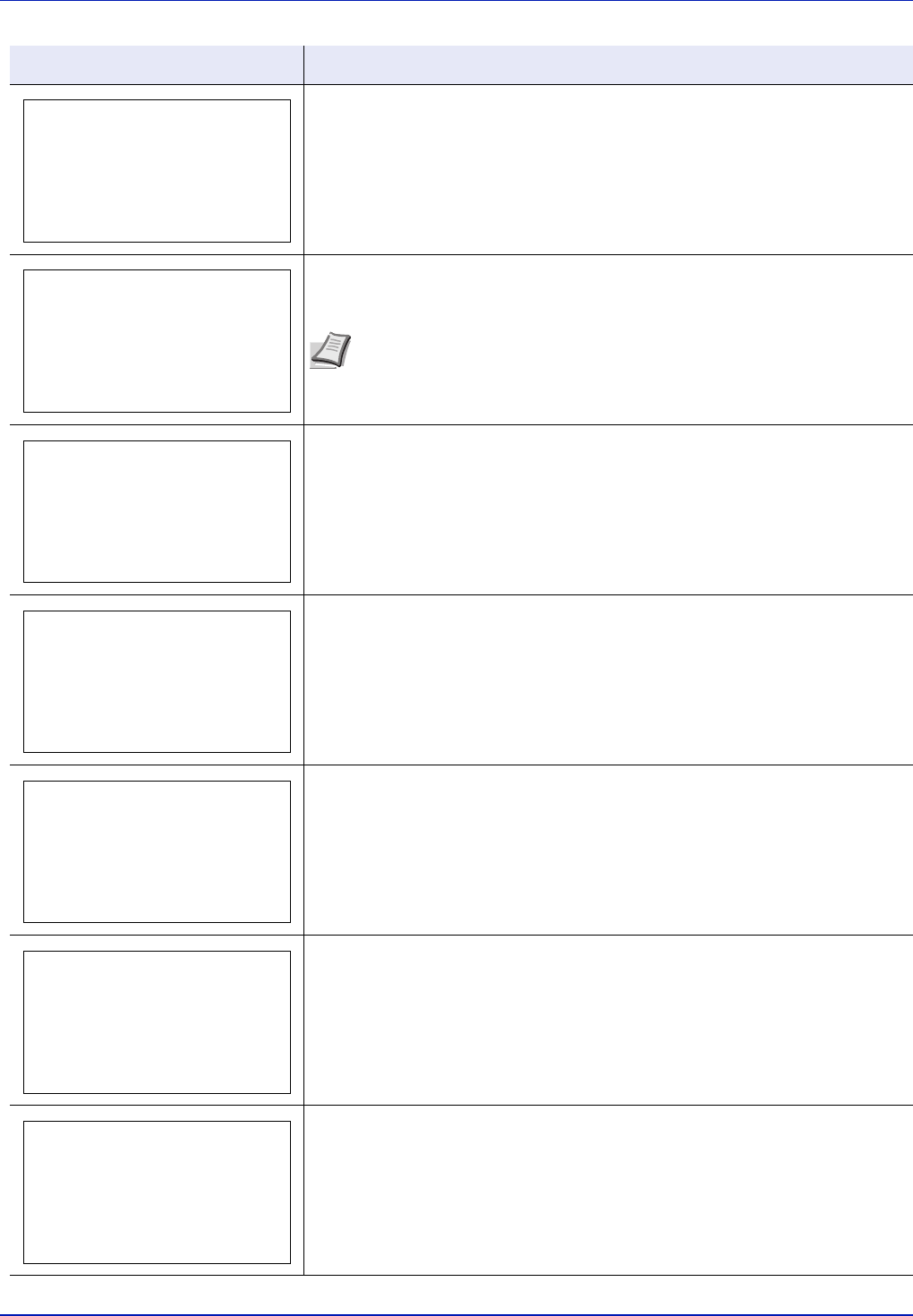
The data transferred to the printer was too complex to print on a page. Press
[OK] to resume printing.
Replace the toner container to our specified toner container.
After cleaning the inside of the printer, press [OK] and the printer will be ready
for printing.
There are already 100 accounts registered so it is not possible to register any
new accounts.
This message is displayed when printing was attempted, despite the Job
Account function being on with Restriction applied as the job limit for each job
account.
To return the printer to the print-ready status, press [OK].
For more information, refer to Job Account.Set. (Job Account setting) on page
6-110.
Set the folding tray.
Follow the instructions on the touch panel. and install the punch waste box.
If a staple jam occurs, the machine will stop and the location of the jam will be
indicated on the touch panel. Leave the machine on and follow the instructions
to remove the jammed staple.
Message Corrective Action
Print overrun.
Replace the toner.
[C][M][Y][K]
Clean the printer.
Note If the color toner is empty but the black toner is remained, the
machine continues printing in black and white by selecting [Print in B &
W] of ColorToner Empty.
Registered numbers
exceeded.
Cannot add.
Restricted by
Job Accounting.
Press [OK].
Set the folding
tray.
Set the punch waste
box.
Staple jam.