
User guide



46 Chapter 4: Menus and Tools
AirMagnet Spectrum XT User Guide
By default, the application opens in Spectrum View, but you can switch to any other built-in
option in the Easy View list menu.
To change to a different built-in Easy View option:
1) From Easy View list menu, click an option of your choice.
Creating a Custom View Option
Since the application can allows you to display a combination of three graphs on one screen,
you can choose any three graphs of interest and save the current screen view as a custom view
option. All custom view options are automatically added to the bottom of the Easy View list
menu.
To create a custom view option:
1) Open three graphs of your choice on the screen.
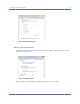
2) From the toolbar, click Easy View>Add Current View... from the list menu. The
New Easy View window appears. See Figure 4-17.
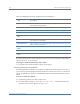
Table 4-5: AirMagnet Spectrum XT Default Easy View Options
View Description
Spectrum View (default) shows the Real-Time FFT graph, along with the Spectrum Density
and AP Signal Strength graphs.
Density View shows the Spectrum Density graph, along with Channels by Speed graph.
RF Usage View shows the Real-Time FFT, Spectrogram and Spectrum Density graphs.
RF Channel View shows the Real-Time FFT, Channel Duty Cycle, and Channel Power graphs.
Device Occupancy
View
shows the Real-Time FFT and Channel Occupancy graphs.
Device View displays the WiFi Devices table that list all WiFi devices (i.e., APs, stations,
etc.) detected on each channel.
Add Current View creates a unique view option using what is shown on the current screen and
add it to the Easy View menu.
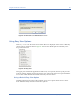
Delete Custom
Views...
removes custom view options off the Easy View menu.
Save Current View... saves the current view on the screen.
List of Custom
Views
Lists all custom views that have been created.