
User guide





110 Chapter 8: Finding Devices
AirMagnet Spectrum XT User Guide
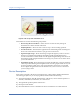
You can use the scroll bar or arrows on the right to view the full description of the device being
selected.
Physically Locating a Device on the Network
Theoretically, you can locate any device that the application has detected on the network,
using the following instructions.
To physically locate a device on the network:
1) Make sure that the device is selected in the Device Drop-Down List Menu.
2) Click Find.
3) Check the Sound check box, if you like.
4) Pick up your laptop PC and move in the direction the ticking sound gets louder and the
signal strength get stronger until you finally reach the location of the device.
Best Practices
This section documents some recommendations for best results when attempting to locate
devices using AirMagnet Spectrum XT.
With Omni-directional Antenna
1) Begin in the area where interference of the WiFi network has been reported.
2) On the Summary page, identify the non-WiFi device responsible for the interference on
your network.
3) Go to the Find page.
4) From the drop down list, select the device you identified in Step 2.
5) Start the Find Tool.
6) Because the signal strength can greatly vary from second to second, begin a slow patrol of
the area, covering a meter in 3 to 5 seconds.
7) When you reach an area where the signal has climbed to its highest level, look around to
locate the device.
With Directional Antenna
1) Begin in the area where interference of the WiFi network has been reported.
2) On the Summary page, identify the non-WiFi device responsible for the interference on
your network.
3) Go to the Find page.
4) From the drop down list, select the device you identified in Step 2.