
User guide





AirMagnet Spectrum XT User Guide
Chapter 8: Finding Devices 109
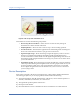
Figure 8-4: Close-up view of Find Device Tool
The Find Device tool has the following components:
• Device Drop-Down List Menu – Allows the user to select an entry among all
detected devices in the selected radio band.
• Find/Stop Button – allows the user to start or stop a device-locating operation.
• Sound Check Box – If checked, the application will start ticking while searching for a
device. The sound becomes louder as you get closer to the device.
• Signal Strength Gauge – Shows the change in signal strength as you move closer to
the device. The lighter hand indicates the highest signal strength that has been
recorded of the device and the darker one the signal strength reading of the device at
the moment. Signal strength should become stronger as you move closer to the device
you are intend to find.
• Signal/Noise Graph – Shows the changes in signal strength and/or noise level during
a search operation. Both signal strength and noise level are graphed if the device you
are trying to find is a WiFi device; only signal strength is shown if it is a non-WiFi
device. Signal strength and noise level should rise as you move closer to the device
you are trying to find.
Device Description
In the lower-right part is the Device Description pane, which contains detailed information
about the (type of) device you are trying to find, which includes the following:
1) An brief introduction of the RF characteristics of the device, such as radio frequencies or
channels, modulation, transmit rate, etc. of the device.
2) The typical RF spectrum pattern of the device.
3) Its impact on the WLAN.
4) Recommendations on how to minimize the device's interference on a WiFi network.