
User guide

Shining Technology CitiDISK HD Quick Usage Guide v9.0 Shining Technology CitiDISK HD Quick Usage Guide v9.0
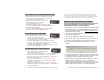
Quick Play Last Captured Clip
Play All Captured Clips
Choosing Favorable DV Video File Format
Note: As the time of this Quick Usage Guide released, MXF file
format in the combination of P2 file folder structure are not
implemented. User is able to download the Firmware
Uploader and firmware to update once it is released.
Operate the following steps only when the external power adapter is
plugged into the unit and it is not connected to a computer or
camcorder. DO NOT turn off the unit before the sequence is
completed.
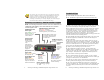
1. Look at the front panel of the CitiDISK HD.
2. Turn on the power of the CitiDISK HD. Wait until all three lights
(PWR, QPLAY & REC) start to blink.
3. Press and hold the “RED” button for over 5 seconds. Currently
stored file formats will display the light combinations illustrated
below. “Raw DV” is set as the default from the factory.
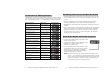
Raw DV
(Clipxxyy.dv)
Windows AVI2
(Clipxxyy.avi)
QuickTime MOV
(Clipxxyy.mov)
User Defined **
** Refer to the user manual’s “How to customize User Defined file
format” section.
4. Choose next file format by toggling the “RED” button.
5. Once the file format is determined, stop toggling and wait for
10 seconds. Both “GREEN” &” RED” lights will go off and stay
off for 3 seconds.
6. The CitiDISK HD will start writing the new file format
information into internal memory. Both lights will blink rapidly
for approximate 10 seconds during the writing process.
7. Once the file format is completed, all three lights will blink
normally to indicate the writing process is successful. The
CitiDISK HD is now ready to capture video using the
programmed file format. User MUST turn off the power before
programming a new format again.
• Connect the FireWire cable (4-pin end) to the camcorder.
• Connect the FireWire cable (6-pin end) to the CitiDISK HD.
• Set the camera to accepting FireWire video mode by pressing
the button beside the “MCR” text once to refresh the P2 card
content first( P2 card must be present ); and then, enter the
video playback mode by ejecting the P2 card.
• Toggle the middle “QPLAY” button to play the last captured clip
and subsequently the light will turn solid ORANGE when
playing.
• Toggle “QPLAY” button any time during playing to stop
playing immediately.
• Connect the FireWire cable (4-pin end) to the camcorder.
• Connect the FireWire cable (6-pin end) to the CitiDISK HD.
• Set the camera to accepting FireWire video mode.
• Press and hold the middle “QPLAY” button for over 3 seconds
and the ORANGE light will start to blink.
The last captured clip will play from beginning to end first, then
it will play from beginning to end of the first recorded clip of
the “Media” folder. Additional clips will play in the sequence
they were captured.
You can reverse the order of the playback sequence by
toggling the “REC” button. The “RED” light blinks if reverse
direction is selected. Press the “REC” button again to reset to
normal order.
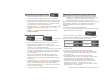
• Toggle the middle ORANGE button once to abort playing the
current clip and to jump forward to the next clip (Only if “RED”
light is off). It jumps backward if ” RED” light is blinking.
• Press and hold the middle ORANGE button for over 3 seconds
to stop the “PlayAll” function.
Jump Forward Jump Backward