
User guide

Shining Technology CitiDISK HD Quick Usage Guide v9.0 Shining Technology CitiDISK HD Quick Usage Guide v9.0
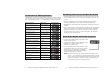
DV Streams vs. Editing Software
The following is a table of various editing software’s native video file
formats for all of DV signal including DVCPro, DVCPro 50 & DVCPro
HD. Editing software with “**” supports DVCPro 50 & DVCPro HD.
HD Editing and External FireWire Hard Disk
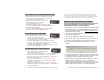
• Disconnect the FireWire cable from the camcorder and re-connect
it to a FireWire port (4-pin or 6-pin type) equipped computer, PC
or Mac.
• Use the CitiDISK HD as an external FireWire hard disk for file
archiving, backing-up and/or other video editing functions.
• CitiDISK HD is PLUG-and-PLAY specification compliant; no driver is
needed.
• It is recommended by the manufacturer to backup all the captured
clips to an internal or second hard disk before editing. Although
dragging unwanted video clips into “Recycle Bin” and emptying
the Recycle Bin will re-claim your hard disk space, the directory
holding the clip names will not.
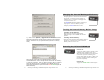
Quick Erase Button and Utility Programs
Note: All of the files inside the “Media” folder are subject to be
erased. It is suggested by the manufacturer that you back
up the clips to an internal hard disk first and erase the clips
with the “Quick Erase” function instead of dragging them
into the Recycle Bin and emptying it later.
Editing Software Native File
Format
Suggested Key
Combination
Adobe Premiere Pro 2.0 ** Standard AVI2
Apple Final Cut Pro 5.0.4 in
Mac OS X **
QuickTime MOV
Apple iMovie3 on Mac OS X RawDV
Apple Quick Time in
Win2000, XP and Mac OS X
QuickTime MOV or
RawDV
Avid Xpress Pro 5.x QuickTime MOV
Canopus Edius Pro 4.0 ** Canopus AVI2
Edirol Standalone Editing
Station
RawDV
MacroSystem / Casablanca
Standalone Editing Station
RawDV
MainConcept EVE RawDV
Matrox Axio HD ** Standard AVI2
MGI( Roxio ) VideoWave Standard AVI2
Media100 Cinestream in
MacOS
Standard AVI2
Pinnacle Studio Standard AVI2
Sony Vega 6.x Standard AVI2
Ulead Media Studio and
Video Studio
Standard AVI2
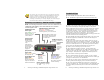
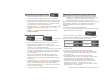
• Connect the FireWire cable (4-pin end) to the
camcorder’s iLink port.
• Connect the FireWire cable (6-pin end) to the
CitiDISK HD. Set the camcorder to
“Camera” or “MCR” mode.
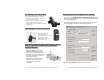
• Use a pencil tip or hard sharp object to press
and hold the button( right on the top of blue
charging light ) for more than 5 seconds.
The power-access light will flash in different
colors for
maximum
of 5 seconds.
P10 P7