
User guide

Shining Technology CitiDISK HD Quick Usage Guide v9.0 Shining Technology CitiDISK HD Quick Usage Guide v9.0
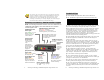
Buttons, Connectors, Switch & Status Lights
Note: The following illustration describes each of the buttons of the
CitiDISK HD (FW1256HD). These three buttons serve as status
indicator lights as well.
Do not drop, jar, bump, shock the unit, or expose to sources of
excessive vibration. Keep in mind that CitiDISK HD uses a 2.5”
hard drive, which is similar to those used in laptops. Gently
handle and carry your CitiDISK HD, especially during video
recording. If the battery is not fully charged, user must charge it
for at least 4 hours before any self-powered usage.
Battery and Main switch:
On: PWR button is enabled
O
ff: PWR
butto
n i
s
d
i
sab
l
ed
RECORD Button & Status Light:
Solid RED: Recording
Blinking RED: 5 minutes left in
recording capacity or not connected
Internal Battery
Charging Light:
Bright BLUE: Charging
Dim BLUE: Charging
almost complete
Off: Charge complete
or disk accessing
POWER Button and
Status Light:
Solid GREEN: unit is on
Blinking GREEN: 5
minutes left in the
internal battery
External Power
In Connector:
Accepts +6V to
+18V DC power
input.
Automatically
switches off and
charges internal
battery when
plugged in
QPlay Button and
Status Light:
Solid ORANGE: Playing
last captured clip
PlayAll Button and
Status Light:
Blinking ORANGE:
Playing all captured
clips from last scene
forward or backward
FireWire Connector:
Connects to camera or
computer
Internal Battery Status Light:
G: between 50% and 100%
O: between 50% and 20%
R: below 20%
Quick Erase
Button:
Quickly
erases all
files in the
“
Media”
folder
HDD Low:
Solid RED when
hard disk
recording
capacity is
below 50%
Technical Tips
Q: Does CitiDISK HD support HDV? What are the differences?
A: No. CitiDISK HD supports DVCPro, DVCPro50 and DVCPro HD.
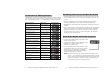
Encoder Data Rate Hi-Def’s
DV, DVCPro DV 25 Mbps NO
DVCPro50 DV 50 Mbps NO
DVCPro HD DV 100 Mbps YES
HDV MPEG2 ~20 Mbps YES
Q: What is the recording mode supported by CitiDISK HD for HVX200?
Any file size advantage by setting to 24p /24pA over 30p mode?
A: The CitiDISK HD supports all of the recording modes from HVX200
except 24pN due to such signal is not outputted to FireWire. “24p” –
2:3 pull down & “24pA” – 2:3:3:2 pull down are considered as 30p
recording, user can select “Tool”, “Remove Advanced Pull Down” in
Final Cut Pro to remove the excess frames. No. All of the
1080/60i/30/24p/24pA and 720/30p/24p/24pA recordings generate the
same file size for the same recording period.
Q: Does CitiDISK HD support P2-MXF format? What is the native video
file format supported by CitiDISK HD? What is the advantage not
setting to P2-MXF?
A: No, as the time of this usage guide release. However, user can
update the firmware once such function is released. The CitiDISK HD
supports native MOV( Final Cut Pro Quicktime ) & native AVI2( Adobe
Premier 2.0 & Canopus Edius 4.0 ). By choosing the MOV or AVI2 file
format saves the “MXFÆMOV or MXFÆAVI2” conversion time.
Q: What to prevent rendering clips in Final Cut Pro?
A: Set CiitDISK HD as “MOV” file format. Choose “DVCPro HD
1080i60”( NTSC ) or 1080i50( PAL ) for 1080 modes and “DVCPro HD
720p30” for all of the 720 modes in “Easy Setup”. Also set “Video
Play” setting in “Audio/Video” to “Digital Cinema Desktop Preview”.
Q: Is “DV Control” recording function enabled?
A: Yes in DV25 and DV50 if P2 card is inserted, but not in DV100(
1080 or 720 ). User must manually start/stop the DV100 recording by
pressing the “REC” button on the CitiDISK HD.
Q: Is this an error when all three lights blinking? Does stopping the
recording needed while swapping in & out the external battery?
A: No. This means the CitiDISK HD is waiting to be connected to
computer or HVX200. No. The external battery is hot swappable, also
the internal battery automatically kicks in when the external battery
runs low.
P2 P15