
Service manual

99
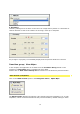
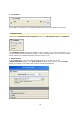
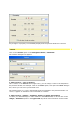
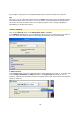
Any change in a property is immediately displayed in the preview window in real time.
Tip:
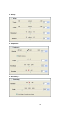
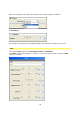
Of course, you can select other effects from the Filter drop-down menu, the dialogue boxes
nevertheless differ from each other, since every effect comes with different setting options.
Use of the controller is still the same, for checking purposes every change is displayed
immediately in the preview window.
Source / Video A
Click on the Video A option in the Navigation menu / Source.
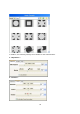
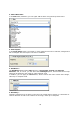
In the Video A dialogue box, you can determine which image or video material you want to
use. Until then, the image material is automatically selected in the preview window.
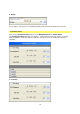
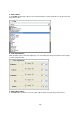
1. Select source:
In the Source field, select your desired image or video material (as Video A), to do this click
on the Image /Animation or Video A option in the type of fill drop-down menu, for
example, and then use the Folder button to navigate to the folder that contains the required
image or video file.