
Service manual




83
The Timeline is the Vitascene chronological control centre: For more information and access
points, please pay attention to the information appearing alongside the cursor while working.
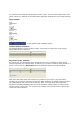
Player details:
rewind
Play
forward
Stop
Current position and animation length
Timeline details (Timeline):
The Timeline with the current position (slider, vertical bar) as well as the entire project
length, defined by the blue line.
Key frames in the Timeline:
Key frames are pre-determined points during the course of an animation, which contain
various properties of a selected effect. If desired, you can place a number of Key frames in a
project. Prior to this, the Keyframes option beneath the Timeline must be activated.
Then move the slider within the Timeline to a position of your choice, go to the effects
window and use various controllers to alter the effect properties in relation to this Key frame
(or position during the course of an animation). Next, move the slider again within the
Timeline to another selected position and enter the effect settings again, in relation to the
current position. In this way, you can place any number of Key frames within a project and
create your own animation.