
Service manual


68
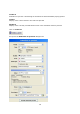
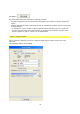
Time period
This is where you can adjust the temporal data for the active timeline object using the
keyboard.
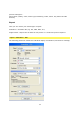
Rate
This is where the frames per second are modified. Pre-selections for PAL and NTSC are
available for easy access.
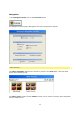
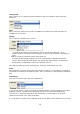
Quality
This is where the quality level is chosen:
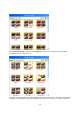
•
low: produces the fastest, but qualitatively poorest results when working, i.e. for
previews, ideal for low-performance computers or when using complicated animations in
objects
• medium: produces somewhat softer results than low
• good: best possible display of glyphs, but only crude display of graphics/animations
•
premium: best possible preview quality, soft glyphs and sharp textures. A interference
reducing device is additionally used in case of small contours.
This setting requires the most rendering time, especially if animations are used.
Scale
This parameter is used to quickly halve the set format values. It is also ideal for calculating
an animation rendering of the highest quality, but to reducing it by decreasing the rendering
time.
Frame type
Here you can set the half or full frame parameters.
If you want to export a result, but either the editing software's project settings or the video
hardware requires a change of the half frame sequence, this can be adjusted simply.
"Full frames" is especially required for Web animations or results that are to be used
elsewhere other than in the video application.
If a comb effect is evident in the rendered result, this probably means that the incorrect half