
Service manual


47
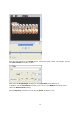
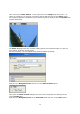
Then click on the Folder button - to the right next to the Image drop-down menu - to
select our image file, for example, and import the file with the help of the Image option.
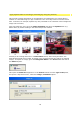
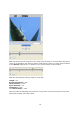
The image file appears immediately in the Vitascene preview window (with the Sparkle filter
already integrated).
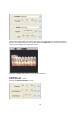
The Video A dialogue box also contains setting options for imported images (or clips) for
pixel-aspect, attributes and geometry.
For this workshop, use the original image without additional settings.
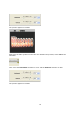
Now go to the Navigation menu and click on the Filter-Presets option.
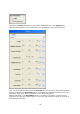
This opens the Filter-Presets dialogue box with various templates and settings for the
active Sparkle filter.
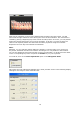
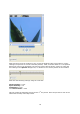
Now go to the Navigation menu in the Parameter field and click on the Filter option.