
Service manual


46
Apply Sparkle filter to an image (including by using Key frames)
This tutorial provides information on the application and adjustment of a Sparkle filter in
relation to a selected image (or clip) in Vitascene. The use of Key frames is also discussed
here. To do this, for example, Sparkle rays are presented as an animation in the background
image (set in motion).
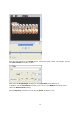
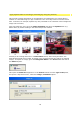
First start Vitascene, then go to the Filter Templates and select the Sparkle filter (e.g.
Effect #131) by double clicking in the Vitascene preview window.
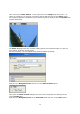
Should you be running Vitascene in a stand-alone format, after saving the effect, the
desired background will no longer be visible in the preview window (but rather an example
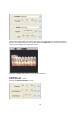
image). To import our image, go to the Navigation Menu in the Source field and click on
the Video A option.
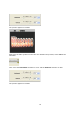
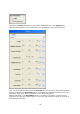
This opens the Video A dialogue box. In the Source field click on the Type of fill option,
this opens a drop-down menu; select the Image / animation option.