
Service manual


45
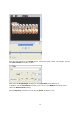
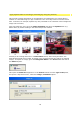
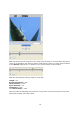
Now start an animation in the preview window with the help of the Play button. You will
notice that the light reflections move during the course of the animation. This movement is
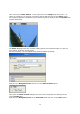
created by placing a beginning Key frame and an end Key frame. Of course, you can position
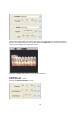
further Key frames during the course of the animation. To do this, you need to place the
slider in the required position and then alter the effect properties using the controller.
Repeat this for each Key frame within the animation.
Note:
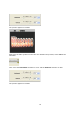
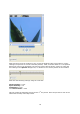
Naturally, you can shift Key frames within the Timeline, to do this place your mouse on a
Key frame, hold down the left mouse button and drag it to a new position in the Timeline.
You can also delete Key frames during the course of an animation, to do this place the slider
on the corresponding Key frame and press the Delete key on your keyboard.
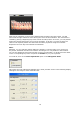
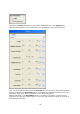
To round off, click on the Color Adjustment option in the Navigation menu.
This opens the Color adjustment dialogue box, which provides access to the following display
settings for the image or video material used.