
Service manual


34
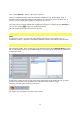
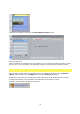
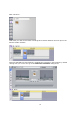
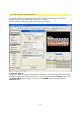
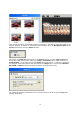
Click on the Edit Button, this will open Vitascene. Choose a suitable transition from the
Transition Templates (e.g. Radial+Mask #14). A playback with the selected transition will
appear in the Vitascene preview window and, of course, you can modify the selected
transition in Vitascene to suit you.
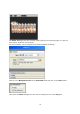
Once the project has been edited and completed in Vitascene, simply press the F12 key or
click on the symbol to return to Pinnacle Studio. This will automatically save the
Vitascene project.
Workshops for familiarization
Here you can find some applications in a step-by-step guide.
Working through these examples takes approx. 30 minutes. Afterwards, you will know how
to carry out projects with Vitascene and realize your own ideas. If you work through the
examples you will save time later when exploring the logic and application.
The following workshops are available:
1. Text supported by Ray filter and Key frames (Title in proDAD Heroglyph with alpha
channel created and 1. video editing software in the Timeline as well as 2. imported directly
into Vitascene)
2. Apply Sparkle Filter to an image with the use of Key frames
3. Apply the Shape Wipe transition effect with an integrated sparkle effect (Use
Vitascene as a plug-in to video editing software)
Have fun getting to know the program!
A training DVD with a large number of video workshops on Vitascene software is now
available.
The company 30th century/Uwe Wenz is proDAD’s official training partner. Interested parties
can obtain detailed information on advanced seminars at www.30th-century.de .