
Service manual


31
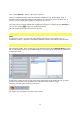
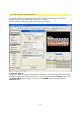
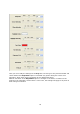
Click on the Options... button. This opens Vitascene.
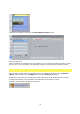
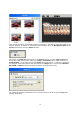
Choose a suitable transition from the Transition Templates (e.g. Radial+Mask #14). A
playback with the selected transition will appear in the Vitascene preview window and, of
course, you can modify the transition in Vitascene to suit you.
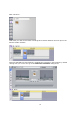
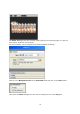
Once the project has been edited and completed in Vitascene, simply press the F12 key or
click on the symbol to return to Ulead Media Studio.
This will automatically save the Vitascene project.
Pinnacle Studio
Note:
If a Vitascene version is running in other editing programs as a full version (or as a
standalone version) a separate, chargeable activation needs to be made through Pinnacle.
Pinnacle Studio / Plugin as video effect
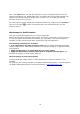
Start Pinnacle Studio, place a video clip in the Timeline and go to the Effects library. In the
list of video effects click on the proDAD category and on the right (under Effects) doubleclick
on Vitascene Filter.
A faded lock symbol in front of the plugin name indicates that the plugin has not yet been
activated (purchased) and calculations are indicated in test mode by a logo.
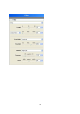
Activation will take place online by clicking on:
The plug-in was assigned to the clip in the timeline.