
Service manual


29
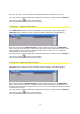
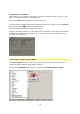
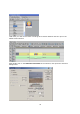
Now click on the Edit button.
Note:
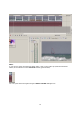
Preview images in Vitascene can only be correctly displayed, if the event, a transition in the
Vegas Timeline, has been selected beforehand. Vitascene waits for a maximum of 3 seconds
for a reaction from Vegas. Once this waiting time has passed, because no transition has
been selected for example, Vitascene uses the default video images for the preview.
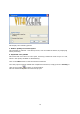
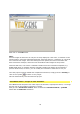
Vitascene will start, now choose a suitable transition from the Transition Templates (e.g.
Radial+Mask #14). A playback with the selected transition will appear in the Vitascene
preview window and, of course, you can modify the transition in Vitascene to suit you
Once the project has been edited and completed in Vitascene, simply press the F12 key or
click on the symbol to return to Sony Vegas.
This will automatically save the Vitascene project.
Ulead Media Studio / Plugin as video transition
Start Media Studio and place two video clips in the Timeline, superimpose them (i.e. arrange
the two clips in the Timeline so that they overlap).
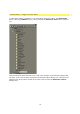
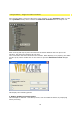
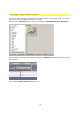
Now go to the Production archive, which contains the Transition effects / proDAD
folder with the Vitascene Transition.