
Service manual


21
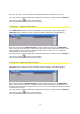
time and, of course, you can modify the selected transition in Vitascene to suit you.
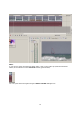
Once the project has been edited and completed in Vitascene, simply press the F12 key or
click on the symbol to return to Avid Liquid.
This will automatically save the Vitascene project.
Avid Xpress / Plugin as video effect
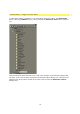
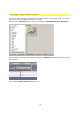
Start Avid Xpress. After successful installation of the Vitascene - Avid Xpress plug-in,
Vitascene will be available via the Avid Xpress Effects dialogue box (Effects Editor).
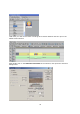
Now drag and drop the Vitascene Filter into the Timeline and click on the Edit Effect
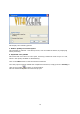
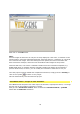
option. This will start Vitascene. A playback of the current video clip with the chosen video
effect will appear in the Vitascene preview window and, of course, you can modify the
selected effect in Vitascene to suit you.
Once the project has been edited and completed in Vitascene, simply press the F12 key or
click on the symbol to return to Avid Xpress.
This will automatically save the Vitascene project.
Avid Xpress / Plugin as video transition
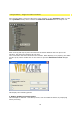
Start Avid Xpress. After successful installation of the Vitascene - Avid Xpress plug-in,
Vitascene will be available via the Avid Xpress Effects dialogue box (Effects Editor).
Now drag and drop the Vitascene Filter into the Timeline and click on the Edit Effect
option. This will start Vitascene. A playback with the selected transition will appear in the
Vitascene preview window in real time and, of course, you can modify the selected transition
in Vitascene to suit you.
Once the project has been edited and completed in Vitascene, simply press the F12 key or
click on the symbol to return to Avid Xpress.
This will automatically save the Vitascene project.