
Service manual



19
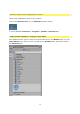
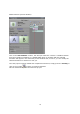
Vitascene will not start automatically. Highlight the transition in the Timeline by clicking with
your mouse and go to the Effect settings dialogue box (displayed on the left, next to the
Adobe Premiere preview window).
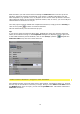
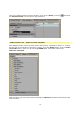
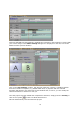
Click on the User defined... Button, this will open Vitascene. Choose a suitable transition
from the Transition Templates (e.g. Radial+Mask #14). A playback with the selected
transition will appear in the Vitascene preview window and, of course, you can modify the
selected transition in Vitascene to suit you.
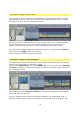
Once the project has been edited and completed in Vitascene, simply press the F12 key or
click on the symbol to return to Adobe Premiere Pro.
This will automatically save the Vitascene project.