
Operation Manual






65
User Guide
Using the Path tool
The Path tool allows you to create shapes based on a series of straight or curved lines.
You can manipulate these lines as you draw or edit them at a later time.
To create a path object:
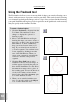
1 Click the Path tool button on the Tool
Panel. The Attribute Toolbar changes to
display the options for drawing a path.
2 Select the type of path you want to draw
from the Attribute Toolbar. Draw either
in straight or curved line segments by
clicking the appropriate button on the
Attribute Toolbar. (You can switch
between linear or curved segments as
you draw, depending on the type of path
you want to create.)
3 In the Edit Window, begin drawing the
shape you want to create. Each time you
click your mouse, a node is placed in the
Edit Window, and a line segment is
automatically drawn connecting the two
nodes. If you select the Draw Line
option, then only straight line segments
are created every time you click on the
workspace. If you select the Draw
Curve option, curved segments are
created each time you click and drag on
the workspace. When you do this, two
handles appear on either side of the
node, allowing you to stretch, pull or
turn the curve.
4 Click the Close Path button on the
Attribute Toolbar to end your shape.
Path Editor automatically draws a line
connecting the end of the last segment
to the beginning of the shape.