
Operation Manual






14
Ulead COOL 3D 3.0
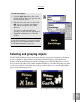
To insert a text object:
1 On the Object Toolbar, click the Insert
Text button. The Ulead COOL 3D Text
dialog box appears.
2 Select a font from the list. When
searching for a font, a ToolTip appears
to give you a preview of the font
currently highlighted. After selecting
your font, set the size and style of your
text, and then enter the actual text in the
text box.
3 Click OK. The text appears in the Edit
Window of the main program.
4 If you want to insert another text object,
click the Insert Text button again. To
edit the existing text, see the following
tutorial.
Note: Create a text string of multiple lines by
creating a line break in a string of text. In the Ulead
COOL 3D Text dialog box, simply press Enter
where you want a line break to occur.
Adding and editing text
When you create your project, the first step is to insert an object. To add and edit a text
object, follow the next tutorials. (For information on adding and editing graphic objects,
see page 25.)
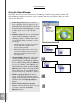
• Object Quality Specify how smooth the
3D shapes and forms are. The higher the
precision, the slower the rendering time,
so wait until you’re finalizing your
project before setting this.
• Cache View Select this option and play
your animation once to store the frames
of your animation in a cache. This
allows the animation to be played at
approximately the specified frame rate
the next time you preview the project.
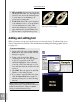
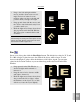
Lower object precision (left) and higher
object precision (right)