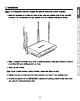
2, Installation Note: It Is recommended that you configure the wireless router from a wired computer. 1. Attach the antennas to the back and lades of the router and position them for the best WIFI average, It is recommended that you position all of the antennas vertically s shown. 2. Using a computer connected via a wired or wireless network, verify that you have an Internet connection with your existing modem or router. 3. Power off your modem.
6. Using another network cabs, connect your computer to one of the wireless router's 4 network ports, located on the back of the unit 7. Conn est the power adapter to the back of the router and then to a power outset. Press the circular power button on the back of the router 1o the “On” position. 8. Power on your modem. Walt until the LED lights on the modem Delineate that It I fully functional (approximately 2-3 minutes).
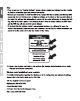
10. Open your web browser from the connects computer; the wizard vl automatically appear. Select the desired language and then click Next. If the wizard doss not appear, type Into the address bar of your web browser, and prods stern. Nita: You can also access the device using the default IP address L e 11. Select your language from the drop down and click “Extreme. 12. Pie ass Walt while the wireless routs detects your Internet connection. 13. Click Save. 14, Please wait while changes are being applied.
M Note: 1f you do not see the “Confirm Settings" screen, please contact your Internet service provider for Interment connection types and account Information. +We have per-encrypted the TEW-527DRU with & unique WiFi Name (SAID) and WiFi Key (WiFi password). You can find these per-configured settings on the labels on the top and bottom of the routs. You will use the Information to connect to the router tirelessly. To change the WIR Key, refer to the user's guide.