
Operation Manual




Trend Micro™ ServerProtect™ Getting Started Guide
3-26
3. Do one of the following:
•Click New task, to create a task
•Click Existing task, to edit a task
See Creating Tasks on page 3-29 and Modifying an Existing Task on page 3-35
for information on how to create or edit a task.
Rolling Back the Previous Deployment Action
ServerProtect can roll back a deployed update action; reverting the system to the
previous version of the updated file. The virus pattern, scan engine and program file
can all be rolled back. This is necessary if there is a software compatibility issue or if
the update files were corrupted during the original download.
Note: If both virus pattern and scan engine files were originally deployed, you must roll both
of them back.
To roll back the previously deployed update:
1. Do one of the following:
•Click Update > Rollback on the side bar
•Click Do > Rollback on the main menu
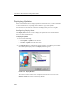
The Rollback screen appears.
FIGURE 3-13. Roll Back Configuration window
2. Click Rollback. The ServerProtect Rollback window appears.