
Operating Instructions





Table Of Contents
- Welcome to TomTom BRIDGE
- Starting TomTom BRIDGE
- Using gestures
- Apps on TomTom BRIDGE
- Connecting TomTom BRIDGE
- TomTom BRIDGE features
- Language
- Installing in your vehicle
- Charging TomTom BRIDGE
- TomTom BRIDGE not starting
- Take care of your navigation device
- Getting help
- Welcome to navigation with TomTom
- About TomTom services
- GPS reception
- What's on the navigation app screen
- Main Menu
- Using Quick Search
- Planning a route
- Planning a route to an address using search
- Planning a route to a city center
- Planning a route to a POI using search
- Planning a route using the map
- Planning a route using My Places
- Planning a route using coordinates
- Planning a route using a mapcode
- Finding an alternative route
- Planning a route in advance
- Finding a parking lot
- Finding a gas station
- Changing your route
- My Routes
- Traffic
- Safety Cameras
- My Places
- Settings
- Getting Help
- Using the External Camera app
- Using the TomTom Music app
- Addendum
- Copyright notices
8
TomTom BRIDGE starts when it is in its dock, and the dock has power. When TomTom BRIDGE is not
in its dock, you can also press the On/Off button until the device starts.
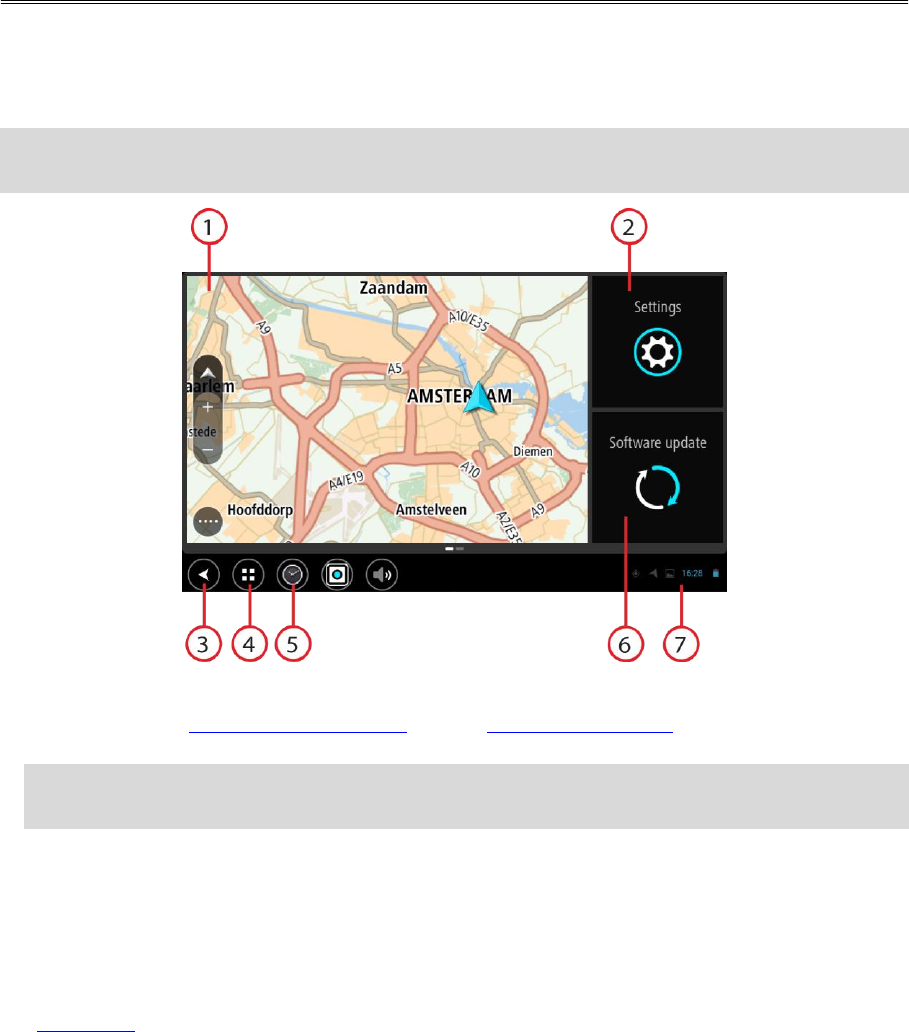
The TomTom BRIDGE home screen is shown.
Note: The TomTom BRIDGE home screen shown below is an example. The home screen on
TomTom BRIDGE might look different and have different apps installed.
1. An app running in a widget.
For example the TomTom Navigation app and the External camera app can run in a widget on
the home screen. Select the widget to open the app.
Note: A widget is an app that runs in its own panel. You can select a widget to open the full
app.
2. Settings button.
Select Settings to change features on TomTom BRIDGE.
3. Back button.
Select this button to return to the previous screen that was open.
4. Home button.
Select this button to return to the device home screen.
5. System bar.
You can add shortcuts for your favorite apps to this bar.
6. Software update button.
Shortcut button to open the Software update app. This app lets you update TomTom BRIDGE to
the latest software version.
7. Status bar.
Touch this area to show app notifications and the device status.
Starting TomTom BRIDGE