
Operating Instructions




Table Of Contents
- Welcome to TomTom BRIDGE
- Starting TomTom BRIDGE
- Using gestures
- Apps on TomTom BRIDGE
- Connecting TomTom BRIDGE
- TomTom BRIDGE features
- Language
- Installing in your vehicle
- Charging TomTom BRIDGE
- TomTom BRIDGE not starting
- Take care of your navigation device
- Getting help
- Welcome to navigation with TomTom
- About TomTom services
- GPS reception
- What's on the navigation app screen
- Main Menu
- Using Quick Search
- Planning a route
- Planning a route to an address using search
- Planning a route to a city center
- Planning a route to a POI using search
- Planning a route using the map
- Planning a route using My Places
- Planning a route using coordinates
- Planning a route using a mapcode
- Finding an alternative route
- Planning a route in advance
- Finding a parking lot
- Finding a gas station
- Changing your route
- My Routes
- Traffic
- Safety Cameras
- My Places
- Settings
- Getting Help
- Using the External Camera app
- Using the TomTom Music app
- Addendum
- Copyright notices
73
To get more information about an incident, select an incident in the route bar. The map opens
zoomed in on the incident and a pop-up opens showing detailed information about the traffic
incident.
The information shown includes:
The type of traffic incident - general, accident, road work or lane closure.
The severity of the incident - slow traffic, traffic lining up or stationary traffic.
The delay time.
The length of the incident.
For a complete list of incident types, see Traffic incidents.
Select the back button to go back to the guidance view.
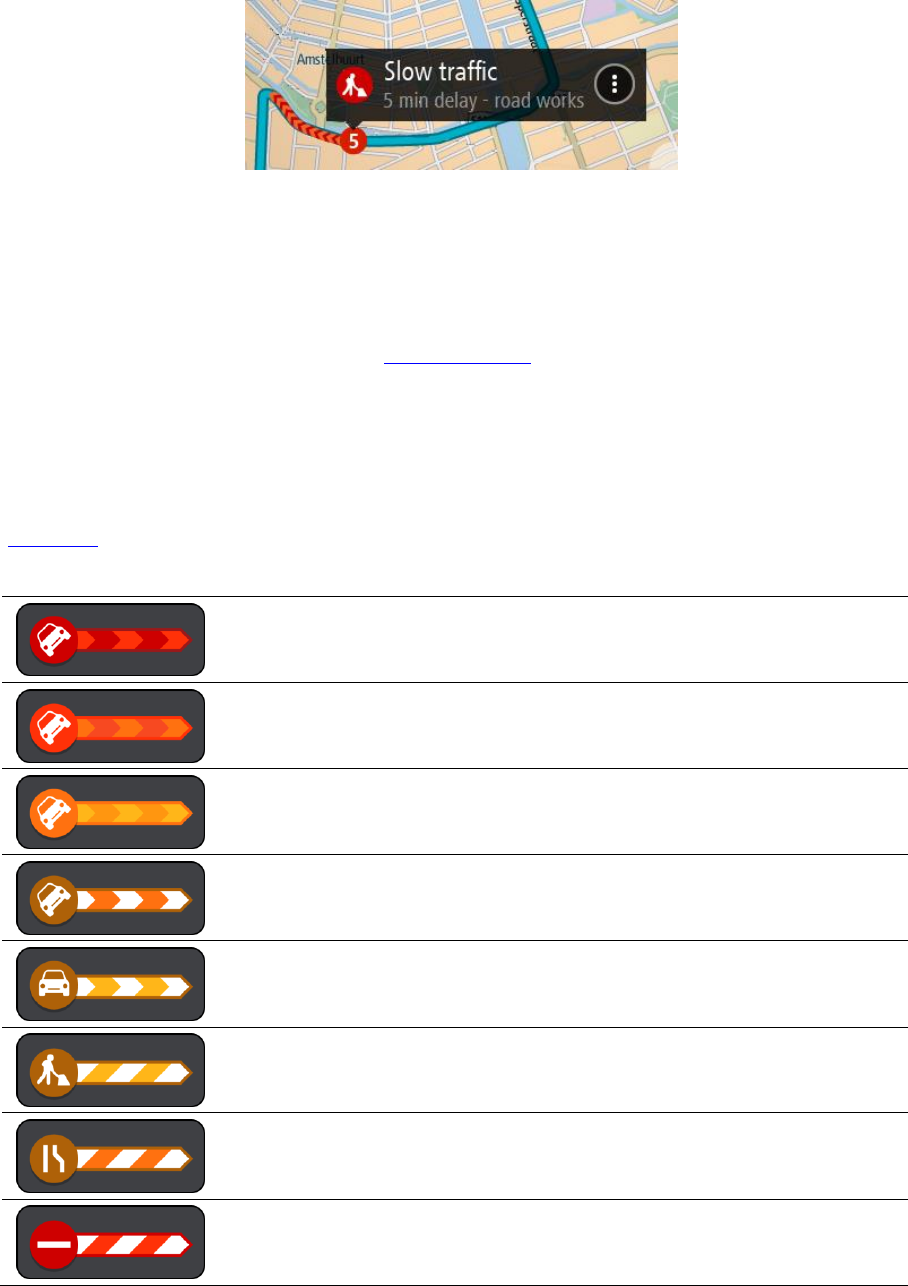
Traffic incidents
Traffic incidents and warnings are shown in the map view and in the route bar. Symbols shown in a
circle are traffic incidents. Checks are done to see if a faster route is available and your route is
replanned to avoid traffic incidents.
Traffic incident symbols:
Stationary traffic
Traffic lining up
Slow traffic
Unknown accident
Unknown incident
Road work
Lane closure
Road closure