
Operating Instructions



Table Of Contents
- Welcome to TomTom BRIDGE
- Starting TomTom BRIDGE
- Using gestures
- Apps on TomTom BRIDGE
- Connecting TomTom BRIDGE
- TomTom BRIDGE features
- Language
- Installing in your vehicle
- Charging TomTom BRIDGE
- TomTom BRIDGE not starting
- Take care of your navigation device
- Getting help
- Welcome to navigation with TomTom
- About TomTom services
- GPS reception
- What's on the navigation app screen
- Main Menu
- Using Quick Search
- Planning a route
- Planning a route to an address using search
- Planning a route to a city center
- Planning a route to a POI using search
- Planning a route using the map
- Planning a route using My Places
- Planning a route using coordinates
- Planning a route using a mapcode
- Finding an alternative route
- Planning a route in advance
- Finding a parking lot
- Finding a gas station
- Changing your route
- My Routes
- Traffic
- Safety Cameras
- My Places
- Settings
- Getting Help
- Using the External Camera app
- Using the TomTom Music app
- Addendum
- Copyright notices
67
About My Routes
My Routes provides an easy way to create saved routes with optional stops, sometimes known as an
itinerary. You can use My Routes to save, retrieve and edit routes.
You may want to use My Routes in one or more of the following situations:
While working - Your job involves driving several routes with multiple stops on a daily basis.
Your routes can change and you need to be flexible and be able to change the order of your
stops or change the planned route.
While on vacation - You are going on vacation and want to plan and save a route. Your route
includes scenic roads, stops at various hotels, and other places like tourist attractions.
While commuting to work - You want to add one or two regular stops between home and work.
Your route back home in the evening is the reverse of your route to work in the morning.
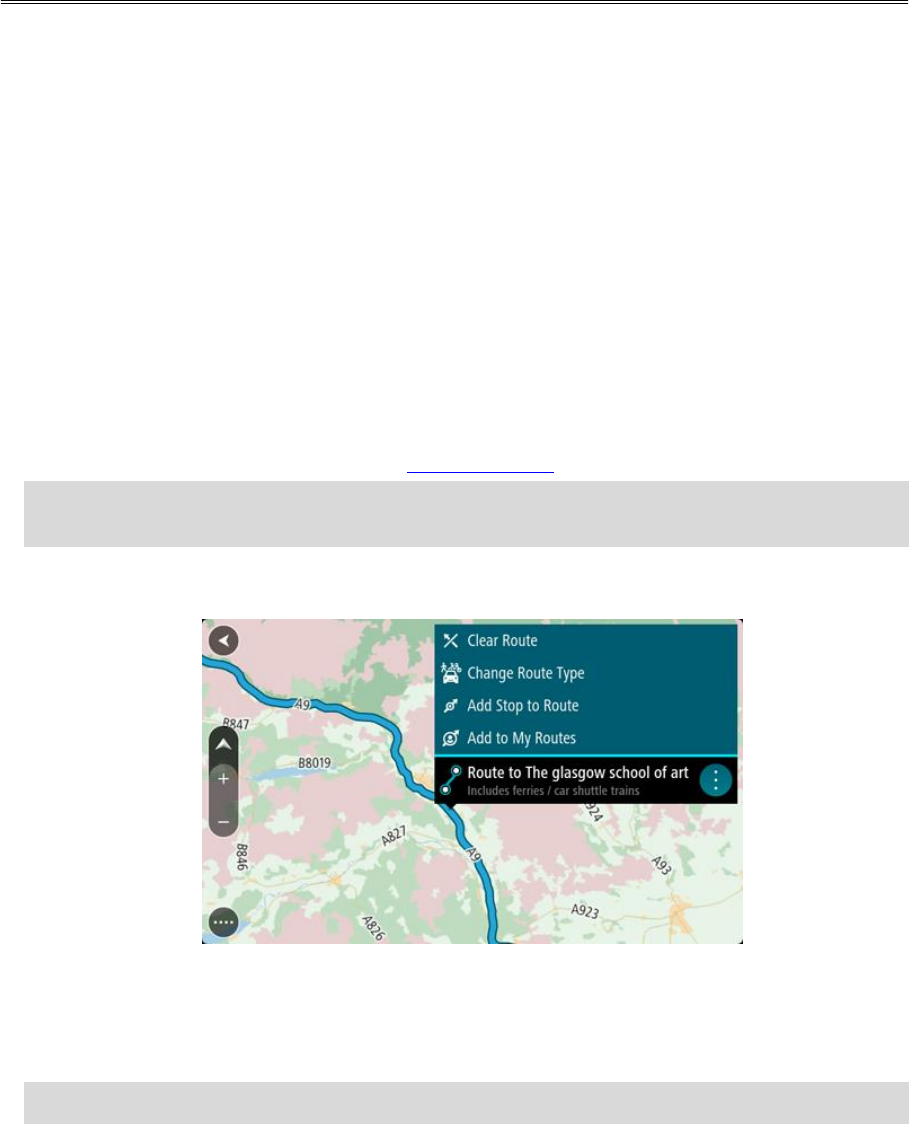
You can add the route that you have planned on the map to your My Routes list by selecting it.
Saving a route
1. Plan a route using the steps described in Planning a route.
Tip: If you cannot see your planned route on the map view, select the back button to show
your route.
2. Select the route.
3. Select the pop-up menu button to open the menu.
4. Select Manage Route, then Add to My Routes.
The name of the route is shown in the edit screen.
5. Edit the name of the route so that you can easily recognize it.
6. Select Done to save your route in the My Routes list.
Tip: You can also save a route using the Add to My Routes button in the Current Route menu.
Navigating using a saved route
To navigate using a previously saved route, do the following:
My Routes