
Operating Instructions


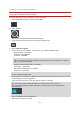


Table Of Contents
- Welcome to TomTom BRIDGE
- Starting TomTom BRIDGE
- Using gestures
- Apps on TomTom BRIDGE
- Connecting TomTom BRIDGE
- TomTom BRIDGE features
- Language
- Installing in your vehicle
- Charging TomTom BRIDGE
- TomTom BRIDGE not starting
- Take care of your navigation device
- Getting help
- Welcome to navigation with TomTom
- About TomTom services
- GPS reception
- What's on the navigation app screen
- Main Menu
- Using Quick Search
- Planning a route
- Planning a route to an address using search
- Planning a route to a city center
- Planning a route to a POI using search
- Planning a route using the map
- Planning a route using My Places
- Planning a route using coordinates
- Planning a route using a mapcode
- Finding an alternative route
- Planning a route in advance
- Finding a parking lot
- Finding a gas station
- Changing your route
- My Routes
- Traffic
- Safety Cameras
- My Places
- Settings
- Getting Help
- Using the External Camera app
- Using the TomTom Music app
- Addendum
- Copyright notices

59
The map opens showing the locations of parking lots.
If a route is planned, the map shows parking lots near your destination. If a route isn't planned,
the map shows parking lots near your current location.
You can change the screen to show a list of parking lots by pressing this button:
You can select a parking lot from the list to locate it on the map.
Tip: You can scroll down the list of results using the scroll bar on the right side of the screen.
If you want to change how the search is done, select the button to the right of the search box.
You can then change where the search is carried out, for example, to search near you or the
whole map.
3. Select a parking lot from the map or the list.