
Operating Instructions


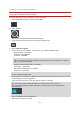


Table Of Contents
- Welcome to TomTom BRIDGE
- Starting TomTom BRIDGE
- Using gestures
- Apps on TomTom BRIDGE
- Connecting TomTom BRIDGE
- TomTom BRIDGE features
- Language
- Installing in your vehicle
- Charging TomTom BRIDGE
- TomTom BRIDGE not starting
- Take care of your navigation device
- Getting help
- Welcome to navigation with TomTom
- About TomTom services
- GPS reception
- What's on the navigation app screen
- Main Menu
- Using Quick Search
- Planning a route
- Planning a route to an address using search
- Planning a route to a city center
- Planning a route to a POI using search
- Planning a route using the map
- Planning a route using My Places
- Planning a route using coordinates
- Planning a route using a mapcode
- Finding an alternative route
- Planning a route in advance
- Finding a parking lot
- Finding a gas station
- Changing your route
- My Routes
- Traffic
- Safety Cameras
- My Places
- Settings
- Getting Help
- Using the External Camera app
- Using the TomTom Music app
- Addendum
- Copyright notices

51
Tip: You can switch between seeing the results on the map or in a list by selecting the
list/map button:
5. Select a POI type or an individual POI. If you selected a POI type, select a POI.
The location is shown on the map.
6. To plan a route to this destination, select the drive button:
A route is planned and then guidance to your destination begins. As soon as you start driving,
the guidance view is shown automatically.
Tip: If your destination is in a different time zone, you see a plus (+) or a minus (-) sign and
the time difference in hours and half hours in the arrival information panel. The estimated
time of arrival is the local time at your destination.
Tip: You can add a stop to a route that you have already planned.
Tip: You can save a route using My Routes.
Planning a route using the map
Important: In the interest of safety and to avoid distractions while you are driving, you should
always plan a route before you start driving.
To plan a route using the map, do the following:
1. Move the map and zoom in until you can see the destination that you want to navigate to.
Tip: You can also select a map symbol to open the pop-up menu, then select the drive button
to plan a route to that location.
2. When you have found your destination on the map, select it by pressing and holding the screen
for about one second.