
Operating Instructions


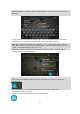


Table Of Contents
- Welcome to TomTom BRIDGE
- Starting TomTom BRIDGE
- Using gestures
- Apps on TomTom BRIDGE
- Connecting TomTom BRIDGE
- TomTom BRIDGE features
- Language
- Installing in your vehicle
- Charging TomTom BRIDGE
- TomTom BRIDGE not starting
- Take care of your navigation device
- Getting help
- Welcome to navigation with TomTom
- About TomTom services
- GPS reception
- What's on the navigation app screen
- Main Menu
- Using Quick Search
- Planning a route
- Planning a route to an address using search
- Planning a route to a city center
- Planning a route to a POI using search
- Planning a route using the map
- Planning a route using My Places
- Planning a route using coordinates
- Planning a route using a mapcode
- Finding an alternative route
- Planning a route in advance
- Finding a parking lot
- Finding a gas station
- Changing your route
- My Routes
- Traffic
- Safety Cameras
- My Places
- Settings
- Getting Help
- Using the External Camera app
- Using the TomTom Music app
- Addendum
- Copyright notices

39
Near me
Select this option to search with your current GPS location as the
search center. The results are ranked by distance.
In town or city
Select this option to use a town or city as the center for your search.
You need to enter the town or city name using the keyboard. When
you have selected the town or city from the results list, you can
search for an address or POI in that city.
Along route
When a route has been planned, you can select this option to search
along your route for a specific type of location, for example, gas
stations. When prompted, enter the type of location and then select it
in the right-hand column to carry out the search.
Near destination
When a route has been planned, you can select this option to use your
destination as the center for your search.
Latitude Longitude
Select this option to enter a pair of latitude longitude coordinates.
4. View button.
Select this button to return to the map view or guidance view.
5. List/map button.
Select this button to switch between showing the results in a list or showing the results on the
map.
6. Show/hide keyboard.
Select this button to show the keyboard. Hide the keyboard using the device's back function.
Tip: To cancel a search, select the map/guidance view button in the top right-hand corner of the
screen.
Working with search results
Your search results are shown in two columns.
Address and city matches are shown in the left-hand column, and POIs, types of POIs and Places are
shown in the right-hand column.
Tip: To see more results, hide the keyboard or swipe the results list to scroll it.