
Operating Instructions




Table Of Contents
- Welcome to TomTom BRIDGE
- Starting TomTom BRIDGE
- Using gestures
- Apps on TomTom BRIDGE
- Connecting TomTom BRIDGE
- TomTom BRIDGE features
- Language
- Installing in your vehicle
- Charging TomTom BRIDGE
- TomTom BRIDGE not starting
- Take care of your navigation device
- Getting help
- Welcome to navigation with TomTom
- About TomTom services
- GPS reception
- What's on the navigation app screen
- Main Menu
- Using Quick Search
- Planning a route
- Planning a route to an address using search
- Planning a route to a city center
- Planning a route to a POI using search
- Planning a route using the map
- Planning a route using My Places
- Planning a route using coordinates
- Planning a route using a mapcode
- Finding an alternative route
- Planning a route in advance
- Finding a parking lot
- Finding a gas station
- Changing your route
- My Routes
- Traffic
- Safety Cameras
- My Places
- Settings
- Getting Help
- Using the External Camera app
- Using the TomTom Music app
- Addendum
- Copyright notices
38
A route is planned and then guidance to your destination begins. As soon as you start driving,
the guidance view is shown automatically.
Tip: If your destination is in a different time zone, you see a plus (+) or a minus (-) sign and
the time difference in hours and half hours in the arrival information panel. The estimated
time of arrival is the local time at your destination.
Tip: You can add a stop to a route that you have already planned.
Tip: You can save a route using My Routes.
Entering search terms
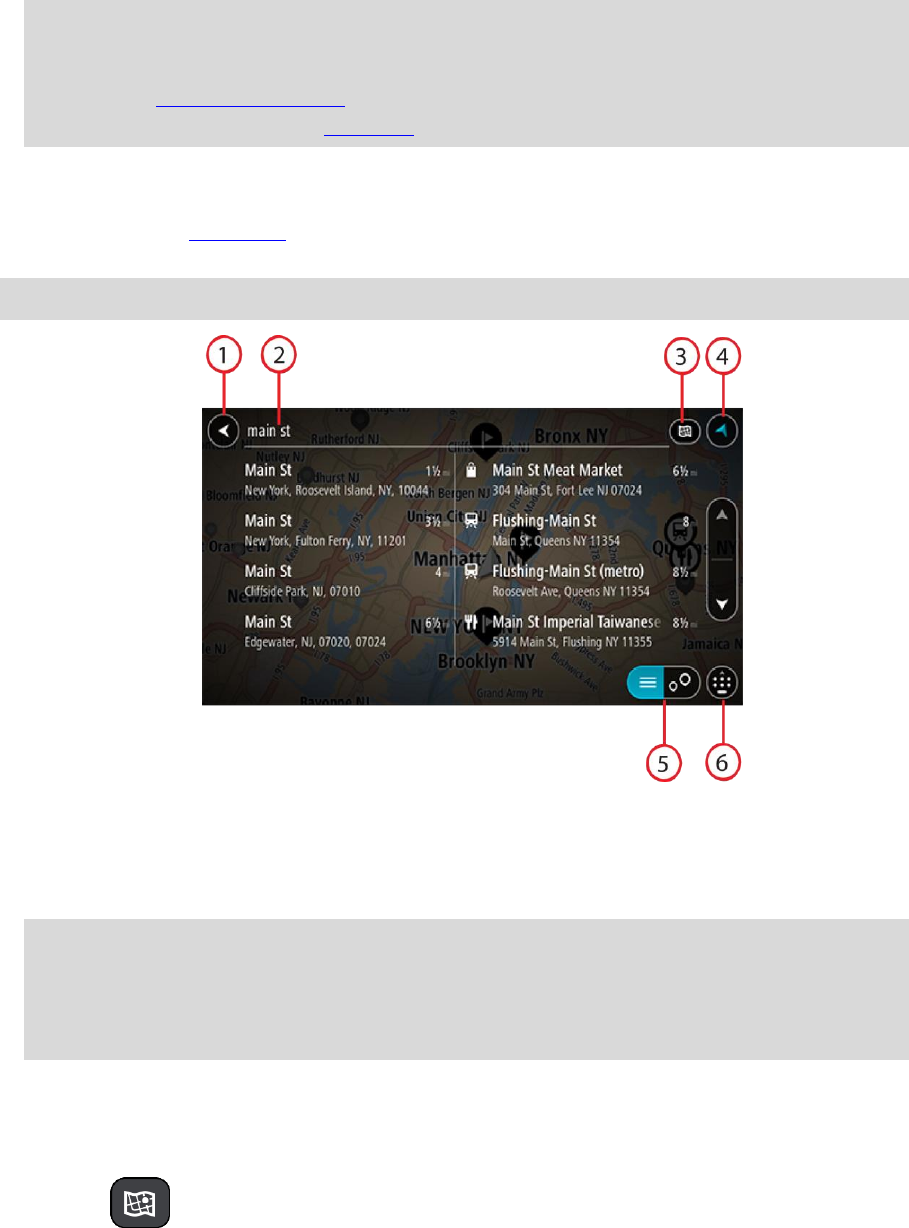
Select Search in the Main menu to start searching for addresses and POIs. The search screen opens
showing the device keyboard and the following buttons:
Tip: Hide the device keyboard to show the whole search screen.
1. Back button.
Select this button to go back to the previous screen.
2. Search input box.
Enter your search term here. As you type, matching addresses and POIs are shown.
Tip: If you press and hold a letter key on the keyboard, you get access to extra characters if
they are available. For example, press and hold the letter "e" to access characters 3 e è é ê ë
and more.
Tip: To edit, select a word you have already typed to place the cursor. You can then insert or
delete characters.
3. Type of search.
By default, the whole of the current map is searched. Once you have used search, the last
search type you selected is used. Select this button to change the type of search to any of the
following:
Whole map
Select this option to search the whole of your current map with no
limit to the search radius. Your current location is the center of the
search. The results are ranked by exact match.