
Operating Instructions and Installation Instructions

Chapter 4
Internet Connection Troubleshooting
32
E-DOC-CTC-20051017-0035 v1.0
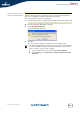
In Mac OS X:
1 Go to Dock > System Preferences.
2 Click Network.
3 Click the TCP/IP tab.
Your IP address is displayed.
No dedicated firewall device or router is placed between your computer and
the SpeedTouch™.
No personal firewall software is running on your computer.
Your computer is correctly connected to the SpeedTouch™.
To repeat the search for your SpeedTouch™, click Back or restart the wizard. As
soon as the wizard finds your SpeedTouch™, you can continue with “ Configuring
the SpeedTouch™ (and your computer)” on page 14.
The SpeedTouch™ is not
responding
If the completing window does not appear after running the SpeedTouch™ Home
Install Wizard, this means that the SpeedTouch™ is not responding or not
accessible anymore.
There are two possibilities:
This might be due to the reconfiguration of the SpeedTouch™’s IP settings. In
this case, the last window of the Home Install Wizard will not be shown. Your
SpeedTouch™ is correctly set up though and you will be able to surf the
Internet.
If you did not reconfigure the SpeedTouch™’s IP settings, restart the Home
Install Wizard.
If the problem persists, refer to the Service Provider’s instructions for more
information.
I cannot view the
SpeedTouch™
documentation
To be able to view the SpeedTouch™ documentation pages on the Setup CD,
JavaScript must be enabled in your Web browser. For more information, refer to the
Help of your Web browser.
To allow active content on a Microsoft Windows XP system, see “ I get a warning
about active content in Internet Explorer” on page 33.
If the setup fails over a wireless connection, try to set up your
SpeedTouch™ using a wired connection.