
Operating Instructions and Installation Instructions

Chapter 4
Internet Connection Troubleshooting
26
E-DOC-CTC-20051017-0035 v1.0
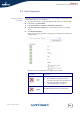
4.1 Checking the Hardware
Check the wiring Plug in properly all the cables you need. Make sure that the cables between your
SpeedTouch™, computers and telephone socket are plugged in firmly. Loose
connections can affect your Internet connection.
Damaged cables can interfere with your Internet connection. Check for damage along
the cables and loose connections at the end of the cable. Replace any damaged
cables.
Test the telephone line To eliminate the possibility of a fault with the telephone line itself, check for a
dialling tone by using a telephone connected to the telephone master socket.
If you are using ADSL, check whether a splitter has been installed or that micro-
filters have been correctly fitted.
Contact your telephone company if there is no dialling tone.
Restart your computer Loss of Internet or network connectivity may be caused by the computer. Restarting
your computer may solve the problem.
Power-cycle the
SpeedTouch™
To restart your SpeedTouch™, simply turn it off. Wait five seconds and turn it back
on.