
User's Manual



16
Activating Services
Activate the Advanced Cable Gateway
Wi-Fi Light Indicators on the Front Side of the Card
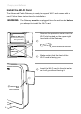
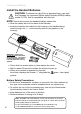
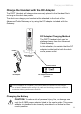
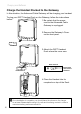
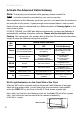
After the WiFi card is inserted and the Advanced Cable Gateway is plugged
back into the power outlet, you will know that the connection is successful
when the PWR LED on the front of the Wi-Fi Card shows a green light.
Also,whenyourstturntheGatewaybackon,theLink LED will blink a green
light - fast; when the card connects to the network sucessfully,
it will blink - slowly.
LED
label
Steady State Operation
ON OFF FLASH (Blinking)
Power
AC Power Good with
Good/Low/Bad Battery
AC Power Failure with
Bad Battery
AC Power Failure with
Good Battery/Low Bat-
tery
Battery
AC Power Good/
Good Battery
AC Power Good/
Bad Battery
AC Power Failure/
Good Battery/Bad Battery
AC Power Good/
Low Battery
AC Power Failure/
Low Battery
DS/US
Normal AC Power Failure
Initialization OR
Error (if Blinking persists)
Online
Normal AC Power Failure
Initialization OR
Error (if Blinking persists)
LINK
Ethernet/Wi-Fi Link No Ethernet/Wi-Fi Link Ethernet/Wi-FiTrafc
Tel
All Lines Good
Telephone lines(s) not
avialable
One or More Telephones
Off hook
WiFi Card LEDs
Note: To activate your advanced cable gateway, please consult the
activation instruction provided by your service provider.
After installation of the Gateway, each time you turn it on (each time the modem is
reconnected to the power), it goes through several steps before it can be used.
Each of these steps is represented by a different pattern of ashing lights on the
front of the modem.
IfDS/US,ONLINE,andLINKledsashsimultaneouslyitmeanstheGatewayis
automatically updating its system software. Please wait for the lights to stop
ashing. You cannot use your modem during this time. Do not remove the power
supply or reset the Gateway during this process.