
User's Manual







46
Using the Handset
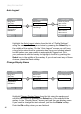
Auto Logout
Highlight the Auto Logoutchoicefromthelistof“ProleSettings”
using the navkey.ConrmyourchoicebypressingtheSelect key in
the middle of the navkey. On the “Auto Logout” screen you will have
a long list to select from to customize how long your handset should
beidlebeforeyouruserproleisautomatically logged out. Pick
your preference with the navkeytohighlight;conrmbypushingthe
Select key in the middle of the navkey. If you do not want any of these
choices, press the Back softkey.
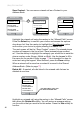
Change Display Name
Highlight Change Display Name from the list using the navkey and
conrmthatchoicebypressingtheSelect key in the middle of the
navkey. In the “Display Name” screen just type the new display name.
If you need to change the text entered, just use the Delete softkey.
Push the Ok softkeywhenyouarenished.
Back
Settings
Ring Tone
Set Time
Profile Settings
Phone Settings
Registration
Handset 1
DeleteOk
Display Name
Enter Display Name:
Thomas
Back
Settings
Delete User
Auto Logout
Change Display Name
VM Settings
Back
Settings
Delete User
Auto Logout
Change Display Name
VM Settings
Back
Settings
Ring Tone
Set Time
Profile Settings
Phone Settings
Registration
Handset 1
Back
Auto Logout
Never log me off
After 15 mts
After 30 mts
After 1 hour
After 2 hours
After 4 hours
After 8 hours